
Ceridian Dayforce - Update Employee
Ceridian Dayforce - Update Employee updates user records in Ceridian Dayforce for:
- Users returned by the selected query or assets selected on the relevant asset page.
See Creating Enforcement Sets to learn more about adding Enforcement Actions to Enforcement Sets.
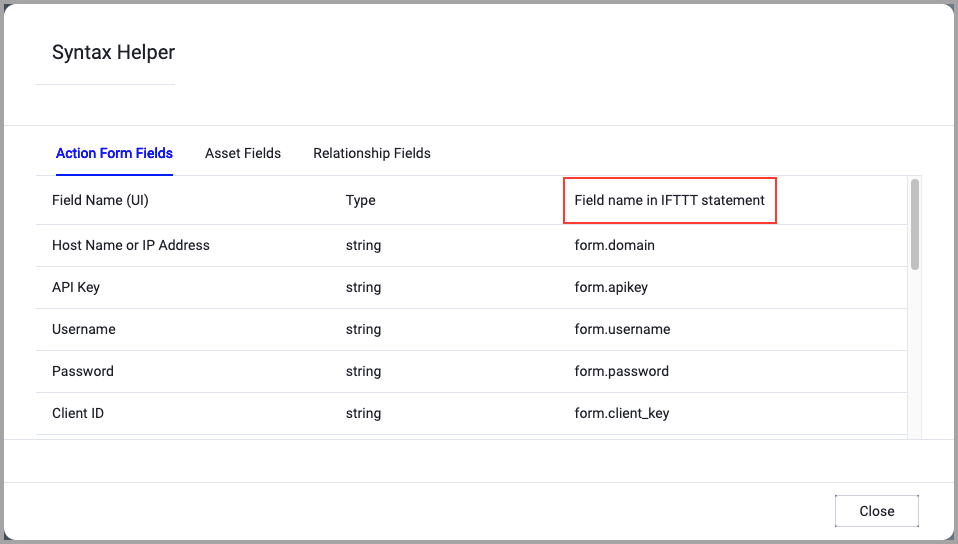
When accessing an enforcement action using the API, you must use the backend form of field names.
Use the Syntax Helper to find the correct name. In the enforcement action, enable Configure Dynamic Values and select Syntax Helper.
Note
- Not all asset types are supported for all Enforcement Actions.
- See Actions supported for Activity Logs, Adapters Fetch History, and Asset Investigation modules.
- See Actions supported for Aggregated Security Findings.
- See Actions supported for Software.
Required Fields
These fields must be configured to run the Enforcement Action.
- Action name - The name of this Enforcement Action. The system sets a default name. You can change the name.
- Configure Dynamic Values (optional) - Toggle on to enter a Dynamic Value statement. See Creating Enforcement Action Dynamic Value Statements to learn more about Dynamic Value statement syntax.
-
Use stored credentials from the Ceridian Dayforce adapter - Select this option to use credentials from the adapter connection. By default, the first connection is selected.
-
When you select this option, the Select Adapter Connection drop-down becomes available. Select the adapter connection to use for this Enforcement Action.
To use this option, you must successfully configure a Ceridian Dayforce adapter connection.
-
-
Initial Request Body - This is a JSON field where you can define static values and use placeholders.
The placeholders are dynamically replaced with corresponding values defined in the Map user fields to request body dynamically using placeholders field described below.For example, suppose this is the JSON body of the Initial Request Body field:
{
   "Contacts":{
      "Items":[
         {
            "ContactInformationType":{
               "XRefCode":"HomePhone"
            },
            "ContactNumber":"$ContactNumberPlaceHolder",
            "Country":{
               "XRefCode":"USA"
            }
         }
      ]
   }
}
You would then use the dynamic mapping in the Map user fields to request body dynamically using placeholders field to replace '$ContactNumberPlaceHolder' with the value of another field.
-
Compute Node - The Axonius node to use when connecting to the specified host. For more details, see Working with Axonius Compute Nodes.
Additional Fields
These fields are optional.
Connection and CredentialsWhen Use stored credentials from the adapter is toggled off, some of the connection fields below are required to create the connection, while other fields are optional.
- Host Name or IP Address - The hostname or IP address of the Ceridian Dayforce server.
- Client Namespace - Specify the Client Namespace of the Ceridian Dayforce server.
- Use the redirect URI to receive the response - The adapter needs to connect to a version-specific URL to function. When the Ceridian Dayforce cloud application is updated, this URL can change. When the adapter tries to connect to the outdated URL, it receives an error message that includes the new redirect URL.
- When this option is enabled, the adapter automatically detects the new URL in the error message and uses it to update the Host Name or IP Address field in the adapter's connection. This means that the adapter continues to work without any manual intervention.
- When this option is disabled, the adapter’s connection breaks whenever the URL changes. To restore connectivity, you must copy the new URL from the error message and update the adapter's connection settings yourself.
- User Name and Password - The credentials for a user account that has the permissions to fetch assets.
Verify SSL (Optional) (default: enabled) - Selects whether to verify the SSL certificate of the server against the CA database inside of Axonius. For more details, see SSL Trust & CA Settings. This setting is enabled by default on all new adapter settings. If you need to disable SSL verification, make sure you disable this setting.)
HTTPS Proxy (optional) - Connect the adapter to a proxy instead of directly connecting it to the domain.
HTTPS Proxy Password (optional) - The password to use when connecting to the server using the HTTPS Proxy.
HTTPS Proxy User Name (optional) - The user name to use when connecting to the server using the HTTPS Proxy.
Gateway Name - Select the Gateway through which to connect to perform the action.
-
Map user fields to request body dynamically using placeholders - Use this field to map Axonius fields into the JSON body of the request in the Initial Request Body field described above. See Axonius to External Field Mapping for how to use the mapping feature.

APIs
Axonius uses the Ceridian Dayforce API.
Required Permissions
The stored credentials, or those provided in Connection and Credentials, must have the necessary permissions to perform this enforcement action.
For more details about other enforcement actions available, see Action Library.
Updated 11 months ago