
Logitech Sync
Logitech Sync is a device management platform that provides remote monitoring, configuration and firmware updates for conferencing and workspace devices via a unified web interface.
The Logitech Sync adapter provides Axonius with unified visibility into conferencing and workspace device health, firmware status, and room associations to ensure consistent performance across all managed environments.
Asset Types Fetched
- Devices
Data Retrieved through the Adapter
The adapter retrieves information regarding conferencing and workspace hardware. The retrieved data may include:
- Devices - Hardware identification (ID, name), firmware versions, serial numbers, and real-time health status.
- Room Associations - Metadata about the physical workspace, such as room names, organizational groups, and locations.
Before You Begin
Required Ports
- TCP port 443
Authentication Methods
- Organization ID
- Client Certificate
- Private Key
Required Permissions
The connection requires a Client Certificate and Private Key generated by a user with the Sync Admin role, which provides the high administrative privileges necessary to access organizational device data. See Generating the API Certificate.
APIs
Axonius uses the Logitech Sync Cloud API to retrieve asset data.
Generating the API Certificate
- Log in to the Logitech Sync Cloud portal with an administrator account.
- Navigate to System and select the Sync Cloud API tab.
- Click Generate new certificate.
- Securely download and store both the Client Certificate and the Private Key files.
- Locate and record your Organization ID (Org ID) from same page.
Supported from Version
This adapter is supported from Axonius version 8.0.11.
Connection Parameters
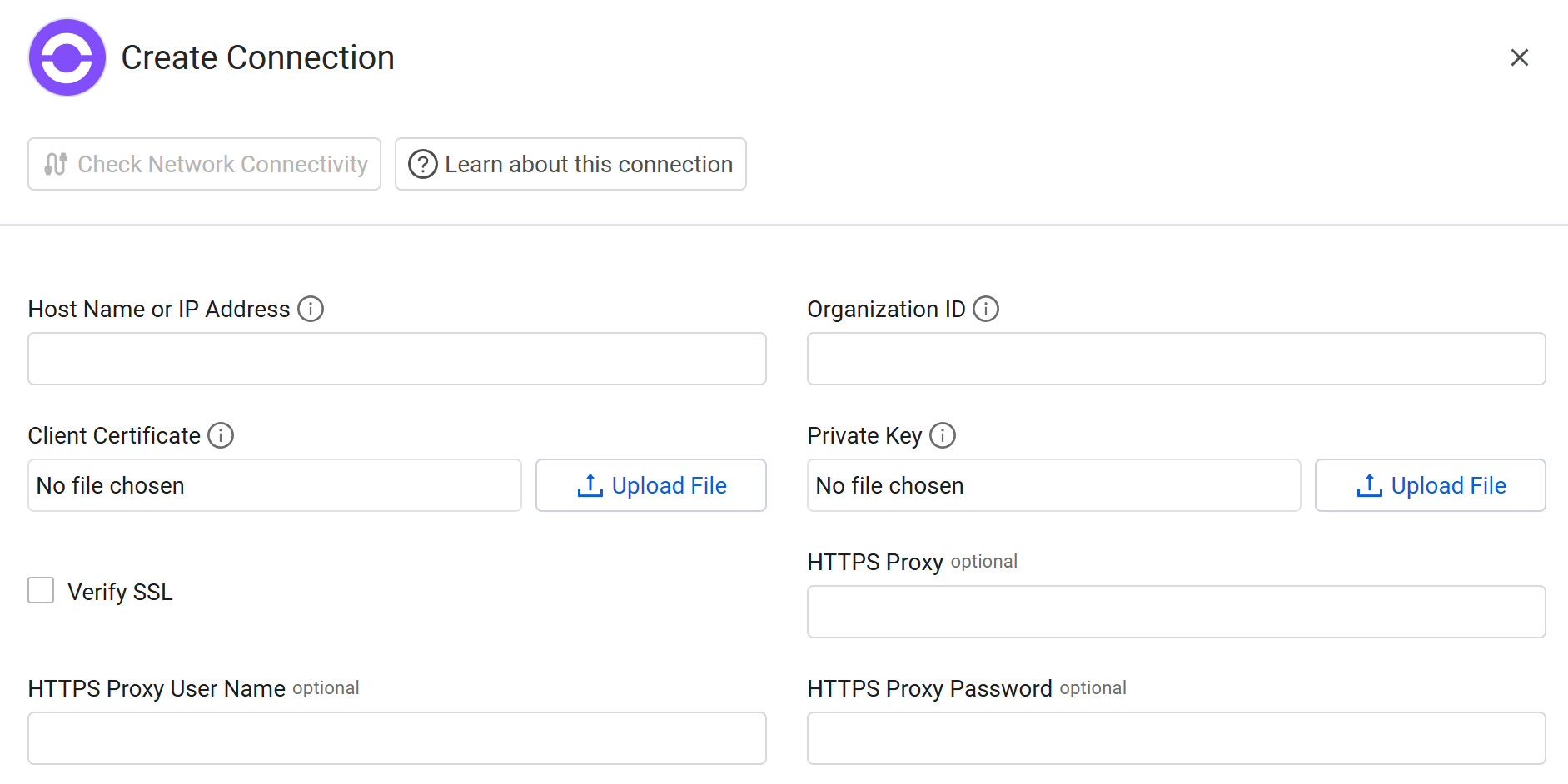
To connect the adapter in Axonius, provide the following parameters.
Required Parameters
- Host Name or IP Address - Enter the hostname of the Logitech Sync API server.
- Organization ID - Enter the unique Organization ID retrieved from the Logitech Sync Portal.
- Client Certificate - Upload the certificate file obtained from the Logitech Sync Portal.
- Private Key - Upload the corresponding private key file for the client certificate.
Optional Parameters
-
Verify SSL - Select whether to verify the SSL certificate of the server against the CA database inside of Axonius. For more details, see SSL Trust & CA Settings.
-
HTTPS Proxy - Enter an HTTPS proxy address to connect the adapter to a proxy instead of directly connecting it to the domain.
-
HTTPS Proxy User Name - Enter the user name to use when connecting to the value supplied in Host Name or IP Address via the value supplied in HTTPS Proxy.
-
HTTPS Proxy Password - Enter the password to use when connecting to the server using the HTTPS Proxy.
To learn about additional optional/common adapter connection parameters, see Adding a New Adapter Connection.
Updated 9 months ago