
My Workforce
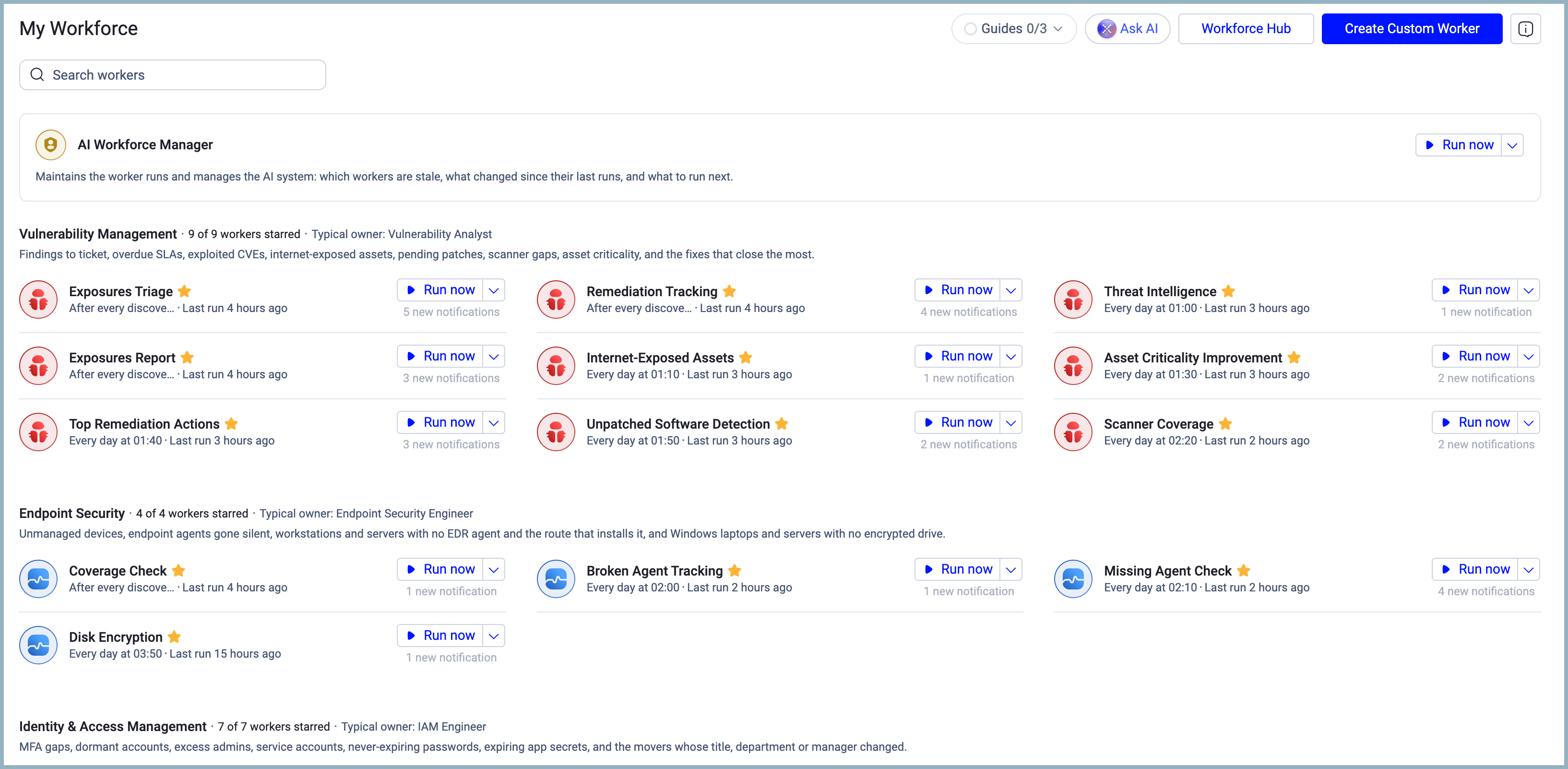
Use My Workforce to monitor and run the workers you follow and review their latest findings.
My Workforce shows only the workers you follow, grouped by department. Workers you don't follow don't appear here. To see all available workers and follow new ones, go to the Workforce Hub.
Permissions
- To open My Workforce, your role needs the AI Agents > View and interact permission.
- To run a worker with Run now, your role needs the View and interact permission.
- To change a worker's status, Approved Actions, or Standing instructions, your role needs the Configure AI system settings permission.
- To change the AI Workforce cadence, your role needs the Manage the AI Workforce permission.
Opening My Workforce
In the sidebar, hover over AI Workforce, and then select My Workforce.
You can also open My Workforce from the header of the other AI Workforce pages.
Searching for a Worker
To find a worker in My Workforce, enter its name in the Search workers field at the top of the page. My Workforce filters the list as you type.
Following and Unfollowing Workers
Follow a worker to add it to My Workforce and include its notifications in the Followed view of the Notifications page.
To follow a worker:
- In the sidebar, hover over AI Workforce, and then select Workforce Hub.
- Locate the worker you want to follow.
- Select the star next to the worker's name. The tooltip reads Follow.
The worker now appears in My Workforce under its department. Each department heading counts the workers you follow in that department, for example, 2 of 9 workers followed.
To unfollow a worker:
- In My Workforce, locate the worker you want to unfollow.
- Select the filled star next to the worker's name. The tooltip reads Unfollow.
The message "<worker name> removed from My Workforce" appears, and the worker no longer appears in My Workforce. To keep following the worker, select Undo.
When you unfollow all workers in a category, the category no longer appears on the page. When you follow no workers, the page shows No followed workers yet.
See Following Workers.
AI Workforce Manager
The AI Workforce Manager appears at the top of My Workforce, above the category sections. It runs automatically after every discovery cycle and tells you which workers are stale, what changed since their last runs, and what to run next.
The AI Workforce Manager has its own page. See Using the AI Workforce Manager.
Worker Categories
Workers are grouped into departments such as Vulnerability Management, Endpoint Security, and Identity & Access Management. Each category heading shows two pieces of information:
- The number of workers you follow in that department out of the total, for example "9 of 9 workers followed".
- The typical owner role for that category's workers, for example "Typical owner: Vulnerability Analyst".
The departments and the workers within them appear in catalog order.
Worker Cards
Each worker in My Workforce appears as a card. The card shows the following information:
- The worker icon and name.
- A star icon. A filled star means you follow the worker. To unfollow the worker, select the star (Unfollow).
- A short description of what the worker checks. Long descriptions are truncated.
- Run now — runs the worker immediately outside its scheduled cadence. See Running a Worker.
- A dropdown arrow next to Run now — opens additional run options.
- A notification badge, for example "1 new notification" or "2 new notifications". The badge shows the number of unread notifications from the worker's runs. It doesn't appear when the worker has no unread notifications.
- The worker's schedule and the time of its last run, for example "Every day at 01:00 · Last run 2 hours ago" or "After every discovery cycle · Last run an hour ago".
To open the worker's detail page, select the worker card. See Viewing Worker Details.
Worker Card Empty States
- When a followed worker has never run, the card shows "Not run yet" in place of the last run time.
- When you follow no workers, My Workforce shows "No followed workers yet" with a Find workers link that opens the Workforce Hub.
- When you follow a worker that isn't configured yet, My Workforce shows "No workers set up yet" with a Set up a worker link.
Running a Worker
You can run any followed worker immediately, without waiting for its scheduled run.
To run a worker:
- In My Workforce, locate the worker you want to run.
- Select Run now.
Axonius runs the worker and updates the Last run time on the card when the run completes. New notifications appear in the notification badge on the card and in the Followed view of the Notifications page.
To run the worker with additional options, select the dropdown arrow next to Run now. While the worker is running, the dropdown includes Open run. It also includes Schedule, which opens the Add Custom Worker drawer pre-filled with the worker's settings.
Your Custom Workers
The Your custom workers section appears below the department sections. It lists the custom workers you created.
To create a new custom worker, select Add Custom Worker in this section, or select Create Custom Worker in the page header. See Creating a Custom Worker.
Viewing Worker Details
Select a worker card to open its detail page. See Viewing Worker Details.
Updated 3 days ago