
Google Workspace - Manage Chrome Extension
Google Workspace - Manage Chrome Extension sets the Chrome extension installation policy for assets returned by the selected query or selected on the relevant asset page. It can apply the policy to an Organizational Unit (OU), a Google Group, or the target derived from each asset.
- Assets returned by the selected query or assets selected on the relevant asset page.
See Creating Enforcement Sets to learn more about adding Enforcement Actions to Enforcement Sets.
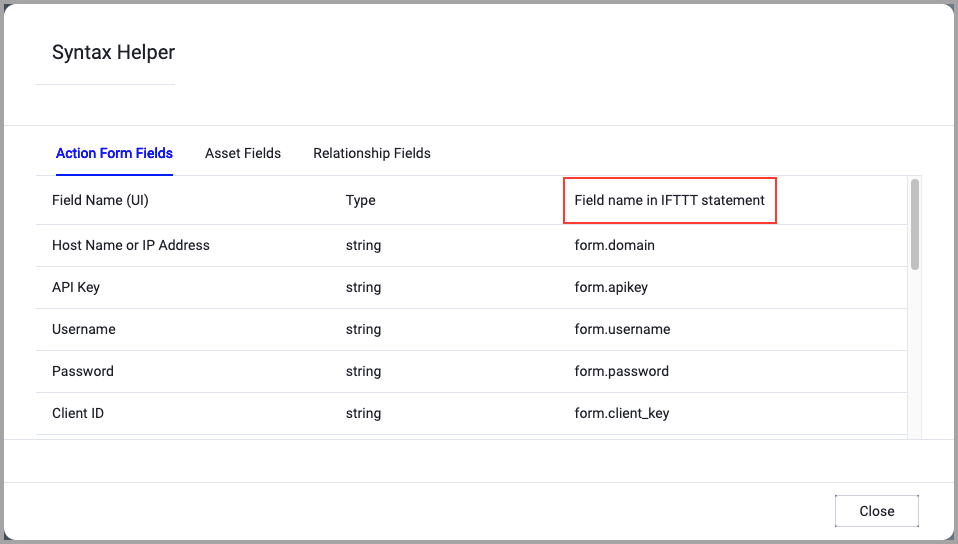
When accessing an enforcement action using the API, you must use the backend form of field names.
Use the Syntax Helper to find the correct name. In the enforcement action, enable Configure Dynamic Values and select Syntax Helper.
Note
- Not all asset types are supported for all Enforcement Actions.
- See Actions supported for Activity Logs, Adapters Fetch History, and Asset Investigation modules.
- See Actions supported for Aggregated Security Findings.
- See Actions supported for Software.
Required Fields
These fields must be configured to run the Enforcement Action.
- Action name - The name of this Enforcement Action. The system sets a default name. You can change the name.
- Configure Dynamic Values (optional) - Toggle on to enter a Dynamic Value statement. See Creating Enforcement Action Dynamic Value Statements to learn more about Dynamic Value statement syntax.
- Use stored credentials from the Google Workspace adapter - Select this option to use credentials from the adapter connection. By default, the first connection is selected.
-
When you select this option, the Select Adapter Connection drop-down becomes available. Select the adapter connection to use for this Enforcement Action.
- Policy Target Type (The Policy Applies To ALL Users In The Target) - Select one of the following targets. The default is Auto (from asset):
- Auto (from asset) - Uses each asset's Google Workspace user's OU, ChromeOS device OU, or—when the action runs on Group assets—the Google Group. Assets without a target fail. Auto mode does not apply policies to the root OU (
/). - Organizational Unit - Applies the policy to all users in the specified OU.
- Group - Applies the policy to all users in the specified Google Group.
- Auto (from asset) - Uses each asset's Google Workspace user's OU, ChromeOS device OU, or—when the action runs on Group assets—the Google Group. Assets without a target fail. Auto mode does not apply policies to the root OU (
- Installation Policy - Select the extension policy to apply. The default is Block and uninstall.
- Block and uninstall - Blocks and uninstalls the Chrome extension.
- Block (keep installed, disabled), Allow, Force install, Force install and pin to toolbar, Install (user can remove), or Install and pin to toolbar (user can remove).
- Reset to inherited (remove override) - Removes the override so the parent OU policy applies. For a Group, this deletes the Group policy value. This option cannot be used for the root OU.
Additional Fields
These fields are optional.
- Organizational Unit Path / ID Or Group Email / ID (ALL Its Users Are Affected) - Required when Policy Target Type is Organizational Unit or Group; ignored for Auto (from asset). Enter an OU path such as
/Sales, the root OU/, an OU ID prefixed withid:, or a Google Group email or ID. - Chrome Extension ID - Overrides the selected asset's Application ID. Provide a 32-character, lowercase Chrome extension ID using characters
athroughp; thechrome:prefix is accepted.
Connection and CredentialsWhen Use stored credentials from the adapter is toggled off, some of the connection fields below are required to create the connection, while other fields are optional.
- Select an existing Google Workspace adapter connection, or provide the Google Workspace adapter connection and credential values required by the action.
Verify SSL (Optional) (default: enabled) - Selects whether to verify the SSL certificate of the server against the CA database inside of Axonius. For more details, see SSL Trust & CA Settings. This setting is enabled by default on all new adapter settings. If you need to disable SSL verification, make sure you disable this setting.)
HTTPS Proxy (optional) - Connect the adapter to a proxy instead of directly connecting it to the domain.
HTTPS Proxy User Name (optional) - The user name to use when connecting to the server using the HTTPS Proxy.
HTTPS Proxy Password (optional) - The password to use when connecting to the server using the HTTPS Proxy.
Gateway Name - Select the Gateway through which to connect to perform the action.
APIs
Axonius uses the Chrome Policy API to set Chrome extension installation policies for Organizational Units and Groups. It also uses the Chrome Policy API batch-inherit or batch-delete operation when you select Reset to inherited (remove override).
Required Ports
Axonius must be able to communicate via the following ports:
- TCP port 443 (HTTPS)
Required Permissions
The stored credentials, or those provided in Connection and Credentials, must have the following permission(s) to perform this Enforcement Action:
The following OAuth scopes are implemented for this action:
https://www.googleapis.com/auth/chrome.management.policy- Manage Chrome policies.https://www.googleapis.com/auth/admin.directory.orgunit.readonly- Resolve Organizational Units.https://www.googleapis.com/auth/admin.directory.user.readonly- Required for Auto (from asset) when resolving a user's OU.https://www.googleapis.com/auth/admin.directory.group.readonly- Required for Group targets, or for Auto-mode Group assets that do not provide a Group ID.
Use a Google Workspace adapter connection whose credential can use these scopes and, when applicable, impersonates an administrator who can manage Chrome policies.
To learn more about Enforcement Actions, see Enforcement Actions.
Updated 6 days ago