
Google Security Operations SIEM REST
Google Security Operations (formerly Chronicle) is a cloud-based SIEM platform built on Google infrastructure that enables security teams to store and analyze security data in one place and to detect, investigate, and respond to threats.
Use Cases the Adapter Solves
- Correlate SIEM security events with device inventory: Integrate Google Security Operations event data with your asset inventory to identify which devices are generating security events and correlate threat intelligence with asset context.
- Enrich device discovery with UDM event data: Use Unified Data Model (UDM) events to discover and enrich device information from security telemetry, providing visibility into assets that may not be detected by traditional discovery methods.
Asset Types Fetched
- Devices
Data Retrieved through the Adapter
Devices - Fields such as Hostname, Device Remote ID, Network Interfaces, Device Type
Before You Begin
Required Ports
- TCP port 443 (HTTPS)
Authentication Methods
OAuth 2.0 JWT Bearer Token Authentication
APIs
Axonius uses the Google Security Operations Chronicle API. The following endpoints are called:
POST https://oauth2.googleapis.com/token- Authenticates and retrieves an OAuth 2.0 access tokenGET /v1alpha/projects/{project}/locations/{location}/instances/{instance}/legacy:legacySearchArtifactEventsGET /v1alpha/projects/{project}/locations/{location}/instances/{instance}/:udmSearch
Required Permissions
The following permissions are required for the service account used by the adapter:
- Chronicle API Viewer (
roles/chronicle.viewer) - Provides read-only access to Chronicle API resources, which is sufficient for the adapter to retrieve asset and UDM event data.
Supported From Version
Supported from Axonius version 8.0.24.11
Setting Up Google Security Operations SIEM REST to Work with Axonius
To configure Google Security Operations to work with Axonius, you need to create a service account with the appropriate permissions and generate authentication credentials.
- Navigate to the Google Cloud Console and select your Google Security Operations project.
- Go to IAM & Admin > Service Accounts.
- Click Create Service Account.
- Enter a name and description for the service account (e.g., "Axonius Integration").
- Click Create and Continue.
- Under Grant this service account access to project, assign the Chronicle API Viewer role (
roles/chronicle.viewer). - Click Continue, then Done.
- Click on the newly created service account to view its details.
- Navigate to the Keys tab and click Add Key > Create new key.
- Select JSON as the key type and click Create.
- The JSON key file will be downloaded to your computer. Open this file to extract the following values:
- Client ID: Found in the
client_emailfield (this is the service account email) - Private Key: Found in the
private_keyfield (the entire RSA private key, including-----BEGIN PRIVATE KEY-----and-----END PRIVATE KEY-----)
- Client ID: Found in the
- Note your Google Security Operations project details:
- Project ID: Your Google Cloud project ID
- Location: The region where your Google Security Operations instance is deployed (e.g.,
us,europe-west1) - Instance ID: Your Google Security Operations instance identifier
- Store the Client ID and Private Key securely for use in Axonius.
Connecting the Adapter in Axonius
Navigate to the Adapters page, search for Google Security Operations SIEM REST, and click on the adapter tile.
Click Add Connection.
To connect the adapter in Axonius, provide the following parameters:
Required Parameters
- Host Name or IP Address - The base URL for the Google Security Operations API. Default:
https://us-chronicle.googleapis.com. Update this if your instance is in a different region. - Client ID - The service account email address from your Google Cloud service account JSON key file (the
client_emailfield). - Private Key - The RSA private key from your Google Cloud service account JSON key file (the entire
private_keyfield value, including the-----BEGIN PRIVATE KEY-----and-----END PRIVATE KEY-----markers). - Artifact Search Domain - Specify the artifact domain name associated with the assets you want to retrieve. This filters the artifact events by domain.
- Project - Your Google Cloud project ID where Google Security Operations is configured.
- Location - The geographic location/region where your Google Security Operations instance is deployed (e.g.,
us,europe-west1). - Instance - Your Google Security Operations instance identifier.
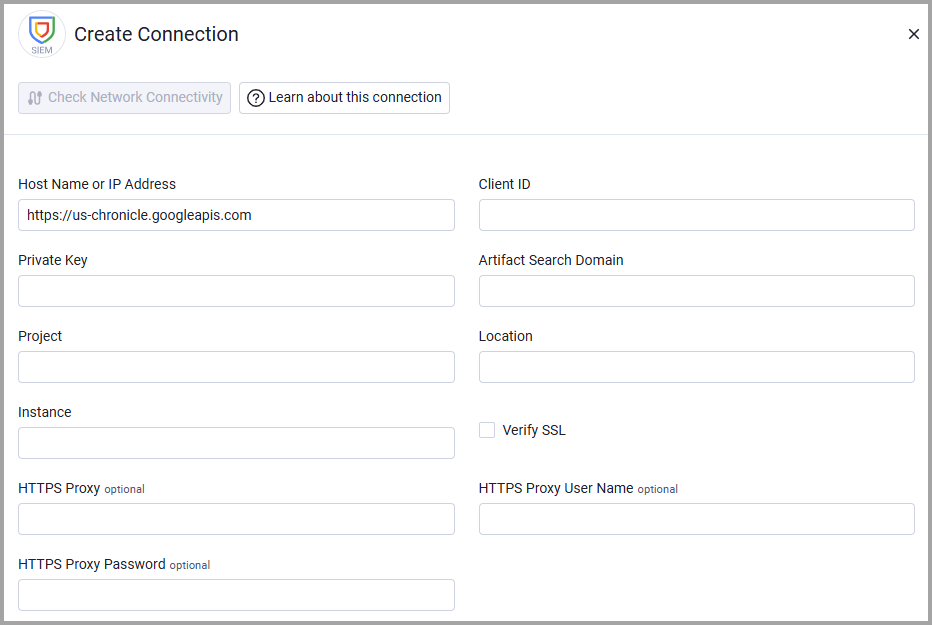
Optional Parameters
- Verify SSL - Select whether to verify the SSL certificate of the server against the CA database inside of Axonius. For more details, see SSL Trust & CA Settings.
- HTTPS Proxy - Connect the adapter to a proxy instead of directly connecting it to the domain.
- HTTPS Proxy User Name - The user name to use when connecting to the value supplied in Host Name or IP Address via the value supplied in HTTPS Proxy.
- HTTPS Proxy Password - The password to use when connecting to the server using the HTTPS Proxy.
To learn more about common adapter connection parameters and buttons, see Adding a New Adapter Connection.
Advanced Settings
Note: Advanced settings can either apply to all connections for this adapter, or to a specific connection. Refer to Advanced Configuration for Adapters. To learn more about Adapter Configuration tab advanced settings, see Adapter Advanced Settings.
Assets Endpoint
- Assets - Number of days to fetch - Specify the number of days of historical artifact event data to retrieve. Leave empty to fetch from all time. This controls the
timeRange.startTimeparameter for the artifact events endpoint. - Fetch Devices of sub type udm_events from UDM - Toggle on to enable the UDM (Unified Data Model) events endpoint.
- UDM - Query - Enter the UDM query string to filter events. This is required if the UDM endpoint is enabled.
- UDM - Number of days to fetch - Specify the number of days of historical UDM event data to retrieve. Leave empty to fetch from all time.
Updated 8 days ago