
Varonis (SQL)
Varonis is a data security platform that provides automated discovery, classification, threat detection, and remediation to protect sensitive data wherever it resides.
The Varonis (SQL) adapter provides Axonius with visibility into your publicly accessible assets, including data from its security platform centered around protecting enterprise data wherever it resides.
Asset Types Fetched
- Users
- Groups
- File Systems
- Secrets
- Permissions
Data Retrieved through the Adapter
The adapter retrieves information to provide visibility into your publicly accessible assets. The retrieved data for each asset type may include:
- Users - Data such as user identity, account status, and associated metadata.
- Groups - Data regarding group memberships and metadata.
- File Systems - Data such as share paths and object types.
- Secrets - Data regarding identified sensitive credentials or objects.
- Permissions - Data regarding access rights and assigned roles.
Before You Begin
Required Ports
- TCP Port 443 - For secure communication with the Varonis API.
- TCP Port 8888 - Used for specific API search and export operations, such as CSV exports.
Authentication Methods
- Integrated Windows Authentication - The adapter uses Negotiate or NTLM modes to authenticate using an Active Directory account that is also recognized as a DatAdvantage user.
Required Permissions
The adapter connection requires that the user account used to connect has the following permissions within the Varonis platform:
- Active Directory/SSRS Membership - The account must be present in these services to authenticate.
- Interactive Logon Privileges - Required to successfully establish a session with the API.
- Role-Based Access Control (RBAC) - The account must have assigned roles that permit viewing the specific reports requested by the adapter.
APIs
Axonius uses the Varonis Reports API to retrieve asset data via SQL-like queries contained within JSON objects. For more information, refer to the Varonis API Reference Guide.
Generating the Varonis (SQL) Credentials
- Ensure the Varonis environment is configured for the Reports API.
- Verify the user account is present in Active Directory/SSRS.
- Grant the user account interactive logon privileges to prevent unauthorized login attempt errors.
- Assign the specific roles required to view the requested reports within the Varonis platform.
- Ensure that the Axonius adapter service is installed on the Varonis DSP Server.
- Record the DatAdvantage username and password.
Supported from Version
This adapter is supported from Axonius version 8.0.12.
Connection Parameters
To connect the adapter in Axonius, provide the following parameters.
Required Parameters
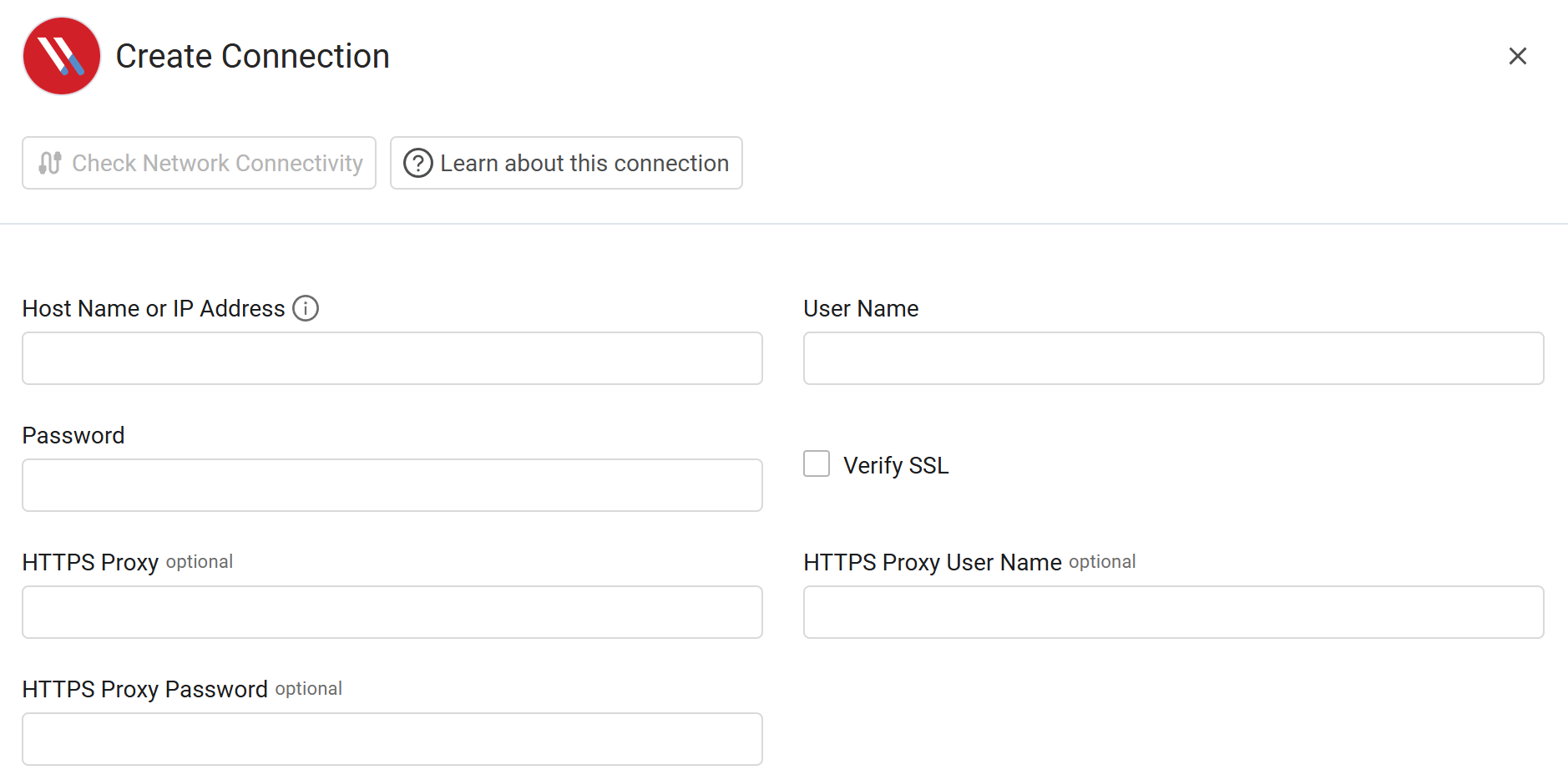
- Host Name or IP Address - Enter the address of the Varonis DSP Server.
- User Name - Enter the DatAdvantage username for the account with API access.
- Password - Enter the password associated with the username.
Optional Parameters
-
Verify SSL - Select whether to verify the SSL certificate of the server against the CA database inside of Axonius. For more details, see SSL Trust & CA Settings.
-
HTTPS Proxy - Enter an HTTPS proxy address to connect the adapter to a proxy instead of directly connecting it to the domain.
-
HTTPS Proxy User Name - Enter the user name to use when connecting to the value supplied in Host Name or IP Address via the value supplied in HTTPS Proxy.
-
HTTPS Proxy Password - Enter the password to use when connecting to the server using the HTTPS Proxy.
To learn about additional optional/common adapter connection parameters, see Adding a New Adapter Connection.
Advanced Settings
Note
- Advanced settings can apply to either all connections of this adapter, or to a specific connection. For more detailed information, see Advanced Configuration for Adapters.
- For more general information about advanced settings, see Adapter Advanced Settings.
Endpoint Configuration
Expand Endpoint Config to configure the following parameters:
- Fetch FileSystems from List File Systems Search Results Endpoint (default: false) - Select this option to enable the following options for fetching file system assets:
- Create File Systems Search Endpoint (for File Systems) - Includes the option below.
- File Systems Search Query (optional) - Enter an SQL-like query to retrieve file system data and apply context to the search results endpoint.
- Fetch Groups from List Groups Search Results Endpoint (default: false) - Select this option to enable the following options for fetching group assets:
- Create Groups Search Endpoint (for Groups) - Includes the option below.
- Groups Search Query (optional) - Enter an SQL-like query to retrieve group data and apply context to the search results endpoint.
- Fetch Permissions from List Permissions Search Results Endpoint (default: false) - Select this option to enable the following options for fetching permission assets:
- Create Permissions Search Endpoint (for Permissions) - Includes the option below.
- Permissions Search Query (optional) - Enter an SQL-like query to retrieve permission data and apply context to the search results endpoint.
- Fetch Secret from List Secrets Search Results Endpoint (default: false) - Select this option to enable the following options for fetching secret assets:
- Create Secrets Search Endpoint (for Secrets) - Includes the option below.
- Secrets Search Query (optional) - Enter an SQL-like query to retrieve secret data and apply context to the search results endpoint.
- Fetch Users from List Users Search Results Endpoint (default: false) - Select this option to enable the following options for fetching user assets:
- Create Users Search Endpoint (for Users) - Includes the option below.
- Users Search Query (optional) - Enter an SQL-like query to retrieve user data and apply context to the search results endpoint.
Parser Configuration
Expand Parser Config to configure the following parameters:
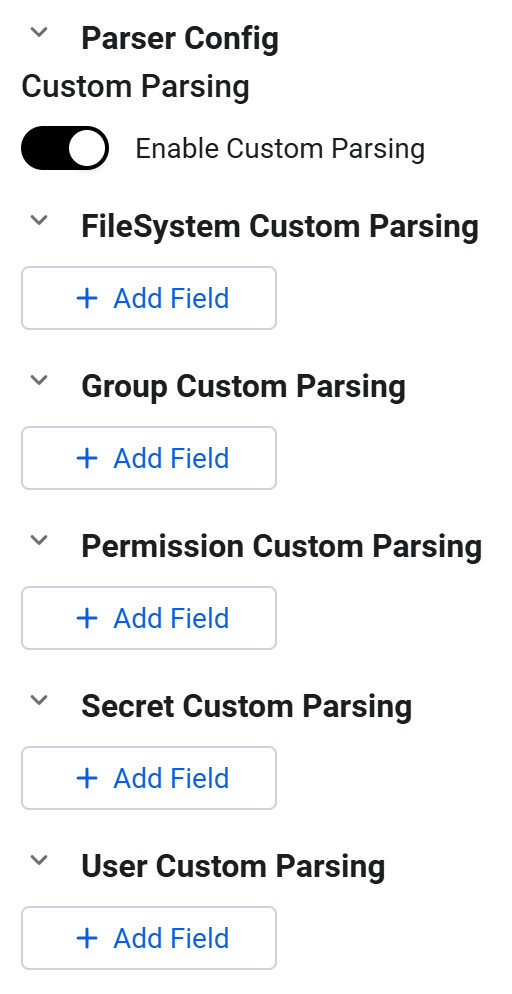
- Enable Custom Parsing (default: false) - Enable this option to activate the custom field mapping interface for all asset types (all the options that appear below).
- FileSystem Custom Parsing - Click + Add Field to define custom field mappings for file system assets. You can define more than one custom field, and you can remove a custom field by clicking the red
x. - Group Custom Parsing - Click + Add Field to define custom field mappings for group assets. You can define more than one custom field, and you can remove a custom field by clicking the red
x. - Permission Custom Parsing - Click + Add Field to define custom field mappings for permission assets. You can define more than one custom field, and you can remove a custom field by clicking the red
x. - Secret Custom Parsing - Click + Add Field to define custom field mappings for secret assets. You can define more than one custom field, and you can remove a custom field by clicking the red
x. - User Custom Parsing - Click + Add Field to define custom field mappings for user assets. You can define more than one custom field, and you can remove a custom field by clicking the red
x.
For each custom field added, provide the following details:

- Field Title - Select the Axonius field name from the provided dropdown.
- Raw Path - Enter the column name or JSON path from the raw SQL response. Use a pipe (
|) to separate nested keys (for example:key1|key2). - Type - Select the data type assigned to the field. This setting is ignored for common fields.
- Structure - Define if the field contains a single value or a list of values. This setting is ignored for common fields.
- Advanced Options (optional) - Click Open Advanced Options to open a pop-up box for configuring field hyperlinks, including:
-
Module - Select the Axonius module to link the field to.
-
AQL Expression - Enter an AQL expression to create a dynamic link. Use
VALUEas a placeholder for the field value.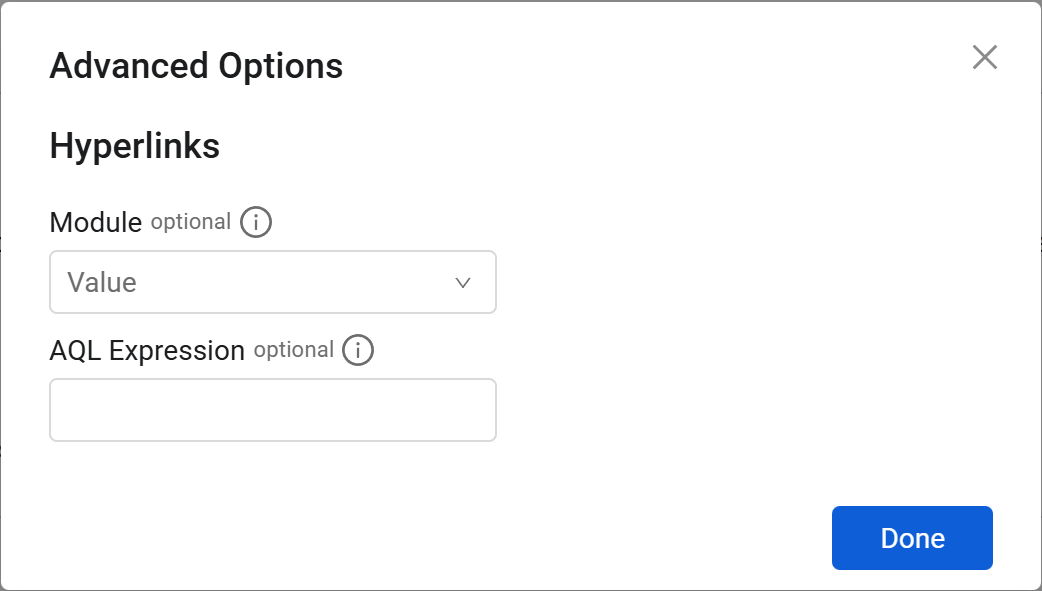
-
Updated 9 months ago