
Exports Page
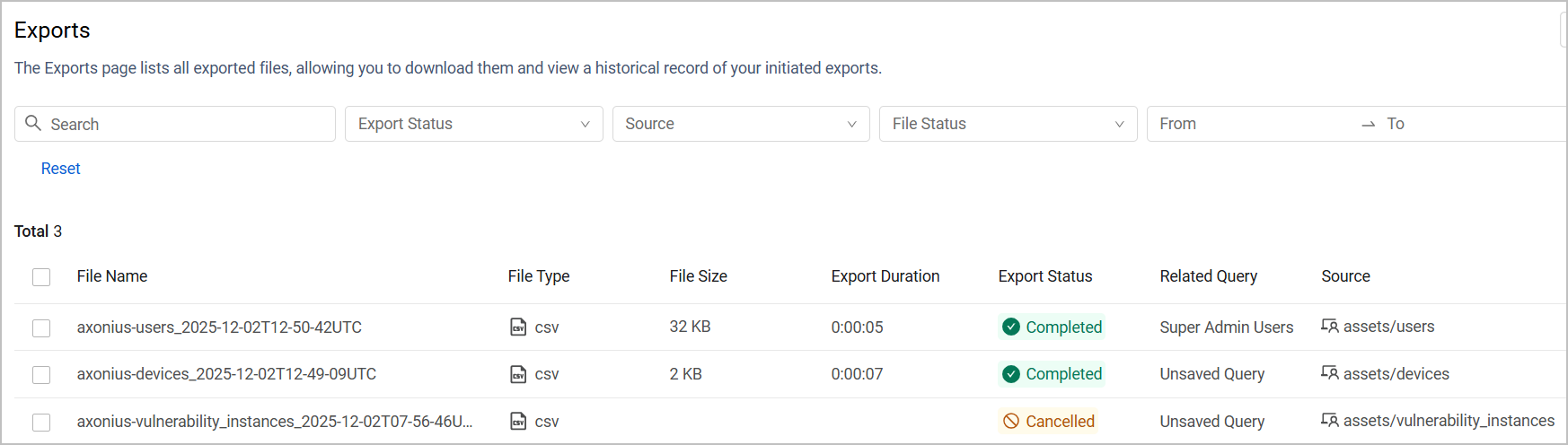
The Exports page lists all the exported CSV files. Use this page to view a historical record of your initiated exports, or download them to your machine.
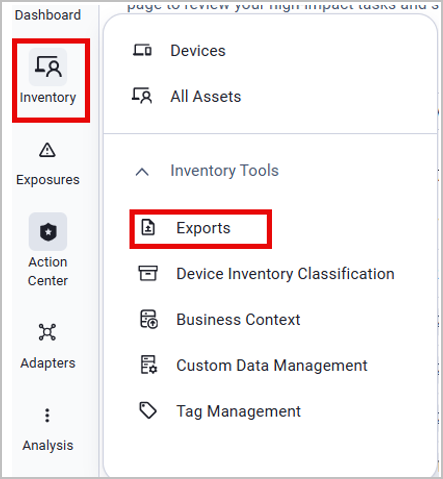
To access Exports page, from the platform's left navigation menu, select Exports (under Adapters).

In Axonius New Navigation Experience, access Exports from the Inventory menu, under Inventory Tools.
For each export, the following information is provided:
- File name, type and size
- The duration of the export process, and its generation time and date
- Export Status - Completed, Failed, In Progress, or Cancelled
- Related Query - The name of the query as it was at the time of the export. If the query's name was changed since then, it is not reflected in the table.
- Source - The Assets page from which the file was generated.
- File Status - Exports are available for downloads for a limited period of time. If the export is available for downloads, the time and date until it is available is displayed. Other options are Deleted (export was deleted from the table) or Expired (export is no longer available for download).
The Export Status, Source, File Status, and Generated On can also be used to filter the table results.
Actions
Canceling an Export
To cancel an export or multiple exports, select them and click the Cancel button, located above the table on the right.
You can only cancel exports that are pending or in progress.
Deleting an Export
To delete an export or multiple exports, select them and click the Delete button, located above the table on the right.
You can only delete exports that are completed and available for download.
Downloading an Export
To download an export, click the Actions (3 dots) button on the right side of the row and select Download. The deletion and cancelation buttons are also available there.
If the File Status of the export is Expired, it is no longer available for download.
Note
The file is only downloaded if the session remains open until export is complete. If the session was closed mid-export - due to a lack of internet connection or any other reason - the file is not automatically downloaded.
Updated 3 months ago