
The Axonius MCP Server - Beta - EA
This guide details how to integrate the Beta version of the Axonius Model Context Protocol (MCP) Server with your preferred AI agent (such as Claude, Augment, etc.). This integration enables AI-powered analysis, automation, and contextual querying directly against your cybersecurity asset inventory. It provides read-only capability.
Important
- Ensure compliance with your organization's AI guidelines.
- Axonius platform data will be fetched and processed by your AI tools.
Step 1: Create a Service Account enabled for the MCP server connection.
-
From the top right corner of any page, click
.png) . The System Settings page opens.
. The System Settings page opens. -
In the Categories/Subcategories pane of the System Settings page, expand User and Role Management, and select Service Accounts.
-
Click Add Service Account.
-
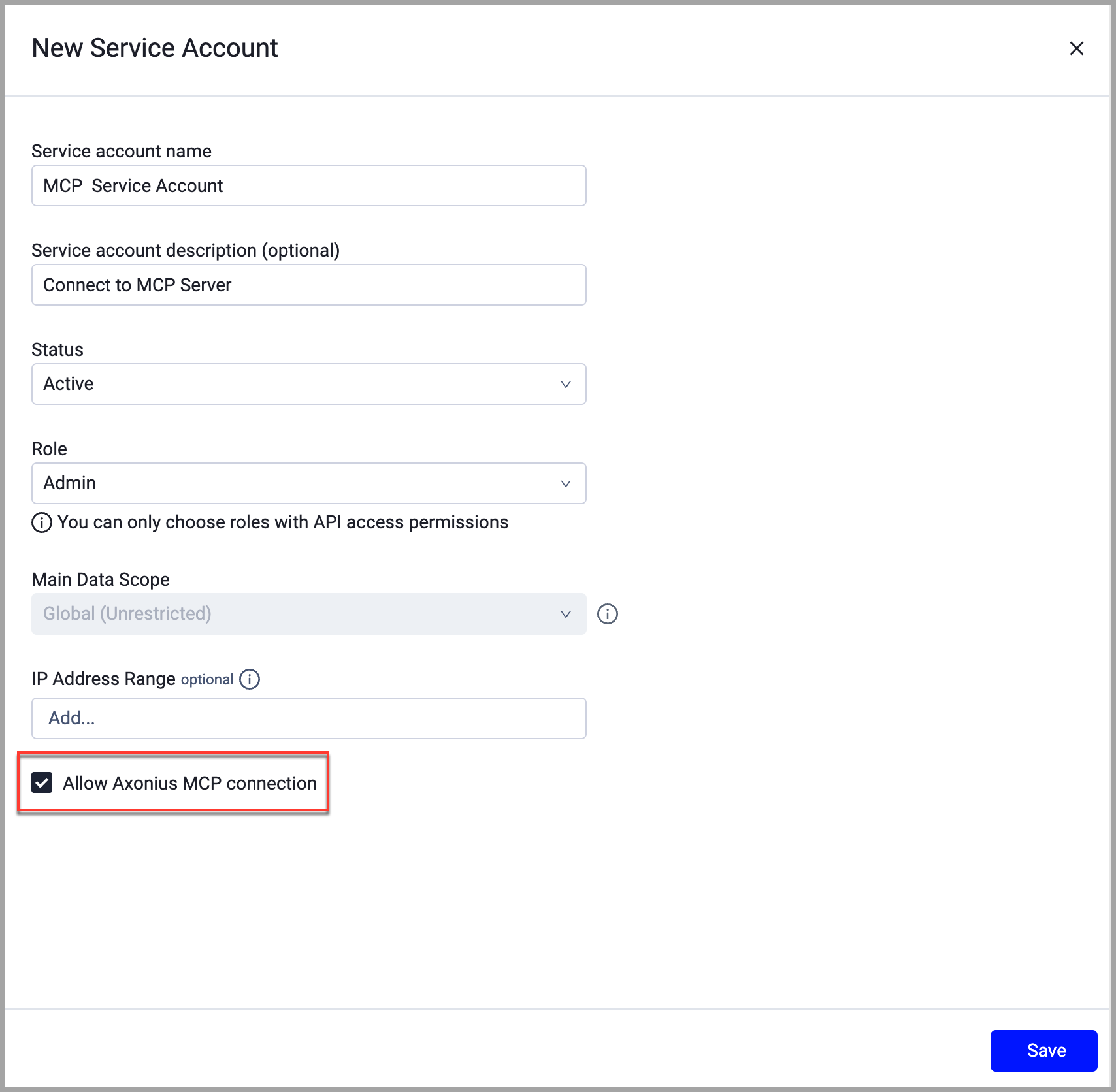
Fill in the account details and select Allow Axonius MCP connection. If you do not see the Allow Axonius MCP connection option, contact Axonius your account team.
-
Click Save.
Step 2: Add the Service Account Key and Secret
Follow these steps to set up the MCP Server on a macOS machine. This adds your service account API Key and API Secret to your Apple Keychain.
Step 1 - Run these methods in macOS Terminal after making these replacements:
- Replace
PASTE-KEY-HEREwith the API Key for the service account. - Replace
PASTE-SECRET-HEREwith the API Secret for the service account.
security add-generic-password -a axonius -s mcp-api-key -w "PASTE-KEY-HERE"
security add-generic-password -a axonius -s mcp-api-secret -w "PASTE-SECRET-HERE"
Step 2 - Add the MCP JSON configuration to your AI client config file
For example, in Claude:
- Open Claude Desktop.
- Click your username, then Settings, then Developer.
- Click Edit Config. The configuration file is selected in the file system.
- Open your configuration JSON in an editor and add the following:
"axonius": {
    "command": "/bin/sh",
    "args": [
      "-c",
      "npx mcp-remote@latest https://{your_instance_url}.axonius.com/mcp --transport http-first --header \"api-key: $(security find-generic-password -a axonius -s mcp-api-key -w)\" --header \"api-secret: $(security find-generic-password -a axonius -s mcp-api-secret -w)\""
    ]
}- Quit and reopen Claude Desktop.
Follow these steps to set up the MCP Server on a Windows machine.
Step 1: Install NodeJS
Run this command in Windows PowerShell:
winget install OpenJS.NodeJS.LTSStep 2: Store your credentials
Run the commands below in sequence in the Windows PowerShell after making these replacements:
- Replace
PASTE-KEY-HEREwith the API Key for the service account. - Replace
PASTE-SECRET-HEREwith the API Secret for the service account.
mkdir "$env:USERPROFILE\.axonius" -ForceConvertTo-SecureString 'PASTE-KEY-HERE' -AsPlainText -Force | ConvertFrom-SecureString | Set-Content "$env:USERPROFILE\.axonius\api-key.dpapi"ConvertTo-SecureString 'PASTE-SECRET-HERE' -AsPlainText -Force | ConvertFrom-SecureString | Set-Content "$env:USERPROFILE\.axonius\api-secret.dpapi"icacls "$env:USERPROFILE\.axonius" /inheritance:r /grant:r "${env:USERNAME}:(OI)(CI)F"Step 3: Add the MCP JSON configuration to your AI client config file
For example, in Claude:
- Open Claude Desktop.
- Click your username, then Settings, then Developer.
- Click Edit Config. The configuration file is selected in the file system.
- Open your configuration JSON in an editor and add the following:
"mcpServers": {
    "axonius": {
      "command": "C:\\Program Files\\nodejs\\node.exe",
      "args": [
        "-e",
        "const c=require('child_process');const d=f=>c.execFileSync('powershell.exe',['-NoProfile','-Command',\"(New-Object PSCredential 'x',(Get-Content $env:USERPROFILE/.axonius/\"+f+\" | ConvertTo-SecureString)).GetNetworkCredential().Password\"],{stdio:['ignore','pipe','inherit']}).toString().trim();const k=d('api-key.dpapi'),s=d('api-secret.dpapi');const p=c.spawn(process.execPath,['C:/Program Files/nodejs/node_modules/npm/bin/npx-cli.js','mcp-remote@latest','https://{YOUR_INSTANCE_URL}.axonius.com/mcp','--transport','http-first','--header','api-key: '+k,'--header','api-secret: '+s],{stdio:'inherit'});p.on('exit',e=>process.exit(e));"
      ]
    }
},- Quit and reopen Claude Desktop.
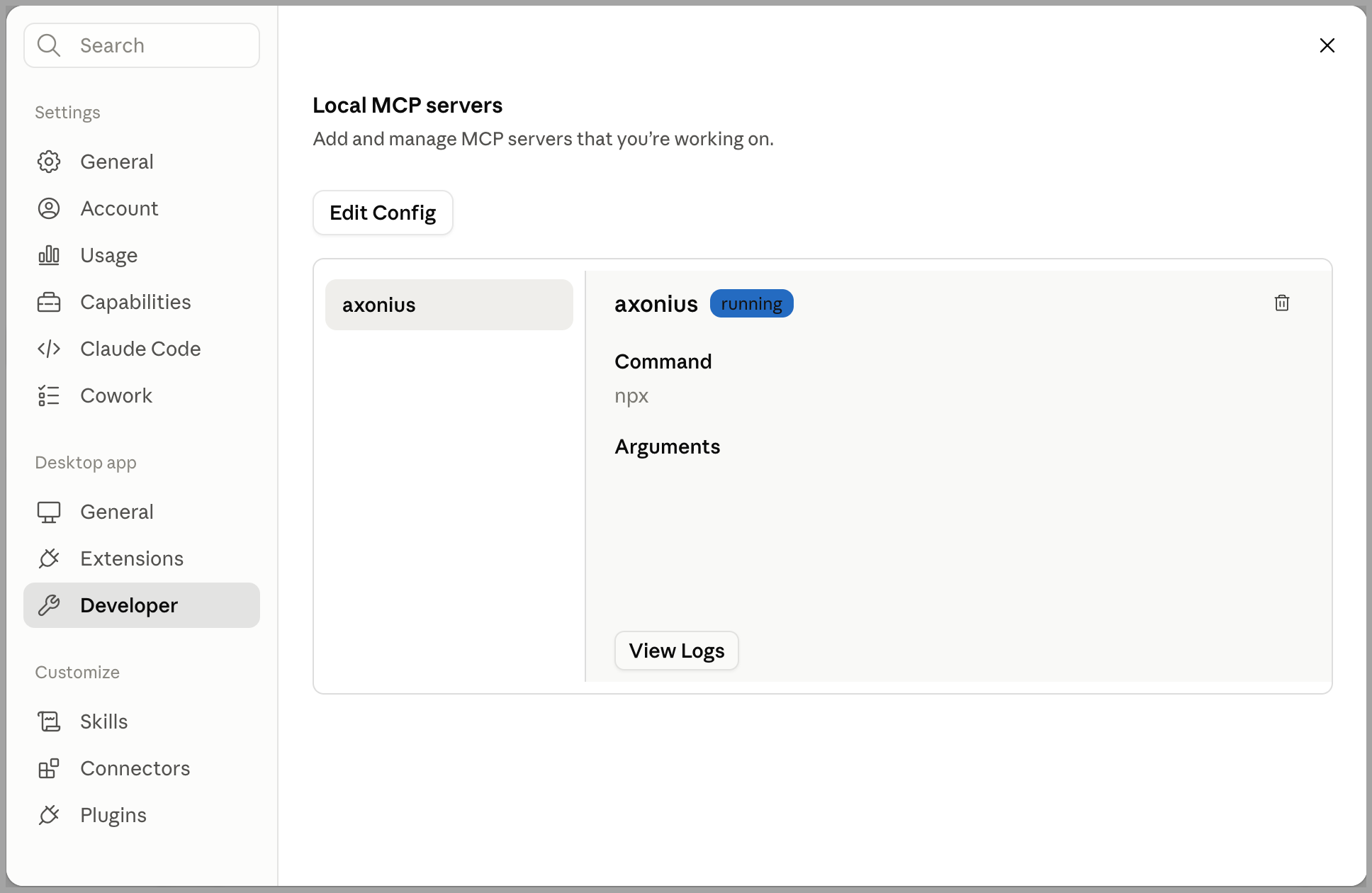
Once connected, you should be able to see your MCP in your AI client interface.
Using the MCP Server
Your AI agent can perform read-only operations. The following are some examples:
| Tool Name | Function | Typical Use Case |
|---|---|---|
| Assets | Get information regarding your inventory. | “Give me a list of all my critical CVEs” \ “How many windows devices do I have?” |
| Adapters | Information about your adapters. | “What adapters are connected in my environment?” |
| Dashboards | List your dashboards and get full details including the charts. | “What dashboards do I have?” |
| Enforcements | List all enforcement actions and get details regarding a specific one | “Tell me about the Security Findings Risk Score enrichment” |
| Queries | List and run saved queries | “Show me the definition of the 'Devices without EDR' query" |
| Reports | List configured reports and get details about a specific one | "What's in the Weekly Security Report?" |
| Platform Users and Roles | List all Axonius platform’s users and roles | “Give me a list of all my Axonius admin users” |
| Infrastructure | List all Axonius collector nodes and get the current discovery cycle status | “Is a discovery cycle running right now?" |
| Logs | List system activity logs with optional date filters and list all tags in the system. | “What happened in the last 12 hours?" |
Updated about 3 hours ago