
Managing Custom Fields for a Specific Asset
This page describes how to view and manage all the custom data fields configured for a specific asset.
-
On the relevant Assets page, click an asset to navigate to its Asset Profile page.
-
In the left navigation pane, under Adapter Connections, select Custom Data.
-
In the upper-right of the Asset Profile Custom Data, click Manage Custom Fields. A list of all the custom fields related to this asset appears.
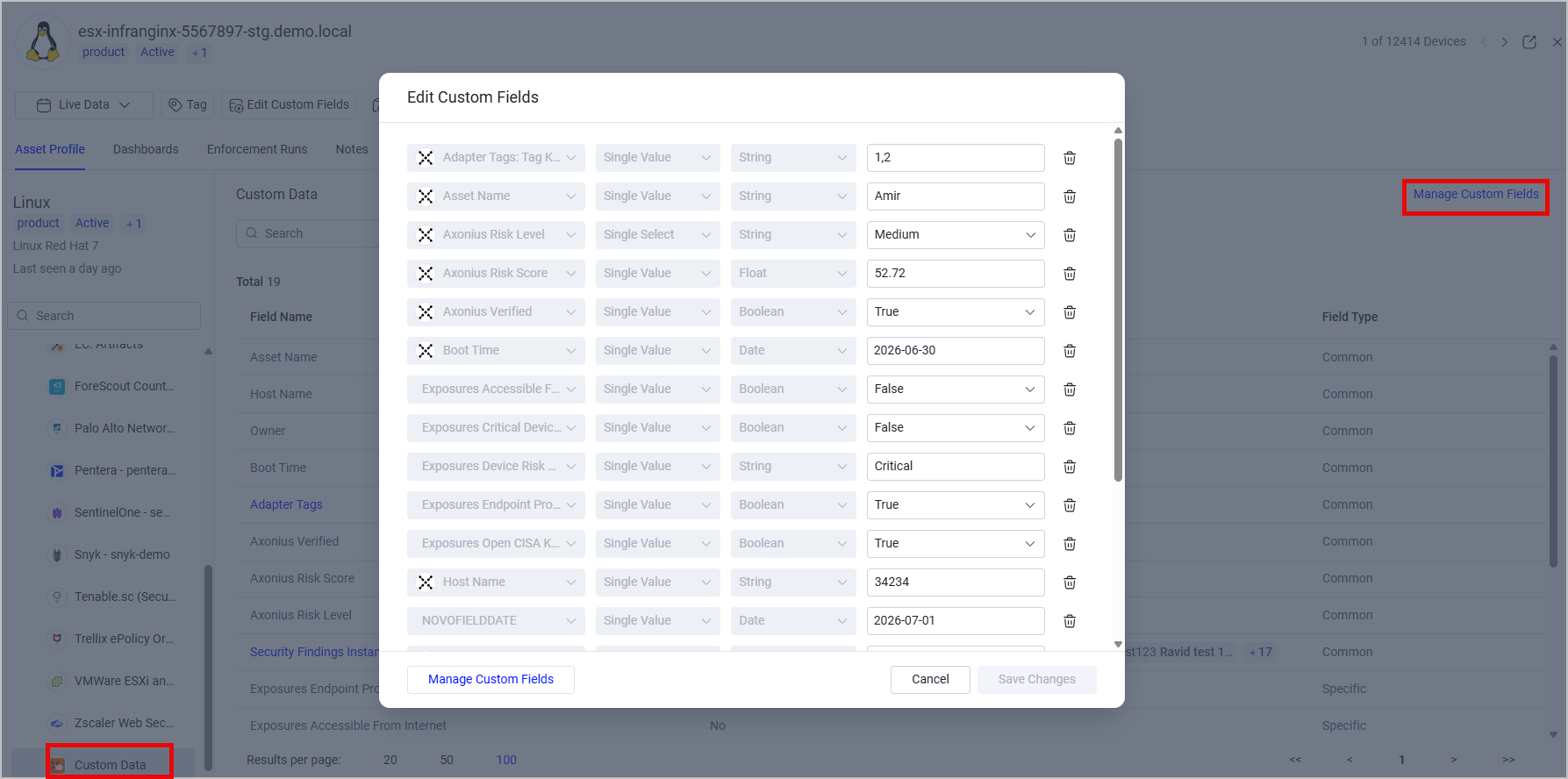
From this screen, you can do the following:
- Add custom fields - Scroll down to the bottom of the screen and click + Add Custom Field.
- Delete existing fields - Click the trashcan icon to the right of the field row.
- Remove all fields - Click Remove all to remove all custom fields from the asset. Axonius applies the removal when you click Save Changes. Read-only fields stay on the asset.
- Edit field values - Click inside the Value box of the field and edit it according to the field type.
- Navigate to Custom Data Management - Scroll down to the bottom of the screen and click Manage Custom Fields to open the Custom Data Management screen, where you can manage all Custom Fields in the system from one central location.
- When you are done making changes, click Save Changes.
Note
A custom field (Single Value or Multiple Values) must be defined with at least one value. If you delete all values of a custom field, clicking Save Changes fails and keeps the previous configuration. You can remove all values of a custom field only by removing the entire custom field from the system.
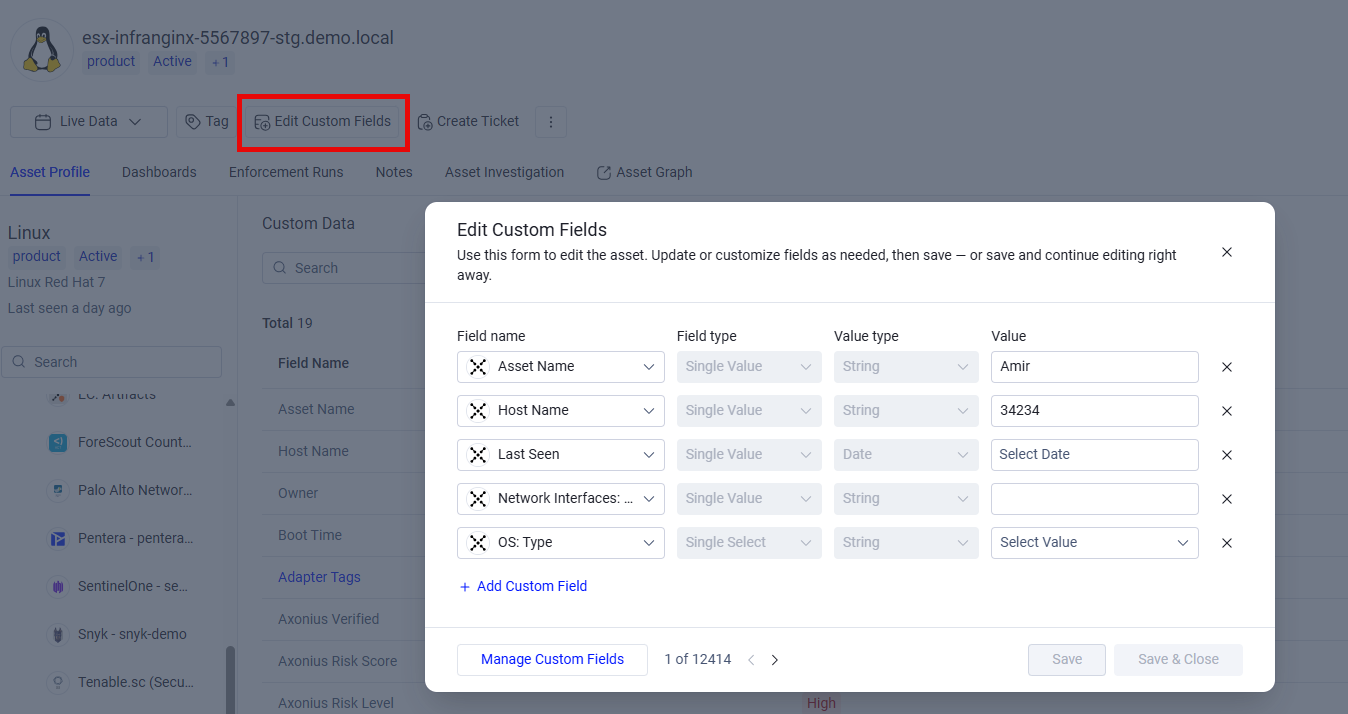
You can also edit the asset's custom fields directly from its Profile page. Click the Edit Column Fields tab to open the Edit Custom Fields dialog.
Updated 6 days ago