
DefectDojo
efecDefectDojo is an application security orchestration and vulnerability management platform that provides centralized tracking and workflow automation for security findings.
Use Cases the Adapter Solves
- Security Vulnerability Visibility: Track and monitor security vulnerabilities across your application portfolio by correlating DefectDojo findings with assets discovered by Axonius.
- Application Security Compliance: Ensure applications meet security standards by identifying which products have open security findings and require remediation.
Asset Types Fetched
- Application Resources
Data Retrieved through the Adapter
Application Resources - Fetches fields such as Product Name, Product ID, Product Type, Software CVEs (including CVE ID, CWE ID, Severity, Description, Mitigation, Active Status)
Before You Begin
Required Ports
- TCP port 443 (HTTPS) or TCP port 80 (HTTP) depending on your DefectDojo instance configuration
Authentication Methods
API Token Authentication
APIs
Axonius uses the DefectDojo API v2. The following endpoints are called:
GET /api/v2/products/GET /api/v2/findings/GET /api/v2/users/- retrieves Reporter usersGET /api/v2/users- retrieves the value for Found By (users)
Required Permissions
The DefectDojo user account must have at least Reader role permissions on the Products and Findings you want to retrieve.
Note: Users with Reader, Writer, Maintainer, Owner roles, or Global Roles can access the API. For detailed information about DefectDojo roles and permissions, refer to the DefectDojo User Permissions Documentation.
Supported From Version
Supported from Axonius version 8.0.22
Connecting the Adapter in Axonius
Navigate to the Adapters page, search for DefectDojo, and click on the adapter tile.
Click Add Connection.
To connect the adapter in Axonius, provide the following parameters:
Required Parameters
- Host Name or IP Address - The base URL of your DefectDojo instance. Example:
https://defectdojo.example.com - API Token - The API token generated from DefectDojo. Provide only the token value without the "Token" prefix.
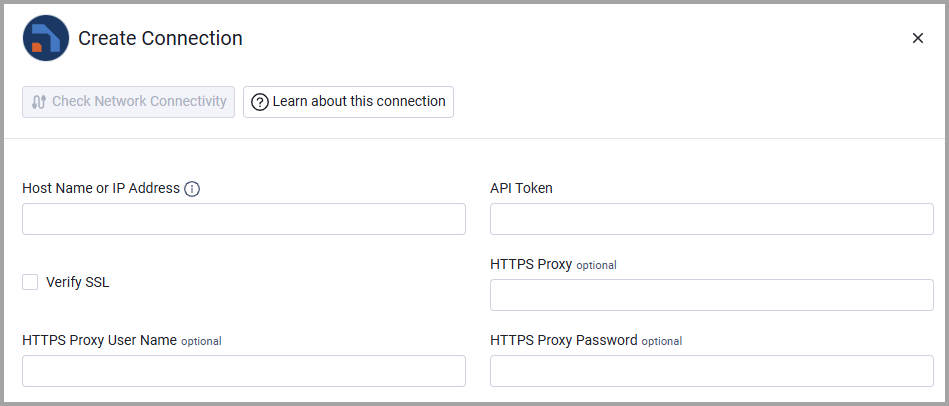
Optional Parameters
- Verify SSL - Select whether to verify the SSL certificate of the server against the CA database inside of Axonius. For more details, see SSL Trust & CA Settings.
- HTTPS Proxy - Connect the adapter to a proxy instead of directly connecting it to the domain.
- HTTPS Proxy User Name - The user name to use when connecting to the value supplied in Host Name or IP Address via the value supplied in HTTPS Proxy.
- HTTPS Proxy Password - The password to use when connecting to the server using the HTTPS Proxy.
To learn more about common adapter connection parameters and buttons, see Adding a New Adapter Connection.
Note
Advanced settings can either apply to all connections for this adapter, or to a specific connection. Refer to Advanced Configuration for Adapters.
To learn more about Adapter Configuration tab advanced settings, see Adapter Advanced Settings.
Enable the following settings to add the relevant data to the vulnerability data for the related Application Resource.
- Reporter - Enable this option to retrieve the reporter username for findings.
- Found By - Enable this option to retrieve the username recorded in Found By for findings.
Updated 3 days ago