
Raritan CommandCenter Secure Gateway
Raritan CommandCenter Secure Gateway is a centralized management platform that provides secure access, monitoring, and control of data center infrastructure devices and connected assets.
Use Cases
Connecting Axonius to Raritan CommandCenter Secure Gateway enables you to:
- Centralize Data Center Asset Visibility - Discover and inventory all data center infrastructure devices managed by CommandCenter Secure Gateway, including PDUs, KVM switches, environmental sensors, and other connected equipment.
- Enhance IT Asset Management - Automatically collect device details such as model, serial number, firmware version, and network configuration to maintain accurate asset records without manual data entry.
Types of Assets Fetched
This adapter fetches the following types of assets:
- Devices
Data Retrieved
The following are examples of data retrieved by this adapter:
Devices: Fields such as Device Name, Device Type, IP Addresses, Device Model
Before You Begin
Required Ports
- TCP 9443 (HTTPS) - CommandCenter Secure Gateway Web Services API
Authentication Methods
This adapter uses dual authentication:
- Layer 1: SSL/TLS Client Certificate Authentication (mTLS)
- Layer 2: SOAP Session Authentication
APIs
Axonius uses the CommandCenter Secure Gateway SOAP-based Web Services API:
- AuthenticationAndAuthorizationService - For session management (
signOnandsignOffmethods) - DeviceManagementService - For device discovery (
getDevicemethod)
API Documentation: CC-SG WS-API Programming Guide
Required Permissions
CommandCenter Secure Gateway supports Role-Based Access Control (RBAC), but the Web Services API documentation does not explicitly document which roles or permissions are required. The exact permission names should be confirmed with your Raritan administrator or Raritan support, as specific role requirements for the Web Services API are not detailed in the publicly available documentation. The adapter requires read access to device information via the getDevice API method.
Supported From Version
Supported from Axonius version 8.0.18
Setting Up Raritan CommandCenter Secure Gateway
Before connecting the adapter in Axonius, you must generate a client certificate and create a user account in CommandCenter Secure Gateway.
Generate Client Certificate
- Log in to the CommandCenter Secure Gateway web interface
- Navigate to Administration > Security > Certificates
- In the Web Services API Certificates section, click Add Certificate
- Enter a descriptive name for the certificate (e.g., "Axonius Integration")
- Enter a keystore password - you will need this password when configuring the Axonius adapter
- Click Generate Certificate
- Click Save to File to download the certificate as a .p12 file
- Store the .p12 file and keystore password securely - you will upload this file to Axonius
Create User Account
- In CommandCenter Secure Gateway, navigate to Administration > User Management
- Create a new user account or use an existing account with appropriate permissions
- Ensure the user has access to view device information
- For Active Directory users, note the username format:
USER@MODULE
Connecting the Adapter in Axonius
Navigate to the Adapters page, search for Raritan CommandCenter Secure Gateway, and click on the adapter tile.
Click Add Connection.
To connect the adapter in Axonius, provide the following parameters:
Required Parameters
-
Host Name or IP Address - Base URL for the CommandCenter Secure Gateway Web Services API
- CC-SG uses port 9443 for Web Services
- Example:
https://ccsg.example.com:9443
-
User Name - CC-SG user name for SOAP session authentication
- For Active Directory users, use format:
USER@MODULE - Example:
adminorjdoe@CORP
- For Active Directory users, use format:
-
Password - Password for the CC-SG user account
-
Client Certificate File (.p12) - PKCS#12 certificate file generated from CC-SG
- Upload the .p12 file you downloaded during certificate generation
-
Certificate Password - Keystore password entered when generating the certificate
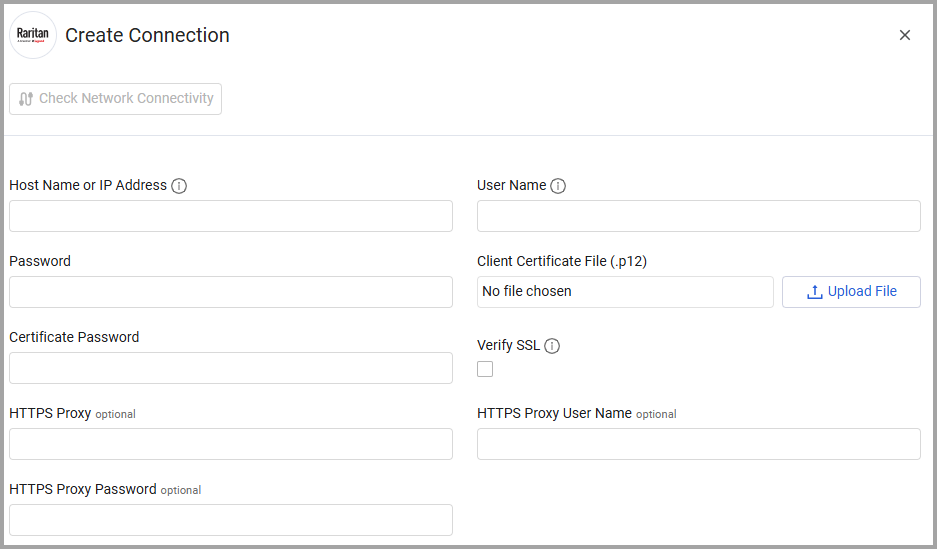
Optional Parameters
- Verify SSL - Enable to verify the CC-SG server certificate. If enabled, you may need to add the CC-SG certificate to the Axonius trust store.
- HTTPS Proxy - Proxy server URL if required for network connectivity
- HTTPS Proxy User Name - Username for proxy authentication
- HTTPS Proxy Password - Password for proxy authentication
Updated 8 months ago