
Tanium Reporting
Tanium Reporting is a Tanium platform module that provides custom report creation, data exploration, and export of endpoint inventory, software, and compliance data sourced from the Tanium Data Service.
Use Cases the Adapter Solves
- Vulnerability Management: Identify devices with critical CVEs and prioritize patching efforts based on CVSS scores and severity levels.
- Device Inventory and Compliance: Maintain an up-to-date inventory of managed endpoints with detailed hardware and software information for compliance reporting.
- Security Risk Assessment: Correlate vulnerability data with device attributes to assess security exposure across your endpoint environment.
Asset Types Fetched
- Devices, SaaS Applications, Aggregated Security Findings
Data Retrieved through the Adapter
Devices - Fields such as Hostname, Device Remote ID, Serial Number, Operating System
Aggregated Security Findings - Fields such as CVE ID, CVE Severity, CVSS Score, CVE Description
Before You Begin
Required Ports
- TCP port 443 (HTTPS)
Authentication Methods
API Token Authentication - The adapter authenticates using an API token .
APIs
Axonius uses the Tanium GraphQL API. The following endpoints are called:
POST /plugin/products/gateway/graphql- List available reports by namePOST /plugin/products/gateway/graphql- Retrieve paginated report result rows with column metadata
Required Permissions
The following permissions are required:
The API user must have an API token created in the Tanium Console with sufficient permissions to:
- Read report definitions
- Access report result data
Note: The exact permission names should be confirmed with your Tanium administrator or Tanium support, as the API documentation is not publicly available.
Supported From Version
Supported from Axonius version 9.0.4
Setting Up Tanium Reporting to Work with Axonius
- Log in to the Tanium Console with administrative credentials.
- Navigate to Administration > Permissions > API Tokens.
- Click New API Token to create a new token.
- Provide a descriptive name for the token (e.g., "Axonius Integration").
- Assign appropriate permissions to read report data.
- Click Save and copy the generated API token for use in Axonius.
- Create the necessary Tanium reports that include device correlation columns (Computer Name or Computer ID) and any CVE-related columns.
- Ensure reports are flattened with one row per CVE per device for proper vulnerability ingestion.
Connecting the Adapter in Axonius
- Navigate to the Adapters page, search for Tanium Reporting, and click on the adapter tile.
- Click Add Connection.
- Provide the following parameters:
Required Parameters
- Tanium Server URL - Base URL for the Tanium server. Should contain a prefix of http:// or https://. Example:
https://tanium.example.com - API Token - API token for authentication. Created in Tanium Console → Administration → Permissions → API Tokens
- Device Report Names - Names of Tanium reports to ingest. Each report should be flattened (one row per CVE per device) and include device correlation columns (Computer Name or Computer ID) alongside any CVE columns.
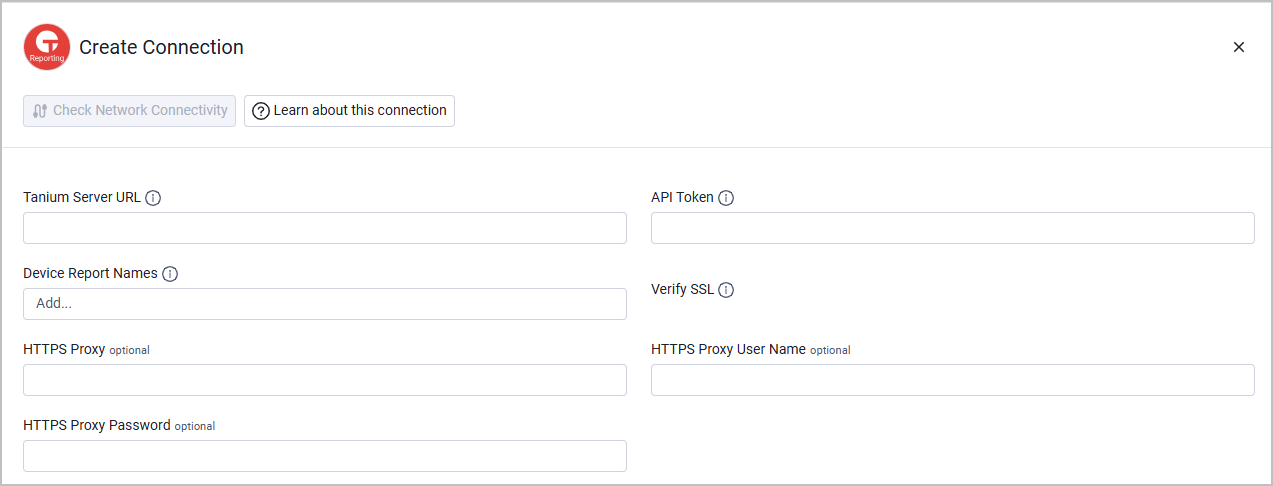
Optional Parameters
- Verify SSL - Select whether to verify the SSL certificate of the server against the CA database inside of Axonius. For more details, see SSL Trust & CA Settings.
- HTTPS Proxy - Connect the adapter to a proxy instead of directly connecting it to the domain.
- HTTPS Proxy User Name - The user name to use when connecting to the value supplied in Tanium Server URL via the value supplied in HTTPS Proxy.
- HTTPS Proxy Password - The password to use when connecting to the server using the HTTPS Proxy.
To learn more about common adapter connection parameters and buttons, see Adding a New Adapter Connection.
Updated 23 days ago