
TRIMEDX
TRIMEDX is a healthcare technology management service that offers medical equipment management and maintenance solutions.
Use Cases the Adapter Solves
- Healthcare Equipment Inventory Management: Gain complete visibility into all medical devices and equipment managed by TRIMEDX, ensuring comprehensive tracking of critical healthcare technology assets across your organization.
Asset Types Fetched
- Devices
Data Retrieved through the Adapter
The following data can be fetched by the adapter
Devices - Fields such as: MDSP Source Device ID, TRIMEDX CEID, TRIMEDX Equipment ID, Last Modified Date, Vertical Display Name
Before You Begin
Required Ports
TCP port 443 (HTTPS)
Authentication Methods
OAuth2 Password Grant Authentication
APIs
Axonius uses the TRIMEDX API. The following endpoints are called:
POST /oauth2/v1/tokenGET /mdsp-inventory/inventory(MDSP Inventory API)GET /client-inventory/v5/inventory(Client Inventory v5 API)
Required Permissions
The API user account must have:
- For the MDSP Inventory API:
openid,mdsp.inventory.read - For the Client Inventory (v5) API:
openid,client.inventory.read,client.workorder.read
Supported From Version
Supported from Axonius version 8.0.16.0
Setting Up TRIMEDX to Work with Axonius
To obtain API credentials for use with Axonius:
- Contact your TRIMEDX account representative or support team and Request API access credentials for the MDSP Inventory API. These include the Username, Password, Client ID, Ocp-Apim-Subscription-Key (Subscription Key)
Connecting the Adapter in Axonius
Navigate to the Adapters page, search for TRIMEDX, and click on the adapter tile.
Click Add Connection.
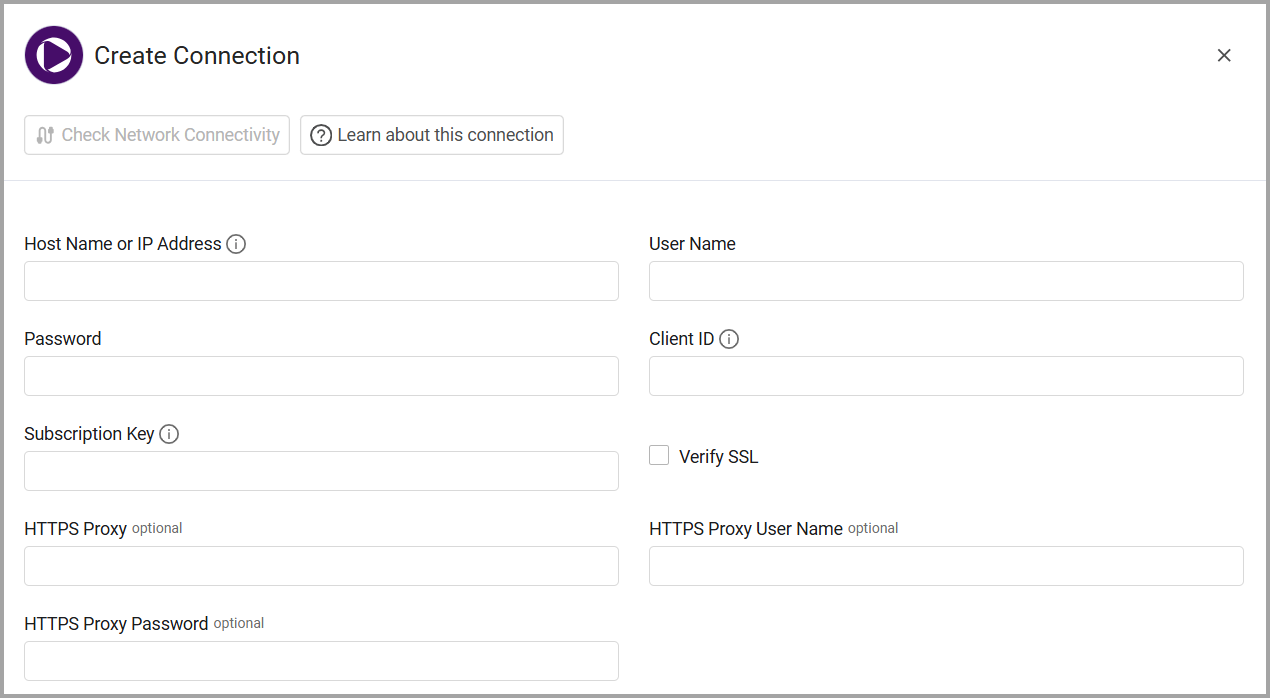
To connect the adapter in Axonius, provide the following parameters:
Required Parameters
- Host Name or IP Address - Base domain for the API, should contain a prefix of http:// or https://. Do not add any specific endpoints after the domain. Example:
https://api.trimedx.com - Inventory API Version (default: MDSP Inventory) - Select which TRIMEDX inventory API version to use. Select MDSP Inventory to use the standard
mdsp-inventory/inventoryendpoint, or select Client Inventory (v5) to use theclient-inventory/v5/inventoryendpoint. Use Client Inventory (v5) if your TRIMEDX account uses the v5 API. - User Name - The username provided by TRIMEDX for API authentication.
- Password - The password provided by TRIMEDX for API authentication.
- Client ID - OAuth2 Client ID provided by TRIMEDX.
- Subscription Key - Ocp-Apim-Subscription-Key provided by TRIMEDX.
- Auth Domain - The authentication domain/server URL for OAuth2 token endpoint. This is separate from the main API domain. Example:
https://auth.trimedx.comor the specific auth server provided by TRIMEDX. - Auth Server ID - The OAuth2 authorization server ID provided by TRIMEDX. This identifies which auth server to use for token generation.
Optional Parameters
- Verify SSL - Select whether to verify the SSL certificate of the server against the CA database inside of Axonius. For more details, see SSL Trust & CA Settings.
- HTTPS Proxy - Connect the adapter to a proxy instead of directly connecting it to the domain.
- HTTPS Proxy User Name - The user name to use when connecting to the value supplied in Host Name or IP Address via the value supplied in HTTPS Proxy.
- HTTPS Proxy Password - The password to use when connecting to the server using the HTTPS Proxy.
To learn more about common adapter connection parameters and buttons, see Adding a New Adapter Connection.
Related Enforcement Actions
Updated 21 days ago