
Titan
Titan is a security platform that offers comprehensive protection and management for digital assets.
Use Cases the Adapter Solves
- User Access Visibility: Gain comprehensive visibility into all users with access to Titan-managed file transfer servers.
- Access Control Monitoring: Monitor user accounts across multiple Titan servers and authentication connectors, ensuring.
- Compliance and Audit: Track user account status, creation dates, and contact information across your Titan deployment.
Asset Types Fetched
 Users
Users
Data Retrieved through the Adapter
The following data can be fetched by the adapter:
Users - Fields such as: User Remote ID (UserGUID), Display Name, Description.
Before You Begin
Ports
- TCP port 443 (HTTPS)
Authentication Method
Username and Password Authentication - The adapter uses username and password credentials to authenticate via the Titan API.
APIs
Axonius uses the Titan API. The documentation is not publicly available. The following endpoints are called:
POST /api/Authenticate/Login- Authenticate and obtain bearer tokenGET /api/Servers- Fetch list of Titan serversGET /api/Servers/{ServerGUID}/AuthConnectors- Fetch authentication connectors for each serverGET /api/Servers/{ServerGUID}/AuthConnectors/{AuthGUID}/Users- Fetch users for each server and authentication connector combination
Required Permissions
The following permissions are required:
Administrator or User Management Role
The Titan user account must have permissions to:
- View server configurations
- View authentication connectors
- View and list users across all servers and authentication connectors
Note: The specific role or permission set required may vary depending on your Titan deployment. Consult with your Titan administrator to ensure the API user has appropriate read access to user data across all servers.
Supported From Version
Supported from Axonius version 8.0.14
Setting Up Titan to Work with Axonius
To prepare Titan for integration with Axonius:
Important: In Titan versions 2.26 and above, the REST API is disabled by default. To enable the REST API, you must place an appsettings.oem.json configuration file in the Titan installation folder (typically C:\Program Files\South River Technologies\srxserver\) and restart the Titan Service.
- Log in to your Titan administration console with an account that has user management permissions.
- Create a dedicated service account for Axonius integration (recommended) or identify an existing account with appropriate permissions.
- Ensure the account has the required permissions.
Connecting the Adapter in Axonius
Navigate to the Adapters page, search for Titan, and click on the adapter tile.
Click Add Connection.
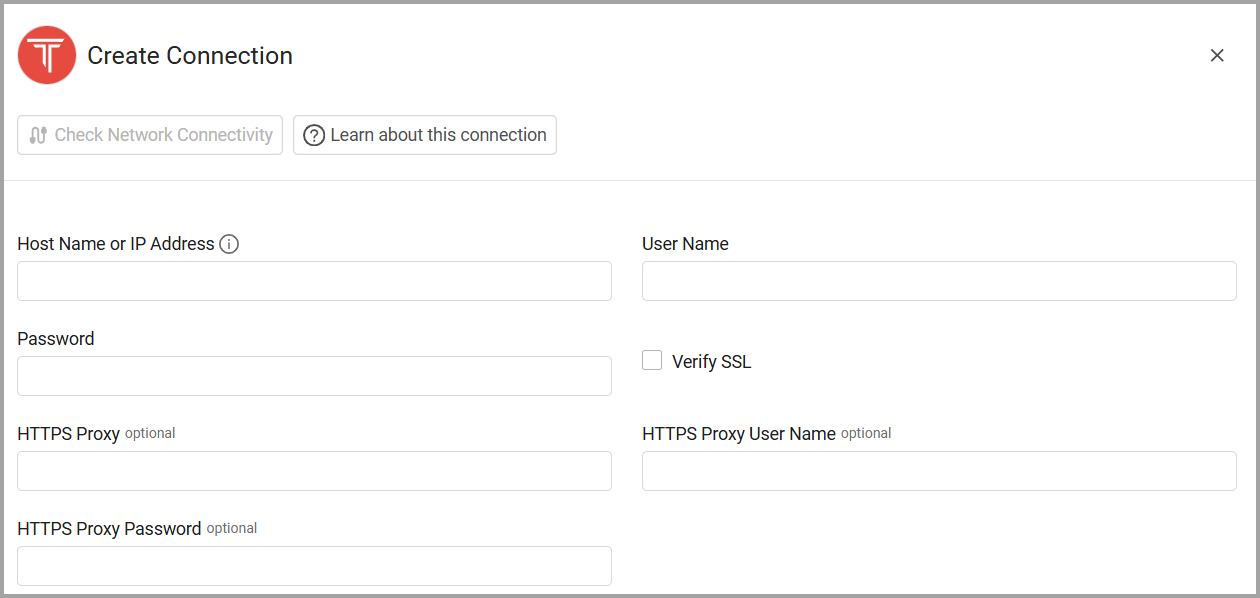
To connect the adapter in Axonius, provide the following parameters:
Required Parameters
- Host Name or IP Address - The base domain for the Titan API.
- User Name - The username for a Titan account that has the required permissions to fetch user data.
- Password- The password for the Titan user account.
- Connection Label - A name for this connection.
Optional Parameters
- Verify SSL - Select whether to verify the SSL certificate of the server against the CA database inside of Axonius. For more details, see SSL Trust & CA Settings.
- HTTPS Proxy - Connect the adapter to a proxy instead of directly connecting it to the domain.
- HTTPS Proxy User Name - The user name to use when connecting to the value supplied in Host Name or IP Address via the value supplied in HTTPS Proxy.
- HTTPS Proxy Password - The password to use when connecting to the server using the HTTPS Proxy.
-
To learn more about common adapter connection parameters and buttons, see Adding a New Adapter Connection.
Updated 20 days ago