
Customizing Global Search Settings
You can customize your Global Search settings per asset type as follows:
- Decide whether to exclude or include specific asset types in the Global Search. Global Search will not return results from excluded asset types.
- Change an asset type's default searchable fields by configuring up to 10 fields to search the asset by. This allows a more accurate search, tailored to your needs. Only string-type fields are supported for configuring.
Notes
- This is relevant only to searched assets (not queries).
- Only admins can edit Global Search settings.
- When you edit the list of searchable fields for a selected asset type, it becomes manually managed, so that any change made to the list by Axonius (such as adding or removing default fields to search) will no longer apply. To change that, you can reset the list of searchable fields back to the Axonius default.
To edit search settings:
- From the Search Axonius dialog, select Settings.
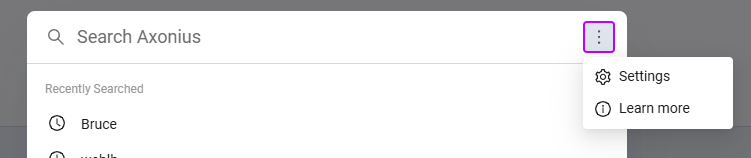
- You are directed to System Settings
>Data>Global Search Fields. This page lists all asset types available for Global Search and which of their fields are searchable. The Last Update column indicates the last time the search settings of each asset type were manually updated. - Click on a row to open the Global search settings for [Asset Type Name] dialog.
- Toggle Enable Global Search for this asset on or off to include or exclude it from search results. This setting is enabled by default for most asset types.
- Editing searchable fields: on the left, all fields available for search are listed; on the right, all fields currently used for global search are listed. Select fields from the right to remove, or fields from the left to add. You can set up to 10 searchable fields.
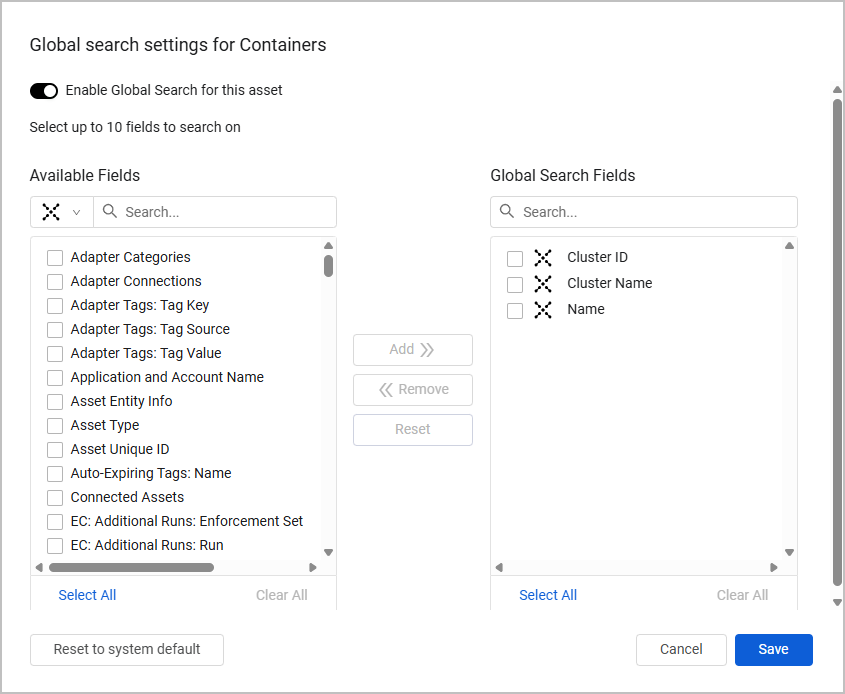
- Click Save to save your changes, or Cancel to discard them. You can also click Reset to system default to reset the list of searchable fields to the Axonius default.
- After saving your changes, the Last Update column updates with the date and time of the changes.
Note
The changes made to the searchable fields list may take up to 6 hours to apply.
Updated 5 days ago
Did this page help you?