
Remediation Ownership
Remediations are tactical actions designed to resolve Security Findings. Use this page to define ownership rules that map findings to the correct teams - from DevOps to Business Units; streamline manual workflows; and enable automated remediation orchestration.
Remediation owners are the employees in a specific organization who are responsible for remediating specific instances of vulnerabilities - IT teams, DevOps, CloudOps, etc. Organizations rarely have one single team remediating everything; the distribution of responsibility is usually based on a variety of factors such as the remediation action type, the environment or operating system affected, and the geographic location of the remediators - for example, an IT team in New York versus IT team in London.
The Remediation Ownership page on Axonius is designed to serve security analysts and other roles who are responsible for defining remediation owners per risk. It allows them to configure remediation owners based on Security Findings queries. For maximum coverage, it is recommended for configure an owner to each Security Finding in the organization.
Required Permissions
To use this feature, the Manage Remediation Ownership (listed under Security Findings) permission is required.
See Managing Roles to learn how to assign roles and permissions in Axonius.
Remediation Ownership Page
To access the Remediation Ownership page:
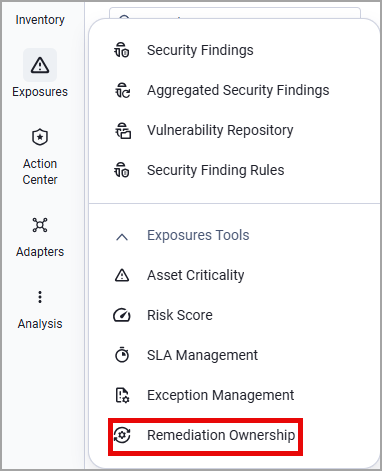
- In the Security Findings page, expand the Exposures Tools menu.
- Select Remediation Ownership.
In Axonius New Navigation Experience:
- Select Exposures from the left navigation menu.
- Expand the Exposures Tools menu and select Remediation Ownership.
At the top of the page, there are two dynamic charts that visualize how the workload distributes between different owners:
- The number of Security Findings per owner
- The number of Owned vs. Unowned Security Findings across your system
Notes
- Both charts query the full Security Findings population - not the ownership rules table.
- Excepted Security Findings are not included in the charts.
The Remediation Ownership table displays the name of each remediation owner, the Security Finding scope they are responsible to (defined by a query), and the system through which they are assigned this ownership - one of the following options:
- An ITSM queue endpoint using a ticketing system (Jira or ServiceNow)
- An email address
Creating an Ownership
To create a new ownership, from the Remediation Ownership page:
- Click Create Ownership.
- Provide a name for the remediation owner - for example, the team name - and a description (optional).
- Select a Security Findings query that will be defined as the scope of this ownership. After you select a query, all the assets included in it are listed in the Security Findings Scope tab.
- Assign an Ownership Priority (1 or above; the default is 1). Since each Security Finding can have only one remediation owner, a prioritization mechanism is required for cases where a certain Security Finding is assigned to more than one remediation owner, because it appears in more than one query. For example, a Security Finding might appear in two queries, and each of these queries is assigned to a different owner. In this case, the ownership with the higher priority takes precedence, and is assigned to this Security Finding.
- Example: There are two queries named "High Severity Security Findings" and "Security Findings with High Risk Level". The remediation owner assigned to "High Severity Security Findings" is John; The remediation owner assigned to "Security Findings with High Risk Level" is Lily. John's priority is 3 and Lily's priority is 1. That means that each Security Finding that appears in both "High Severity Security Findings" and "Security Findings with High Risk Level" is handled by Lily.
- If you select an existing priority, all subsequent priorities automatically shift up by one level (e.g., 2 → 3).
- When a priority is overwritten by a new or edited ownership, all existing ownerships automatically shift down (e.g., 3 → 2).
- The system doesn't allow gaps between priorities. For example, if there are 5 ownerships, and you create a new ownership and assign it the priority '7' - it will automatically be set to 6.
- You can edit priorities directly from the Ownership table by hovering over an existing priority.
- Example: There are two queries named "High Severity Security Findings" and "Security Findings with High Risk Level". The remediation owner assigned to "High Severity Security Findings" is John; The remediation owner assigned to "Security Findings with High Risk Level" is Lily. John's priority is 3 and Lily's priority is 1. That means that each Security Finding that appears in both "High Severity Security Findings" and "Security Findings with High Risk Level" is handled by Lily.
- Under Assign Ownership, select the system through which to assign this ownership.
The options are:
Note
While assigning an email or a Destination System Endpoint is highly recommended, it's not mandatory - you can create an ownership even when endpoint details are not yet available.
-
Assign Email (default) - Enter the owner's email address. You can only enter one address. It does not have to be an Axonius user.
-
Assign Destination System Endpoints - Assign ownership using a ticketing system (ITSM queue). Select between Jira and ServiceNow. The following fields appear depending on your selection:
Jira
- Select Adapter Connection - Select the adapter connection to use for this action. By default, the first connection is selected.
- Issue type and Project key - Specify the issue type and the desired project in Jira Service Management where the issue will be created.
- Select Adapter Connection - Select the adapter connection to use for this action. By default, the first connection is selected.
ServiceNow
- Select Adapter Connection - Select the adapter connection to use for this action. By default, the first connection is selected.
- Table name - Specify the ServiceNow table in which this incident will be created.
-
- Click Create Ownership.
Managing Ownerships
Click on a row in the Remediation Ownership table to edit, duplicate, or delete this ownership.

Viewing Ownership Data in the Security Findings Page
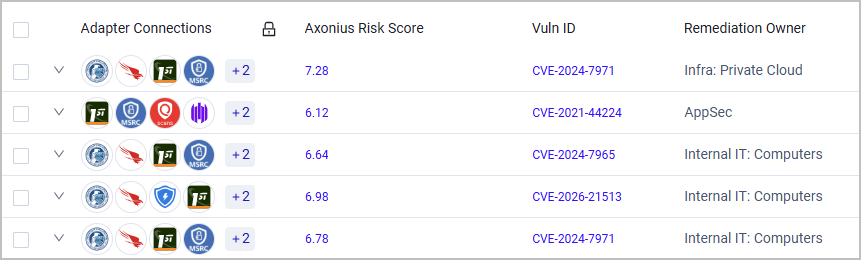
To see which remediation owner is assigned to each Security Finding, on the Security Findings page:
- Click Edit Table > Edit Columns
- Add the Remediation Owner to the table and click Save.
Updated about 1 month ago