
Axonius Modbus TCP Scanner
The Axonius Modbus TCP Scanner is a network discovery tool designed for identifying and cataloging industrial devices on OT (Operational Technology) and ICS (Industrial Control Systems) networks using the Modbus TCP protocol.
This adapter supports query-driven scanning.
NoteThis adapter has an extended device deletion threshold and per-connection custom scheduling enabled by default. Devices discovered by this adapter stay visible in Axonius for 90 days before being deleted if not seen again, and each connection can now be configured with its own custom discovery schedule.
Use Cases
Connecting the Axonius Modbus TCP Scanner enables you to:
- Discover Industrial Devices - Automatically identify Modbus-enabled devices across your OT/ICS network infrastructure, including PLCs, RTUs, and other industrial controllers.
- Enrich Device Inventory - Retrieve detailed vendor information, product codes, model names, and firmware revisions directly from Modbus devices to maintain an accurate asset inventory.
- Improve OT Security Visibility - Gain comprehensive visibility into your industrial control systems to support security assessments, compliance audits, and risk management initiatives.
Asset Types Fetched
- Devices
Data Retrieved through the Adapter
The following data can be fetched by the adapter
Devices - Fields such as IP address, Model name, firmware revision, vendor URL.
Before You Begin
Required Ports
- TCP port 502 (Modbus TCP)
Authentication Methods
The Modbus TCP protocol does not require authentication. The scanner connects directly to devices on TCP port 502.
Protocol
Axonius uses the Modbus TCP protocol (specifically the Read Device Identification function) to query devices for their identification information.
The scanner sends Read Device Identification requests (Function Code 0x2B, MEI Type 0x0E) to retrieve device metadata including:
- Vendor Name (Object ID 0x00)
- Product Code (Object ID 0x01)
- Major/Minor Revision (Object ID 0x02)
- Vendor URL (Object ID 0x03)
- Product Name (Object ID 0x04)
- Model Name (Object ID 0x05)
- User Application Name (Object ID 0x06)
For more information, see the Modbus Protocol Specification.
Supported from Version
This adapter is supported from Axonius version 8.0.20.
Network Requirements
- The Axonius instance must have network connectivity to the target Modbus devices on TCP port 502
- Firewall rules should allow outbound connections from Axonius to the Modbus device IP range
- Modbus devices must support the Read Device Identification function (Function Code 0x2B)
Important
Scanning industrial control systems can impact device performance. Always coordinate with your OT team before scanning production environments, and use the rate limiting settings to avoid overloading devices.
Connecting the Adapter in Axonius
Navigate to the Adapters page, search for Axonius Modbus TCP Scanner, and click on the adapter tile.
Click Add Connection.
To connect the adapter in Axonius, provide the following parameters:
Required Parameters
-
IP Addresses - Enter the IP address range to scan for Modbus devices. Supports CIDR notation (e.g.,
192.168.1.0/24) or individual IP addresses (e.g.,192.168.1.10). -
Port (default: 502) - Enter the TCP port number for Modbus communication. The standard Modbus TCP port is 502. Valid range: 1-65535.
-
Connection Timeout (seconds) (default: 5) - Enter the connection timeout in seconds for each device scan attempt. Valid range: 1-300 seconds.
-
Unit ID (default: 1) - Enter the Modbus Unit ID (also known as Slave ID) to query. This identifies the specific device or unit on the Modbus network. Valid range: 1-247.
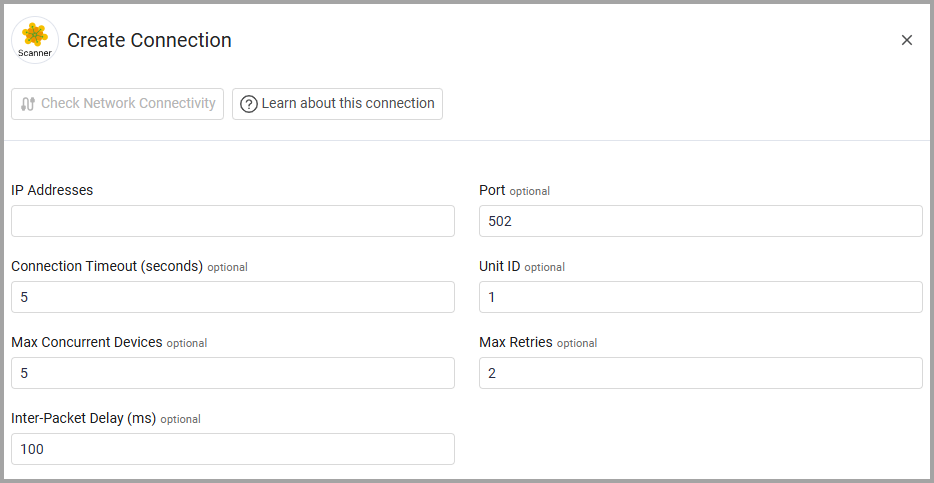
Optional Parameters
-
Max Concurrent Devices (default: 10) - Enter the maximum number of devices to scan concurrently. Lower values reduce network load but increase scan time. Valid range: 1-100.
-
Max Retries (default: 2) - Enter the maximum number of retry attempts for failed connection attempts. Valid range: 0-10.
-
Inter-Packet Delay (ms) (default: 100) - Enter the delay in milliseconds between sending packets to the same device. This rate limiting helps prevent overloading industrial devices. Valid range: 0-10000 milliseconds.
To learn more about common adapter connection parameters and buttons, see Adding a New Adapter Connection.
Best Practices
Rate Limiting
Industrial control systems often have limited processing capacity. Use the Inter-Packet Delay and Max Concurrent Devices settings to control scan intensity:
- For production environments: Use higher delays (500-1000ms) and lower concurrency (1-5 devices)
- For test environments: Standard settings (100ms delay, 10 concurrent devices) are typically safe
- Always coordinate with your OT team before scanning production systems.
Scanning Strategy
- Start with a small IP range to test connectivity and device responsiveness
- Schedule scans during maintenance windows when possible
- Monitor device performance during initial scans
- Adjust timeout and retry settings based on network latency and device response times
Troubleshooting
If devices are not discovered:
- Verify network connectivity to TCP port 502
- Confirm the devices support the Read Device Identification function (not all Modbus devices implement this)
- Check that the correct Unit ID is specified
- Increase the timeout value for slower-responding devices
- Verify firewall rules allow Modbus TCP traffic
Related Enforcement Actions
Updated 3 days ago