
Odoo
Odoo is an integrated suite of applications that provides ERP, CRM, inventory, and accounting modules to manage business operations efficiently.
Odoo Version 19.0 or higher is required.
Use Cases the Adapter Solves
- Asset Discovery from Business Systems: Discover IT assets and devices tracked in Odoo's Fleet Management module, enabling comprehensive visibility into organizational assets beyond traditional IT infrastructure tools.
- User Identity Management: Sync Odoo user accounts and organizational structure into Axonius to correlate user identities across your asset management platform and ensure accurate access control verification.
Asset Types Fetched
- Devices, Aggregated Security Findings, Users, Roles, SaaS Applications, Tickets
Data Retrieved through the Adapter
The following data can be fetched by the adapter:
Devices - Fields such as Name, License Plate, Odoo Record ID
Users - Fields such as Display Name, Email, Odoo Record ID
Roles - Fields such as Role Name, Display Name, Odoo Record ID
Aggregated Security Findings - Fields such as Vulnerability Title, Description, Odoo Record ID
Tickets - Fields such as Ticket ID, Summary, Status, Priority
Before You Begin
Required Ports
- TCP port 443 (HTTPS)
Authentication Methods
The Odoo adapter uses API Key (Bearer Token) authentication to connect to your Odoo instance.
APIs
Axonius uses the Odoo JSON-2 API (v19.0+). The following endpoints are called:
POST /json/2/{model_name}/search_read- Retrieve records from a specified Odoo modelPOST /json/2/{model_name}/search_count- Count records matching a domain filter (optional, for pgination calculation)`POST /json/2/{Helpdesk Ticket Model Name}/search_read- Creates tickets from the matching Odoo ticket model
Required Permissions
The Odoo user account associated with the API key must have read access to the following:
- The specific models configured for data collection (e.g.,
res.users,fleet.vehicle,res.groups,helpdesk.ticket) - All fields being queried on those models
- The records within those models
Administrator Role (Recommended): Full read access to all models and fields.
Custom Role: At minimum, read access to:
res.usersmodel (for user fetching)fleet.vehiclemodel (for device fetching)res.groupsmodel (for role/security group fetching)- Any custom models specified for vulnerability data
Supported From Version
Supported from Axonius version 8.0.22
Connecting the Adapter in Axonius
Navigate to the Adapters page, search for Odoo, and click on the adapter tile.
Click Add Connection.
To connect the adapter in Axonius, provide the following parameters:
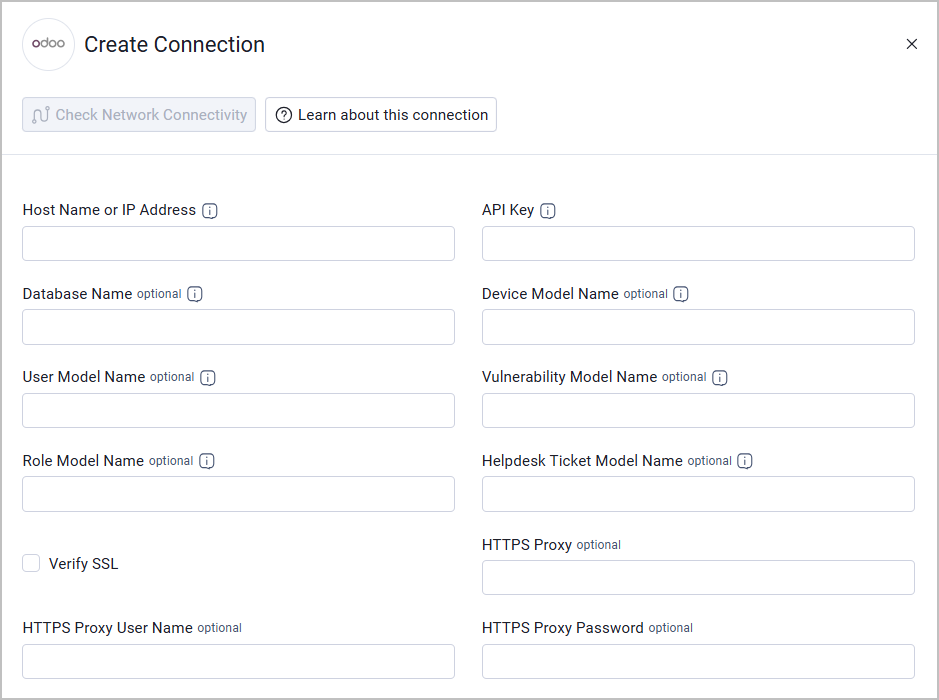
Required Parameters
- Host Name or IP Address - The base URL of your Odoo instance (e.g.,
https://mycompany.odoo.com). Note: Requires Odoo v19.0+. - API Key - The API key generated in Odoo via Preferences → Account Security → New API Key.
Optional Parameters
- Verify SSL - Select whether to verify the SSL certificate of the server against the CA database inside of Axonius. For more details, see SSL Trust & CA Settings.
- Database Name - The Odoo database name (required for multi-database setups). This is sent as the X-Odoo-Database HTTP header.
- Device Model Name - Technical Odoo model name to fetch as devices (e.g.,
fleet.vehicle). Leave blank to skip device fetching. - User Model Name - Technical Odoo model name to fetch as users (e.g.,
res.users). Leave blank to skip user fetching. - Vulnerability Model Name - Technical Odoo model name to fetch as Aggregated Security Findings. Leave blank to skip vulnerability fetching.
- Role Model Name - Technical Odoo model name to fetch as roles/security groups (e.g.,
res.groups). Leave blank to skip role fetching. - Helpdesk Ticket Model Name - Enter the technical Odoo model name to fetch as tickets (e.g.
helpdesk.ticket). Axonius will create Ticket assets only from the matching Odoo ticket model. When this field is left empty, the adapter skips Ticket fetch entirely. - HTTPS Proxy - Connect the adapter to a proxy instead of directly connecting to Odoo.
- HTTPS Proxy User Name - The user name to use when connecting via the HTTPS Proxy.
- HTTPS Proxy Password - The password to use when connecting via the HTTPS Proxy.
To learn more about common adapter connection parameters and buttons, see Adding a New Adapter Connection.
Advanced Settings
Note:
Advanced settings can either apply to all connections for this adapter, or to a specific connection. Refer to Advanced Configuration for Adapters.
To learn more about Adapter Configuration tab advanced settings, see Adapter Advanced Settings.
- Enable Custom Parsing - Enable this option to define how to parse specific fields from the raw data fetched. You can choose to parse the data into an already existing field, or create a new one. When disabled, the adapter automatically creates aggregative fields with the "odoo_" prefix for all retrieved fields. See Adapter Custom Parsing for more information.
Updated 3 days ago