
Connecting Tanium Interact in Axonius
- Go to the Adapters section in Axonius, search for Axonius Interact and click the adapter's tile.
- Click Add Connection.
Required Parameters
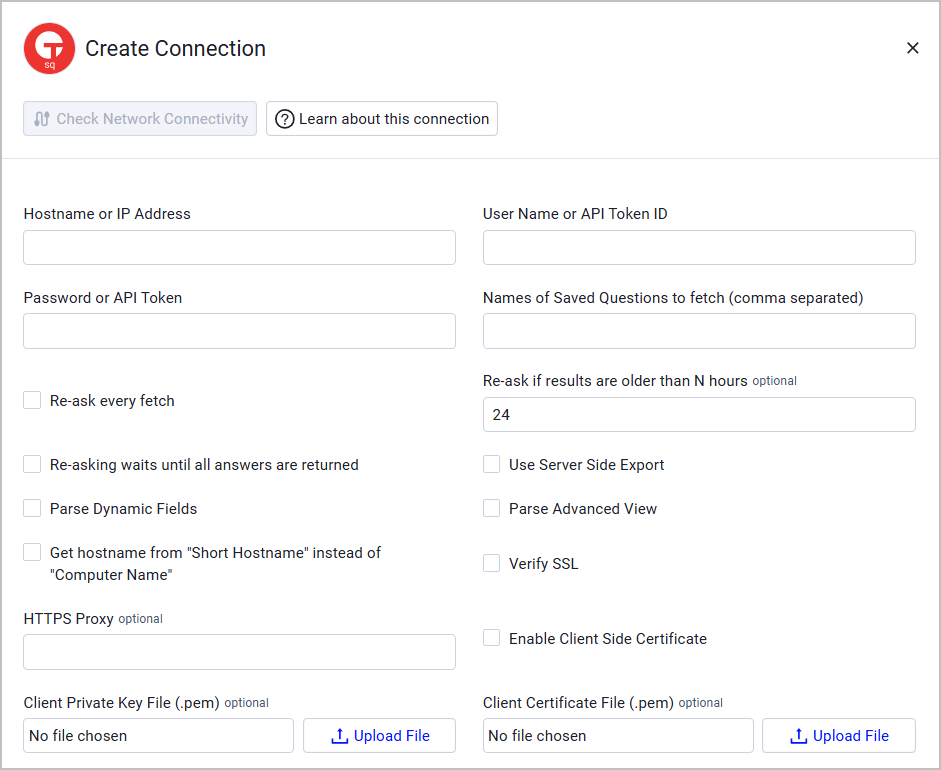
- Hostname or IP Address - The Hostname or IP address of the Tanium server that Axonius can communicate with via the Required Ports. This adapter supports both on-premise and Tanium Cloud instances. When connecting to a Tanium Cloud instance, "-api" must be added to the end of the subdomain of your Tanium Cloud instance. For example: "domain.cloud.tanium.com" should be entered as "domain-api.cloud.tanium.com".
- User Name or API Token ID - The credentials for a user account that has the Required Permissions to fetch assets. If an API token is being used for authentication, this must be the ID of the API token. The Token ID column in Tanium may be hidden.
- Password or API Token - The credentials for a user account that has the Required Permissions to fetch assets. If an API token is being used for authentication, this must be the API token string.
More information on API Tokens
- When connecting to a Tanium Cloud instance, an API token must be used.
- When creating an API token in Tanium, the default value for "Expire in Days" is 7. It is recommended to set this value to the maximum allowed value of 365.
- See the Tanium Documentation on Managing API tokens for more information.
- Names of Saved Questions to fetch (comma separated) - A comma separated list of Saved Questions names that meet the following requirements:
Saved Questions Requirements
Expand/Collapse
Each value supplied in Names of Saved Questions to fetch must include the following sensors:
- Computer ID
- Computer Name
- Network Adapters or (IPv4 Address and MAC Address)
- Computer Serial Number
Additional Information
The Network Adapters sensor is only available if you have purchased and installed the Tanium Discover module.
You can provide both the IPv4 Address and MAC Address sensors if you do not have the Network Adapters sensor available.
While these two sensors are available in the Base content provided with the Tanium platform, they do not provide a mapping of which IP address maps to which MAC address, so the information provided by these two sensors will not be as accurate as the Network Adapters sensor.
RBAC Errors
If the user supplied in User Name is a limited privilege user and one of the Saved Questions supplied in Names of Saved Questions to fetch is open for editing in the Tanium Interact console, the Tanium Interact adapter will be unable to fetch assets for that Saved Question.
When a Saved Question is open for editing in the Tanium Interact console it repeatedly re-asks the question to populate the "Preview" portion of the Edit page. The question that is asked is only accessible to Administrators and the user who has the Saved Question open for editing.
Optional Parameters
-
Re-ask every fetch - When fetching data for a connection, ask Tanium to issue a new question to get the current results for each value supplied to Names of Saved Questions to fetch (comma separated).
-
Re-ask if results are older than N hours (default: 24) - When fetching data for a connection, if the results for each value supplied to Names of Saved Questions to fetch (comma separated) are older than this many hours, ask Tanium to issue a new question to get the current results.
- If the value provided is 0, no age check is performed and a new question will not be issued based on the value supplied here.
-
Re-asking waits until all answers are returned - When re-asking a question for a Saved Question, only consider all answers in when the question expires.
- If enabled, if a new question is issued for a Saved Question, wait until the question expires (10 minutes) before fetching assets.
- If disabled, if a new question is issued for a Saved Question, wait until all clients have answers (up until the question expires) before fetching assets.
-
Use Server Side Export - Utilize Tanium's Server Side Export to export all of the data on the Tanium platform into one XML file instead of paging through the data utilizing the Tanium REST API.
-
Parse Dynamic Fields (default: true) - Enable/disable the creation of adapter specific dynamic fields being created for every sensor included in the supplied Saved Questions.
- If enabled, adapter specific dynamic fields will be created for every sensor included in the supplied Saved Questions.
- If disabled, adapter specific dynamic fields will NOT be created for every sensor included in the supplied Saved Questions. Only the fields that are listed under Aggregated Fields will be processed.
-
Parse Advanced View (default: true) - Enable/disable the processing of raw data from Tanium into the Advanced View of each asset.
-
Get hostname from "Short Hostname" instead of "Computer Name" - Select this option to parse the hostname with the local name of the machine.
-
Verify SSL - Select whether to verify the SSL certificate of the server against the CA database inside of Axonius. For more details, see SSL Trust & CA Settings.
-
HTTPS Proxy - Connect the adapter to a proxy instead of directly connecting it to the domain.
-
Enable Client Side Certificate - Check this option to authenticate to Tanium servers using client certificates, meeting advanced security requirements for organizations that enforce mutual TLS authentication. When this is enabled, provide the following:
- Client Private Key File (.pem) - Upload the client private key file in PEM format.
- Client Certificate File (.pem) - Upload the client certificate file in PEM format.
Notes
- Certificates are securely stored in Axonius and used only for authenticating to Tanium servers.
- The system validates the certificates while establishing the connection to prevent misconfiguration. If the certificate and private key do not match, or missing, or parsed incorrectly, you will receive an appropriate error message.
To learn more about common adapter connection parameters and buttons, see Adding a New Adapter Connection.
Updated 3 days ago