
GCP Initial Setup
To connect Axonius to Google Cloud Platform, you first need to:
- Enable cloud APIs
- Create a service account and grant permissions to that service account
1. Enable Cloud APIs
-
Navigate to the Google Cloud Console and select the project that you want Axonius to connect to.
-
Navigate to APIs & Services
>Dashboard..png)
-
The following APIs are required:
| Enabled API Name | Required / Optional | Used for |
|---|---|---|
| Compute Engine API | Required | The adapter to fetch assets data from Google Cloud Platform. |
| Cloud Resource Manager API | Required | The adapter to fetch assets data from Google Cloud Platform. |
| Container Artifact API | Required | https://container.googleapis.com |
| Identity and Access Management (IAM) API | Required | https://iam.googleapis.com |
| Security Command Center API | Required | https://securitycenter.googleapis.com |
| Google Cloud Storage JSON API | Optional | Advanced Settings:
|
| Cloud SQL Admin API | Optional | Advanced Settings:
|
| Cloud DNS API | Optional | Advanced Settings:
|
| Secret Manager API | Optional | Advanced Settings:
|
For example, in the screenshot below you can see that since the Cloud Resource Manager API doesn't appear in the list, it isn't enabled and needs to be enabled. .png)
To enable an API, click Enable APIs and Services at the top of the page.
-
Search for the API you want to enable and select it. For example: Cloud Resource Manager API
.png)
-
Click Enable.
.png)
2. Create a Service Account and Grant Permissions to that Service Account
-
Navigate to the Google Cloud Console and select the project that you want Axonius to connect to.
-
Select IAM & admin
>Service accounts..png)
-
Click Create a Service Account.
.png)
- Provide a name and description for the service account, then click Create. If you already clicked Done, skip to Step 8.
.png)
- In the Grant this service account access to a project section, give the service account the roles listed below, as well as the "Security Reviewer" role.
| Role Name | Required / Optional | Used for |
|---|---|---|
| Compute Viewer | Required | Grants read-only access to Axonius to fetch assets. |
| Kubernetes Engine Viewer | Required | Grants read-only access to Axonius to fetch assets. |
| Storage Object Viewer | Optional | Advanced Settings:
|
| Cloud SQL Viewer | Optional | Advanced Settings:
|
| IAM: Role Viewer | Optional | Advanced Settings:
|
| Security Reviewer | Required | Provides permissions to list all resources and allow policies on them. |
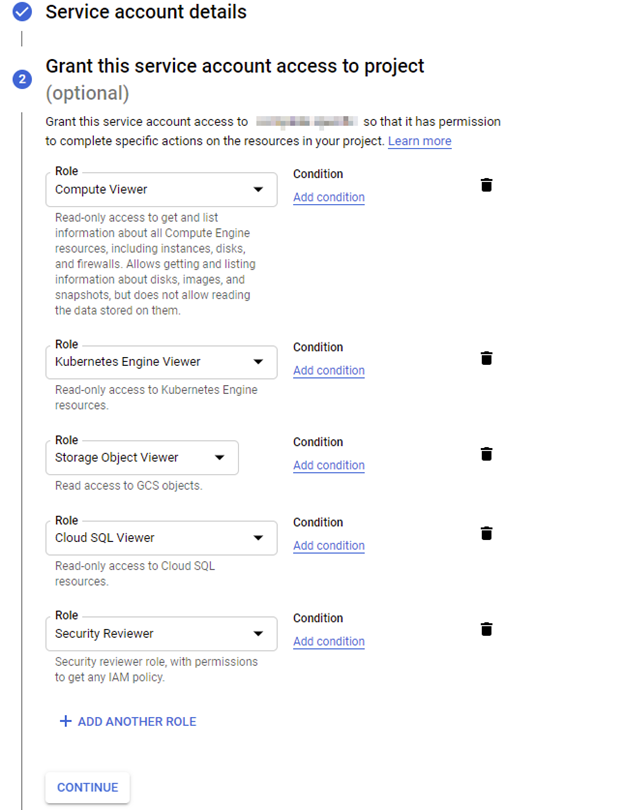
- Skip the Grant users access to this service account step.
- Click Done.
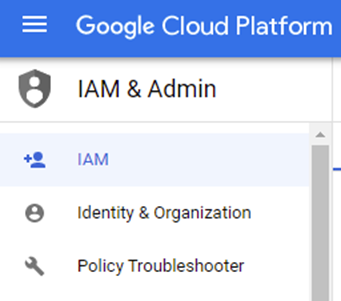
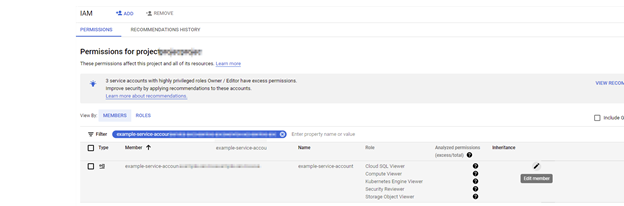
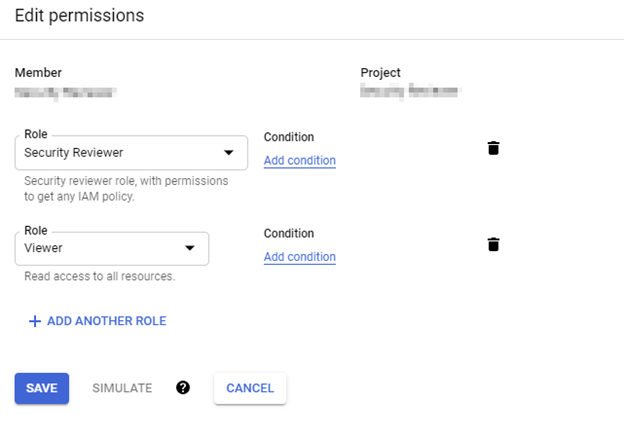
- To modify, or review the permissions granted to this service account in any project or at the organization level, go to IAM, find the service account you've created and click Edit Permissions.
-
In the Service Account just created, go to Keys.
-
Click Add key and then Create.
.png)
-
Your JSON key is subsequently downloaded. Finish creating the account and go back to the Service Accounts page. Copy the email address of the new service account.
-
In the top part of the page, select the organization resource, and go to IAM & Admin - IAM.
- Click Add and use the service account email to add the new service account as a new member of the organization.
- Click + Add Another role to add the following roles to added member:
| Role Name | Required / Optional | Used for |
|---|---|---|
| Compute Viewer | Required | Grants read-only access to Axonius to fetch assets. |
| Kubernetes Engine Viewer | Required | Grants read-only access to Axonius to fetch assets. |
| Storage Object Viewer | Optional | Advanced Settings:
|
| Cloud SQL Viewer | Optional | Advanced Settings:
|
| IAM: Role Viewer | Optional | Advanced Settings:
|
| • Security Center Findings Viewer role• Security Center Assets Viewer role(Or alternatively, Security Center Admin) | Optional | Advanced Settings:
|
.png)
- Click Save.
Note
GCP Enforcement Actions require additional permissions, as detailed in each Enforcement Action page:
Updated 2 months ago