
Google Threat Intelligence Vulnerability Intelligence
Google Threat Intelligence Vulnerability Intelligence is a security intelligence service that provides vulnerability data, exploitation context, and threat insights to support risk assessment and remediation workflows.
Note
This adapter doesn't fetch assets but enriches data for Security Findings and Aggregated Security Findings.
Data Retrieved through the Adapter
The following data can be fetched by the adapter for Security Findings and Aggregated Security Findings:
Fields such as: CVE ID (mapped into Vuln ID), Name, MVE ID, Risk Rating
Authentication Methods
- API Key
APIs
Axonius uses the Google Threat Intelligence API to retrieve asset data.
Required Permissions
This adapter is only available to users with the Google Threat Intelligence (Google TI) Enterprise or Enterprise Plus licenses.
Supported From Version
Supported from Axonius version 8.0.18
Connecting the Adapter in Axonius
Navigate to the Adapters page, search for Google Threat Intelligence Vulnerability Intelligence and click on the adapter tile.
Click Add Connection.
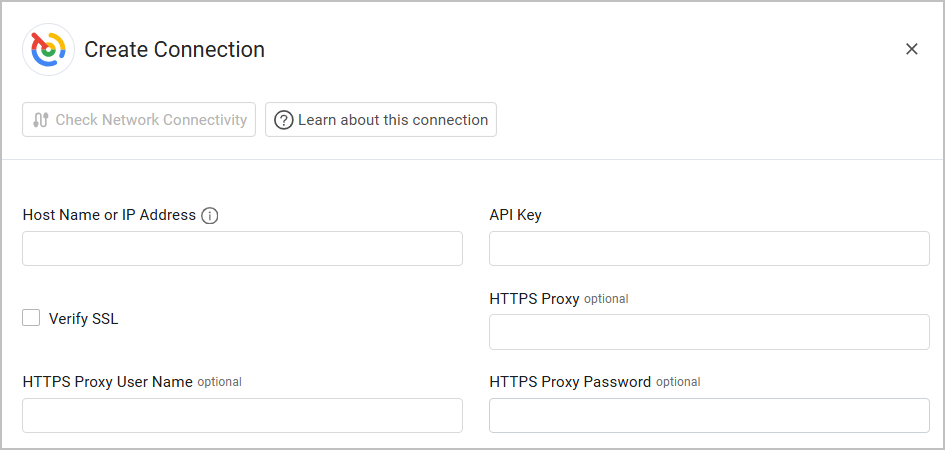
To connect the adapter in Axonius, provide the following parameters:
Required Parameters
-
Host Name or IP Address - Enter the hostname or IP address of the Google Threat Intelligence server.
-
API Key - For authenticating with the API you must include the
x-apikeyheader with your personal API key in all your requests. See more information here.
Optional Parameters
-
Verify SSL - Select whether to verify the SSL certificate of the server against the CA database inside of Axonius. For more details, see SSL Trust & CA Settings.
-
HTTPS Proxy - Enter an HTTPS proxy address to connect the adapter to a proxy instead of directly connecting it to the domain.
-
HTTPS Proxy User Name - Enter the user name to use when connecting to the value supplied in Host Name or IP Address via the value supplied in HTTPS Proxy.
-
HTTPS Proxy Password - Enter the password to use when connecting to the server using the HTTPS Proxy.
To learn about additional optional/common adapter connection parameters, see Adding a New Adapter Connection.
Updated 2 days ago