
Red Sift ASM
Red Sift ASM is a solution that provides continuous discovery, inventory, and management of external-facing and cloud assets for attack surface visibility.
The Red Sift ASM adapter enables Axonius to fetch and catalog internet-facing assets, providing visibility into their inventory details and security issues.
Asset Types Fetched
- Vulnerability Instances
- Vulnerabilities
- SaaS Applications
- Domains and URLs
- Network Services
- Certificates
Data Retrieved through the Adapter
- Web Assets - Domains, subdomains, and URLs.
- Certificates - SSL/TLS certificate details.
- Security Issues - Detected vulnerabilities and configuration issues (linked to domains).
- Network Details - Open ports and IP addresses.
Before You Begin
Required Ports
- TCP Port 443 (HTTPS)
Authentication Methods
- User Name and Password (or API credential pair)
Required Permissions
The Red Sift ASM adapter requires a user or service account with basic authentication credentials and API access enabled for the organization, with ability to read the following data types:
- Certificate Listing
- Issue Listing
- Report Generation (for domains)
- Operation Status Retrieval
APIs
Axonius uses the Hardenize Organization API (v1) to retrieve asset data.
Supported from Version
The adapter is supported from Axonius version 8.0.6.
Connection Parameters
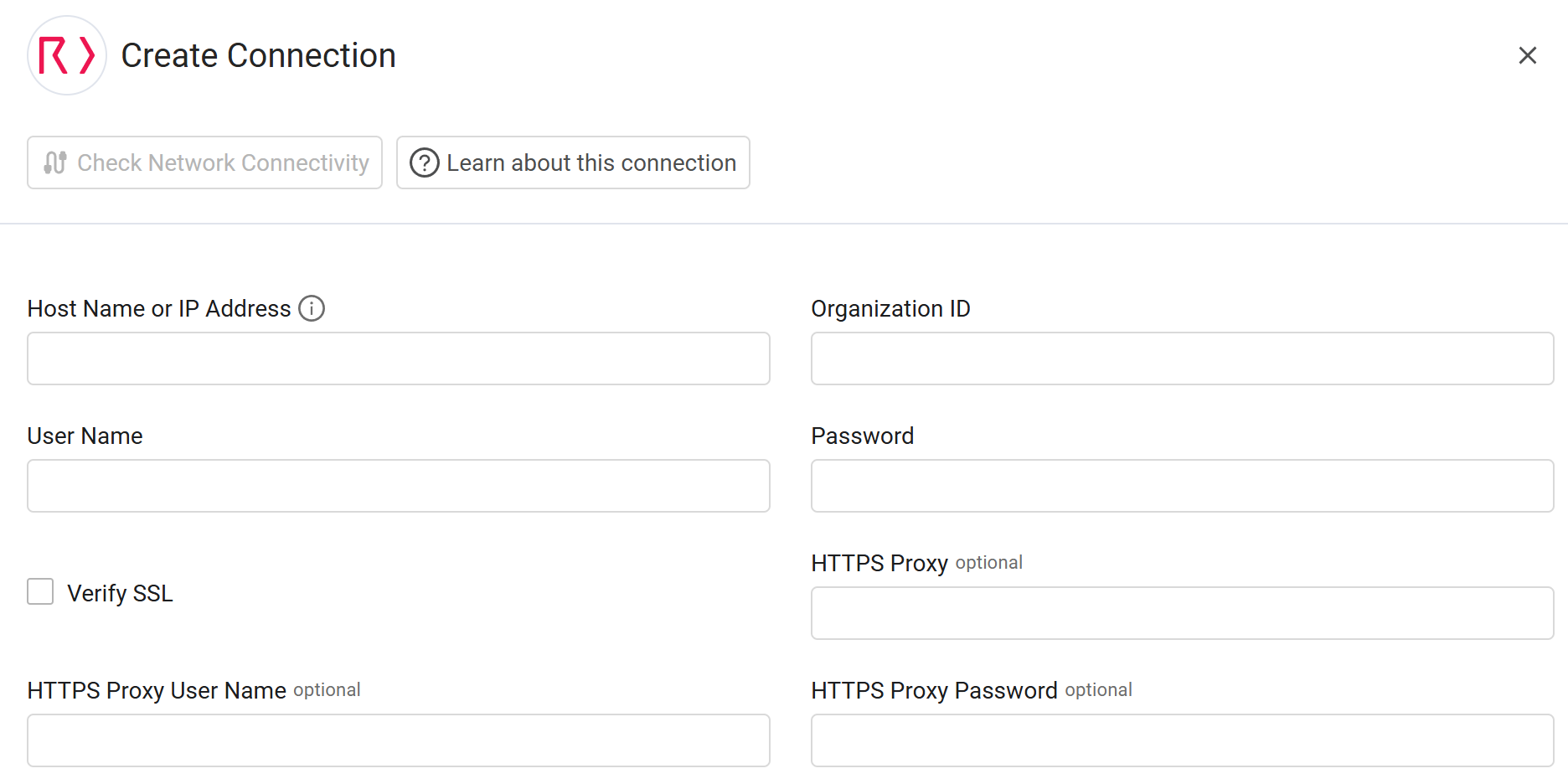
To connect the adapter in Axonius, provide the following parameters.
Required Parameters
- Host Name or IP Address - Enter the hostname or IP address of the Red Sift ASM server that Axonius can communicate with via the Required Ports.
- Organization ID - Enter the unique identifier for your organization within Red Sift ASM.
- User Name and Password - Enter the credentials for a user account that has permission to fetch assets.
Optional Parameters
- Verify SSL - Select whether to verify the SSL certificate of the server against the CA database inside of Axonius. For more details, see SSL Trust & CA Settings.
- HTTPS Proxy - Enter an HTTPS proxy address to connect the adapter to a proxy instead of directly connecting it to the domain.
- HTTPS Proxy User Name - Enter the user name to use when connecting to the value supplied in Host Name or IP Address via the value supplied in HTTPS Proxy.
- HTTPS Proxy Password - Enter the password to use when connecting to the server using the HTTPS Proxy.
To learn about additional optional/common adapter connection parameters, see Adding a New Adapter Connection.
Updated 10 months ago