
Jira Software - Update Tickets
Jira Software - Update Ticket automatically updates Jira Software issues for:
- Assets returned by the selected query or assets selected on the relevant asset page.
See Creating Enforcement Sets to learn more about adding Enforcement Actions to Enforcement Sets.
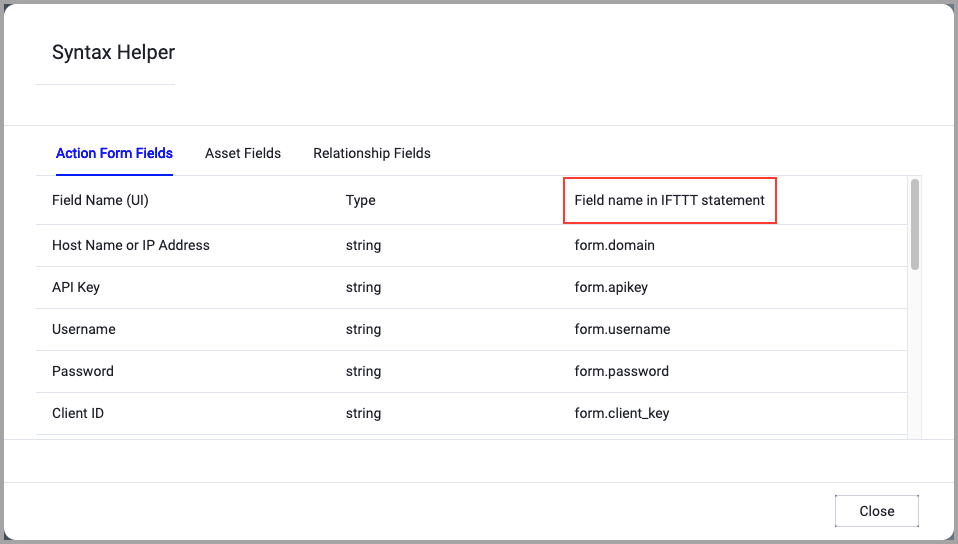
When accessing an enforcement action using the API, you must use the backend form of field names.
Use the Syntax Helper to find the correct name. In the enforcement action, enable Configure Dynamic Values and select Syntax Helper.
Note
- Not all asset types are supported for all Enforcement Actions.
- See Actions supported for Activity Logs, Adapters Fetch History, and Asset Investigation modules.
- See Actions supported for Aggregated Security Findings.
- See Actions supported for Software.
Required Fields
These fields must be configured to run the Enforcement Action.
- Action name - The name of this Enforcement Action. The system sets a default name. You can change the name.
- Configure Dynamic Values (optional) - Toggle on to enter a Dynamic Value statement. See Creating Enforcement Action Dynamic Value Statements to learn more about Dynamic Value statement syntax.
- Use stored credentials from the Atlassian adapter - Select this option to use credentials from the adapter connection. By default, the first connection is selected.
-
When you select this option, the Select Adapter Connection drop-down becomes available. Select the adapter connection to use for this Enforcement Action.
-
Note
To use this option, you must successfully configure an Atlassian (Formerly Atlassian Jira Software) adapter connection.
-
Compute Node - The Axonius node to use when connecting to the specified host. For more details, see Working with Axonius Compute Nodes.
Ticket Main Settings
These fields are optional.
-
Ticket Status - Select a status value to update the ticket status. You must configure the Jira Software adapter to fetch the Ticket Status field values. If an adapter connection is not configured, you must provide the transition ID as a number, not a string like 'Done' or 'In Progress'.
-
Ticket Assignee - Enter the user account ID or email address to assign the ticket.
-
Ticket Comments - Enter comments to add to the ticket.
-
Select Which Related Tickets To Update - Select which related tickets to update.
Ticket Additional Settings
These fields are optional.
-
Additional fields (json format) - Specify additional fields to be updated as key/value pairs in a JSON format.
- For example:
{"customfield_10": "customvalue", "summary": "Updated summary"}
- For example:
-
Allow update tickets using JIRA Fetch Tickets Adapter only - When selected, tickets are updated using only the Jira Fetch Tickets adapter.
-
Update tickets using CSV attachment - When enabled, the CSV attachment on an existing ticket is updated with a new CSV file.
- Overwrite CSV with ticket data - When enabled, the CSV file is overwritten with the latest ticket data from Axonius.
Connection Settings
Connection and CredentialsWhen Use stored credentials from the adapter is toggled off, some of the connection fields below are required to create the connection, while other fields are optional.
Domain - The full URL of the Jira instance (e.g., https://your-instance.atlassian.net or https://jira.on-prem.com).
User Name - Jira user account name or Client ID for OAuth authentication. The credentials for a user account that has the Required Permissions to perform this Enforcement Action.
API Token - API token or Client Secret. For Cloud, generate at https://id.atlassian.com/manage-profile/security/api-tokens. For On-Prem, use an API token or personal access token.
Jira API Version - Version of the Jira REST API to use:
- v3 - Jira Cloud and Data Center (recommended)
- v2 - Jira Data Center and On-Prem
Verify SSL (Optional) (default: enabled) - Selects whether to verify the SSL certificate of the server against the CA database inside of Axonius. For more details, see SSL Trust & CA Settings. This setting is enabled by default on all new adapter settings. If you need to disable SSL verification, make sure you disable this setting.)
HTTPS Proxy (optional) - Connect the adapter to a proxy instead of directly connecting it to the domain.
HTTPS Proxy User Name (optional) - The user name to use when connecting to the server using the HTTPS Proxy.
HTTPS Proxy Password (optional) - The password to use when connecting to the server using the HTTPS Proxy.
Gateway Name - Select the Gateway through which to connect to perform the action.
APIs
Axonius uses the following Jira Cloud REST API v3 endpoints:
- PUT
/rest/api/3/issue/{issueIdOrKey}(Cloud) or PUT/rest/api/2/issue/{issueIdOrKey}(On-Prem and Data Center). - POST
/rest/api/3/issue/{issueIdOrKey}/transitions(Cloud) or POST/rest/api/2/issue/{issueIdOrKey}/transitions(On-Prem and Data Center) when updating ticket status. - POST
/rest/api/3/issue/{issueIdOrKey}/attachments(Cloud) or POST/rest/api/2/issue/{issueIdOrKey}/attachments(On-Prem and Data Center) when attaching CSV data.
Required Ports
Axonius must be able to communicate via the following ports:
- TCP port 443 (HTTPS) - Standard for Jira Cloud and secure connections
- TCP port 8080 - Jira Data Center and On-Prem instances (varies by deployment)
- TCP port 80 - Jira Data Center and On-Prem instances over HTTP (if not using HTTPS)
Required Permissions
The stored credentials, or those provided in Connection and Credentials, must have the necessary permissions to perform this enforcement action.
The stored credentials, or those provided in Connection and Credentials, must have the following permission(s) to perform this Enforcement Action:
The following permissions and requirements are needed:
-
Browse Projects - View projects containing issues to update.
-
Edit Issues - Modify existing issues in target projects.
-
Assign Issues - Assign issues to other users (if updating assignee field).
-
Manage Workflows/Transitions - Transition issues between statuses (if updating ticket status).
-
Add Comments - Add comments to issues (if updating comments field).
-
Attach Files - Attach files to issues (if updating CSV attachments).
-
API Token or Personal Access Token - Valid API token (Cloud) or personal access token (On-Prem).
Authentication Methods:
-
Jira Cloud: Basic authentication with email and API token, or OAuth 2.0 service account (recommended).
-
Jira Data Center and On-Prem: Basic authentication with username and API token, or Bearer token.
Recommended Roles:
-
Jira Cloud: Project Administrator or higher.
-
Jira Data Center and On-Prem: Jira Administrator or Project Administrator.
Version Matrix
This Enforcement Action was tested only with the versions marked as supported, but may work with other versions. Please contact Axonius Support if you have a version that is not listed and it is not functioning as expected.
| Version | Supported | Notes |
|---|---|---|
| Jira Cloud (Latest) | ✓ | REST API v3, OAuth 2.0 and API token authentication supported |
| Jira Data Center 4.13+ | ✓ | REST API v2 and v3 supported |
| Jira On-Prem (Server) 8.20+ | ✓ | REST API v2 supported, Bearer token authentication recommended |
| Jira Cloud (Legacy) | [To Verify] | Early Cloud versions, API v3 support varies |
Updated 25 days ago