
Using the Workforce Hub
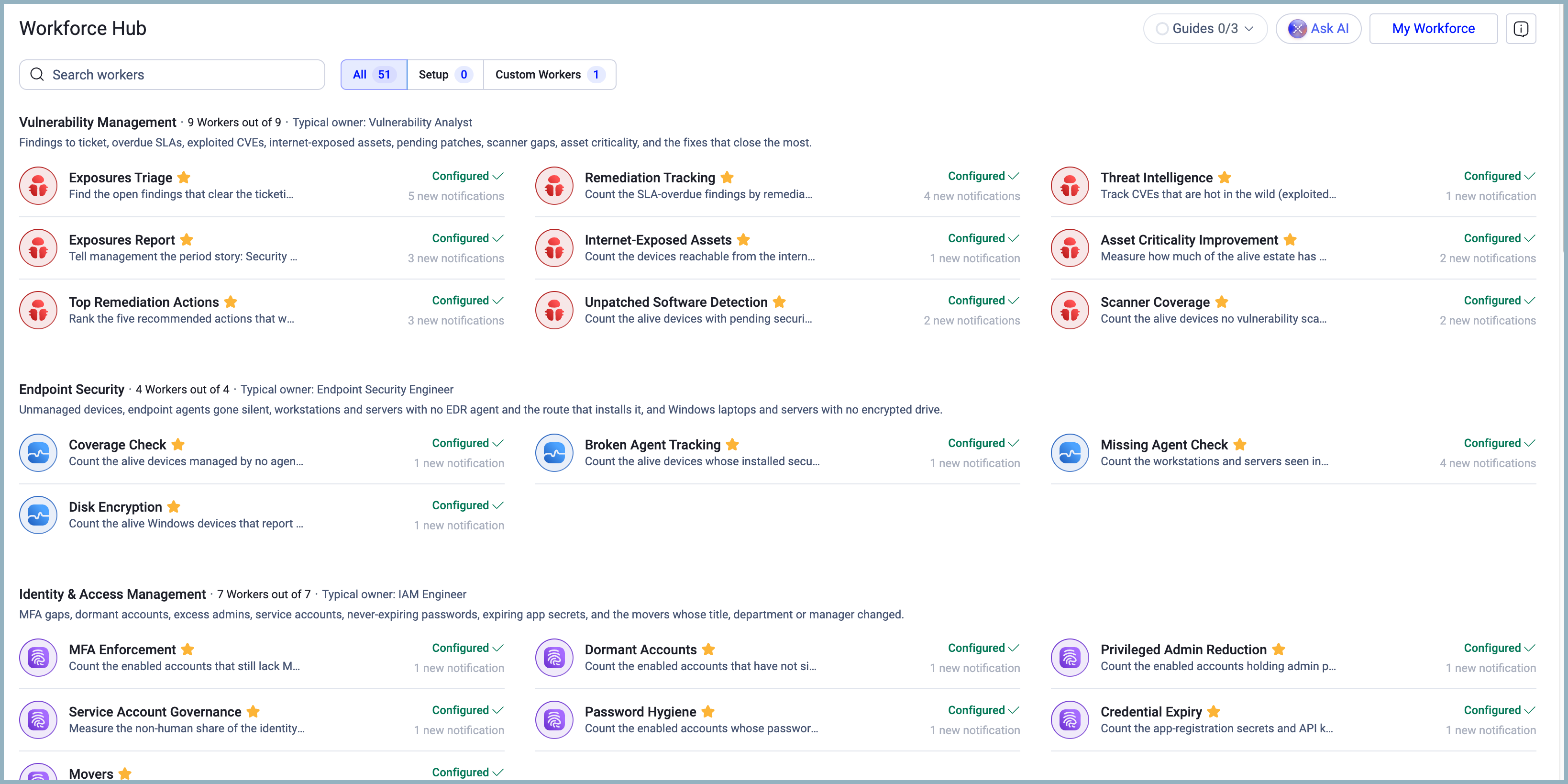
Use the Workforce Hub to find the Virtual Workers your AI Workforce runs on schedule, check which workers are set up, and follow the workers you want in My Workforce. The Workforce Hub lists both Axonius-provided and custom Virtual Workers.
Required Permissions
- To open the Workforce Hub, your role needs the AI Agents > View and interact permission.
- To change a worker's status, your role needs the Configure AI system settings permission.
Opening the Workforce Hub
- In the sidebar, hover over AI Workforce. A panel opens with the AI Workforce pages.
- Select Workforce Hub.
The page opens with the introduction Find workers for your workforce, which describes how to browse, follow, and open workers.
You can also open the Workforce Hub from the header of the other AI Workforce pages.
Finding and Opening a Worker
- To find a worker by name, enter text in Search workers. To open the first worker in the list, press Enter.
- To narrow the list, select a filter: All, Setup, or Custom Workers. See Filtering Workers.
- To read a worker's description, requirements, and runs, select the worker's row or name. The worker page opens.
- To add a worker to My Workforce, select the star next to the worker's name (Follow). See Following Workers.
- To set up a worker that shows Set up, select Set up. The worker page opens and shows what the worker needs. See Workers That Need Setup.
Searching and Filtering
Use the search box and the filter group to narrow the list of workers.
Searching Workers
Search workers matches the text you enter against the workers on the page. To open the first worker in the results, press Enter.
When no worker matches your text, the page shows "No worker matches "<text>"."
Filtering Workers
Each filter shows a count of the workers that match your search. The filter you select stays in the page address, so the filter stays when you refresh the page or select the browser's Back control.
- All — Shows every worker, and the custom workers, each under its department.
- Setup — Shows the workers that wait for setup. A worker waits for setup when an adapter, a module, or data is missing, or when an administrator paused the worker.
- Custom Workers — Shows the custom workers of your organization, grouped by department. The filter includes the custom workers you created and the custom workers that your organization shares.
When every worker is set up, the Setup filter shows "Every worker is set up." When no worker is on your roster, the page shows "No workers on your roster yet."
Department Sections
The page lists the workers in one section for each department, in catalog order. Each section heading includes the following information:
- The department name.
- The number of activated workers, in the format "<N> Workers out of <M>". Hover over the number to see that activated workers are enabled and have what they need. Paused workers and workers with missing requirements aren't counted.
- The typical owner of the department's workers, in the format "Typical owner: <role>".
A description of the department appears under the heading.
When you select All, the custom workers filed under a department appear after the department's workers. Custom workers with no department appear in the Other section.
The workers appear in one, two, or three columns, depending on the width of the page.
Threat Intelligence Worker
Use the Threat Intelligence worker to track the CVEs that are hot in the wild and check whether they affect your environment. Select the worker in the Vulnerability Management section to open its page. The worker needs the Exposures module. Without it, the worker shows "Requires the Exposures module".
Threat Intelligence was named Threat Intel Hunting before. The schedule, run history, and settings of the worker stayed the same, and the AI Companion still recognizes the old name.
To run the worker from the chat, enter its entry phrase: "Run my threat intelligence check: what's changed in the hot CVEs, and am I affected?"
The worker works as follows:
- Schedule — The AI Workforce runs the worker once a day, at night. The page shows the cadence as "Every day at <time>". To run the worker at any time, select Run now.
- Changes only — Each run reports the hot CVEs that are new, escalated, or newly matching your environment since the last run. A CVE that the worker reported before stays in one "still open" line until its findings close or you dismiss it.
- Headline — The headline gives the number of new hot CVEs that affect you, how many are confirmed exploited, and the date of the feed. When nothing is new, it says that no new hot CVEs affect you.
- Tiers — The report groups CVEs in three tiers, and each CVE has one dated reason:
- Confirmed exploited — The CVE is in the CISA KEV catalog, is actively exploited, or is used by ransomware.
- Attack activity observed — Exploitation attempts were observed.
- Trending — A proof of concept exists, or the status is unclear. Trending CVEs appear only when they're new and have scanner findings, and they're never in the headline.
- Your exposure — Affected means open findings from a scanner. Likely affected means the software is installed but no finding exists, or the only findings come from Static Analysis. Can't assess means the feed doesn't name a usable product. The report never says "not affected" for these CVEs.
- Actions — The worker proposes a case and a ticket only for the first new affected item of each run. The actions follow the write mode of the worker.
- Old feed — When the hot-CVE feed is more than 2 days old, the report says so and reports nothing as new.
To dismiss a CVE:
- In the briefing, select the Dismiss an item chip.
- Or, in the worker's Standing instructions, add a line that starts with "Dismissed:".
PQC Readiness Worker
Use the PQC Readiness worker to find the quantum-vulnerable certificates that stay valid for more than 12 months. These certificates use classical RSA, EC, DSA, EdDSA, or DH keys with no post-quantum algorithm, so they won't rotate away on their own. The worker runs weekly, and it appears only when the system has certificate data.
The briefing also does the following:
- Singles out the Active Directory certificate templates that are rated critical or high for post-quantum risk, for example Kerberos and smart-card logon.
- Names the keys that are already weak today, for example SHA-1 or MD5 signatures and RSA keys under 2048 bits.
- Names the certificate authorities that issued the certificates.
- Offers a chip to build a PQC dashboard.
To run the worker from the chat, enter its entry phrase: "Run my PQC readiness check — quantum-vulnerable certificates still valid beyond 12 months, the ones behind Kerberos and smart-card logon, and the keys already weak today, worst first."
The worker reports readiness fractions and never a compliance verdict.
Worker Rows
Each row shows the following information:
- The worker's icon, name, and description.
- The star. To follow the worker and add it to My Workforce, select the star (Follow).
- The worker's state on the right side of the row. See Worker States.
- A Read-only note beside the name, when the worker's status is Enabled Read-Only. Hover over the note to see that the worker runs and reports, but writes nothing. The worker page holds the status control.
To ask the AI Companion about the worker's latest result, hover over the row and select Ask AI. A new chat opens with a ready-made question about the worker's headline. Ask AI appears on Configured and Paused rows that have a headline.
Worker States
A worker shows one of the following states:
-
Configured — Shows a check mark. The worker has what it needs and its status is Enabled or Enabled Read-Only, so the worker runs on its schedule. Hover over Configured to see this explanation. The line under Configured shows one of the following:
- "<N> new notifications" — Select the text to open the Notifications tab of the worker page.
- "No new notifications"
- A warning line, when the worker needs attention. See Workers That Need Attention.
-
Set up — The worker waits for something before it can run. The text under Set up shows what the worker needs. See Workers That Need Setup.
-
Paused — An administrator paused the worker. The worker skips its scheduled runs. Run now still runs the worker. To open the worker page, where the status control is, select Paused.
A worker is Configured only when all its requirements are in place: the adapters are connected, the module is enabled, and the data is in the inventory. The worker page and the department counters use the same rule.
Workers That Need Attention
A Configured worker shows a warning line instead of its notifications when the worker needs attention:
- Not run yet — The worker never ran.
- Overdue · <N> days — The worker has a schedule, but it didn't run for <N> days.
- No run in <N> days — The worker has no schedule, and it didn't run for <N> days.
- No recent run — The worker's last run is too old.
The Workforce Hub badge in the sidebar counts the workers that need attention. The badge doesn't count workers that wait for setup or workers that an administrator paused.
Workers That Need Setup
A worker shows Set up when one of its requirements is missing. The text under Set up shows the requirement. For example:
- Requires <adapter> — Connect the adapter.
- Requires one of <N> adapters — Connect one of the adapters that can serve the worker. The text shows this requirement when more than two adapters can serve the worker. Hover over the text to see every adapter.
- Requires the Exposures module — Enable the module.
- Requires certificates in the inventory — Axonius needs the data on record.
To open the worker page, select Set up. The worker page names the missing requirement.
When you meet the requirement, the worker moves to Configured.
Example
Your team doesn't use ServiceNow. To see the workers that wait for setup, select Setup. The CMDB workers show Set up with the text "Requires ServiceNow". To move the workers to Configured, connect the ServiceNow adapter.
Custom Workers
A custom worker row shows the Personal Custom or Organizational Custom tag. To open the custom worker drawer over the Workforce Hub, select the row.
To show only custom workers, select the Custom Workers filter.
A paused custom worker shows the message: "Its owner paused it, so it does not run. Turn Activate back on in its Edit to resume it."
AI Workforce Manager
The AI Workforce Manager appears in its own section at the bottom of the Workforce Hub. Select its card to open the AI Workforce Manager page.
For more information, see AI Workforce Manager.
Updated 3 days ago