
Working with the CMDB Reconciliation Workspace
To access the CMDB Reconciliation Workspace:
- Above the left navigation menu, click Workspaces.
- In the workspace selection box, select CMDB Reconciliation.
NoteSee Workspaces to learn more about workspaces' features and functions.
Prerequisites
To use the CMDB Reconciliation Workspace, you need to:
- Connect at least one of the following CMDB adapters: ServiceNow, Jira Service Management. Ensure the connection is functional and have full API access.
- In addition, connect at least 2-3 discovery adapters. Examples for recommended adapters: CrowdStrike Falcon, Microsoft Active Directory (AD), Microsoft Intune
Required Permissions
To view CMDB Reconciliation Rules, the CMDB Reconciliation Rules > View permission is required.
To edit and manage CMDB Reconciliation rules or issues, the following permissions are required:
CMDB Reconciliation Rules>Manage CMDB Reconciliation RulesCMDB Reconciliation Rules>Manage CMDB Reconciliation Issues
Admin users have all these permissions by default.
CMDB Homepage
The CMDB homepage provides an executive-level overview of CMDB health and data alignment trends.
image
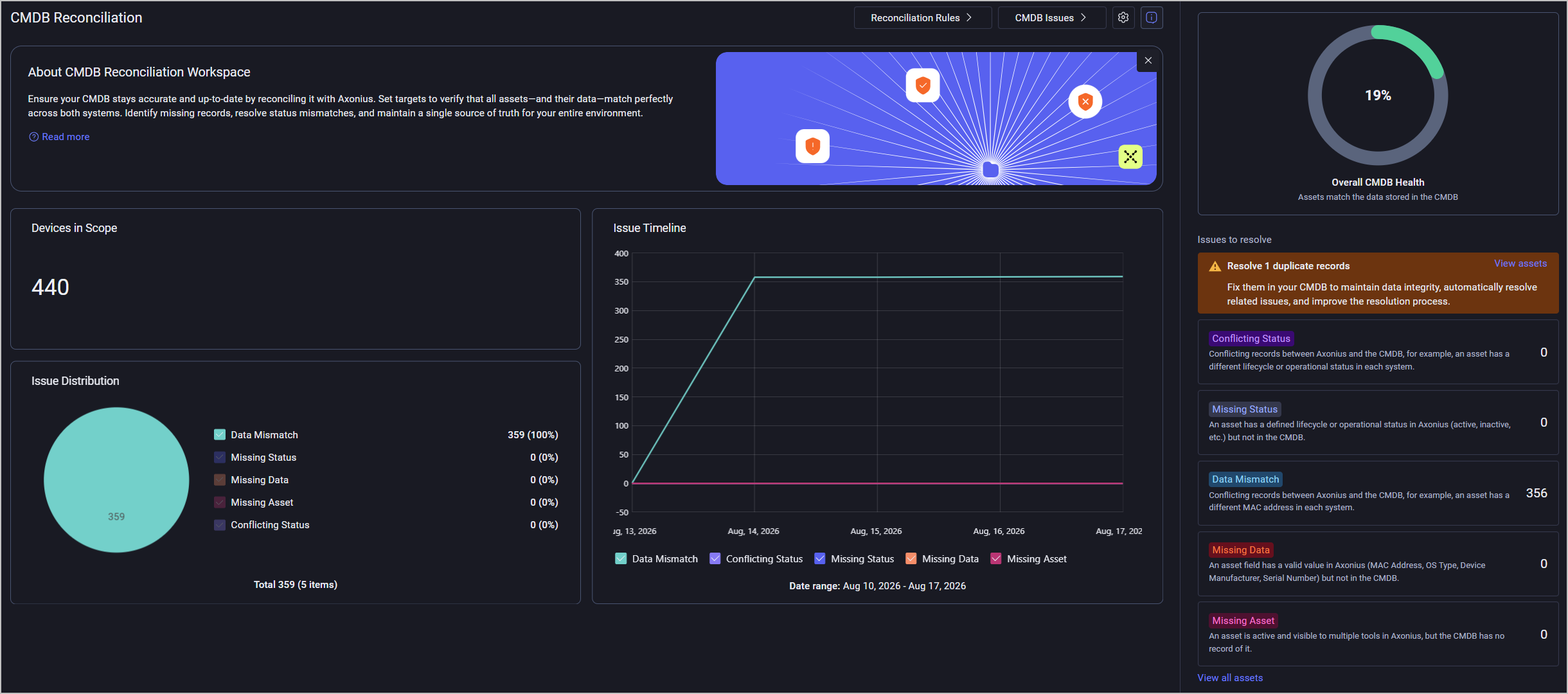
The homepage's main section includes the following charts:
- Devices in Scope - Number of devices that are currently within the defined workspace scope.
- Devices Health Distribution - The distribution of matching devices against unmatching devices, segmented by issue types (missing assets, missing status, etc.)
- Device Issue Timeline - A graph showing the number of matching vs. unmatching devices over time, indicating whether data hygiene is improving or declining.
The homepage's right section includes:
- An Overall CMDB Health chart showing the percentages of healthy (matching) vs. unhealthy (unmatching) devices
- A list of issues to resolve
Issue Types
See Reconciliation Rules for detailed explanations of all issue types (rules) and example use cases.
In addition to the five core issue types, when relevant, the workspace also displays Duplicate records - two CMDB assets that were correlated in Axonius, which most likely means they are duplicate records that are written separately in the CMDB.
Select an issue type to open the CMDB Issues page, filtered by this specific issue type.
Workspace Setup
Before you get started with CMDB Reconciliation, you need to define which assets are in your CMDB scope. To do so, click the settings icon at the top of the workspace's homepage.

- Under Base Query, select a Devices query (or click + Add Query from the query selection dropdown to create a new query) to define the scope. For example: "All Servers and Workstations seen in the last 30 days".
- Optional: Under Exclude Devices, click + to add one or more queries to exclude specific assets from scope. This helps suppress noise and prevent false "Missing Asset" alerts, and also exclude assets that shouldn't be correlated because they don't exist in the CMDB.
Click Save to return to the homepage.
Reconciliation Rules
Reconciliation Rules are the engine defining the logic that governs how data is compared between Axonius and the CMDB. Set up custom rules to automate your reconciliation:
- Select which fields to compare
- Assign the specific action required to fix any discrepancies

Creating a Custom Reconciliation Rule
- Click Create Rule.
- Provide a name for the rule (mandatory) and a description (optional).
- The Activate rule toggle is enabled by default for each new rule. Disable it if you want to deactivate the rule for now. You can enable/disable it at any time when editing the rule.
- Scope - Select a saved query that defines the scope of assets this rule applies to. Note that the scope you select takes precedence over the general scope of the workspace. For example, the general scope of the workspace can be All Workstations while the rule scope is All Windows Workstations.
- Issue
- Under Issue Type, select the issue this rule identifies: Missing Asset/Data/Status, Data Mismatch, or Conflicting Status.
- A field selection row appears. Configure the relevant fields or sources used to compare and detect the issue type you selected.
The following table lists all rule types, their meaning, and examples for use cases + queries for each rule type.Notes- While the examples in the table use data from ServiceNow, they apply to all CMDBs configured in your system.
- Note on Missing Status vs Missing Data: The distinction between these rule types is subtle but intentional:
- Missing Status is for lifecycle/operational status fields - the CMDB rule checks whether the status reflects reality.
- Missing Data is for any other field (MAC, serial, OS version, etc.) where the attribute value is absent in the CMDB but present in Axonius.
Rule Type What It Means Example Use Case Example Query ody> tr> Quick Rule Comparison
Rule Type Both sides have a value? Device in the CMDB? Device in Axonius? Values match? Conflicting Status ✅ Yes ✅ Yes ✅ Yes ❌ No Missing Status ❌ SN side empty ✅ Yes ✅ Yes — Missing Asset — ❌ No ✅ Yes — Data Mismatch ✅ Yes ✅ Yes ✅ Yes ❌ No Missing Data ❌ SN side empty ✅ Yes ✅ Yes — - Reconcile - Select an action (Enforcement Action) to trigger when a mismatch is found. For example - Create a Jira ticket, send an email alert, etc. You can trigger the action manually on the CMDB Issues page.
- Click Save to create the rule.
The rule is saved and added to the rule table in the main Reconciliation Rules screen.
Additional Actions on Rules- Click on a rule from the table to edit, duplicate, or delete it.
- Use the filters above the table to filter rules based on different attributes: issue type, rule status (active/inactive), actions, etc.
CMDB IssuesUse the CMDB Issues page to manage and resolve issues identified by your Reconciliation Rules. View the details for each mismatch and apply the suggested fixes.
 The Issues table displays the following details:
- Host Name - The asset identifier, presented as a clickable link to the specific Asset Profile page.
- Issue Type - One of the 5 issue types discussed earlier in this document.
- Rule Name - The rule that triggered this issue.
- Trusted Field Name - The specific Axonius field being compared.
- CMDB Field Value - The current field's value in the CMDB.
- Trusted Field Value - The current field's value in Axonius.
- Issue Status - One of the following:
- Open - The issue hasn't been resolved yet
- Action triggered - The action required to reconcile this issue was triggered. Assuming the action was executed successfully, this issue should not reappear in the table after the next discovery cycle.
Resolving IssuesEach open issue has a Resolve issue button at the right edge of the row.
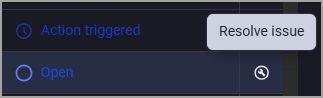 When clicking Resolve issue, you need to select between two courses of action:
- Update in CMDB - Trigger the action configured when defining the rule for this specific issue type. When you select this option, the Issue Status changes to Action triggered, and the Resolve button disappears from the row. To trigger actions for multiple open issues, select their rows and click Update in CMDB on top of the table.
- Dismiss - You might need to dismiss specific reconciliation issues to reduce alert fatigue and ensure data accuracy. This ensures you will be prompted to review only issues where actionable, new information is available.
-
To dismiss multiple open issues, select their rows and click Dismiss on top of the table.
-
When you dismiss an issue, it disappears from the table. It should not reappear in the next discovery cycles unless there is a change in either of the compared values, in the source (Axonius) or in the CMDB.
-
If an admin modifies a rule definition or changes its evaluation scope, all existing issue statuses are re-evaluated. As a result, the system clears the Dismissed status of all relevant issues in the next discovery cycle and they become open again.
-
To view dismissed issues, enable Show dismissed issues. For any dismissed issue, you can click the Refresh button at the right edge of the row to re-open this issue. To re-open multiple dismissed issues, select their rows and click Reopen Issue on top of the table.

-
Resolving All IssuesTo update all issues in CMDB at once, click Resolve All Issues at the top right edge of the page.
 Reconciliation Life Cycle Example
The table below illustrates how the system handles an issue when the value of the OS: Type field changes over a 3-day cycle.
Day Trusted Field Value CMDB Field Value User/System Action Issue Visibility Reason Sunday WindowsLinuxThe user clicks Dismiss Hidden (for next cycle) The user acknowledged the mismatch Monday WindowsLinuxDiscovery Cycle Runs Hidden No data or rule changes detected Tuesday MacLinuxDiscovery Cycle Runs Visible (Reappeared) The Axonius (Trusted Field) value changed from WindowstoMac. New information requires re-evaluation, which means the issue is open again.
Updated 14 days ago