
Working with the AI Workforce
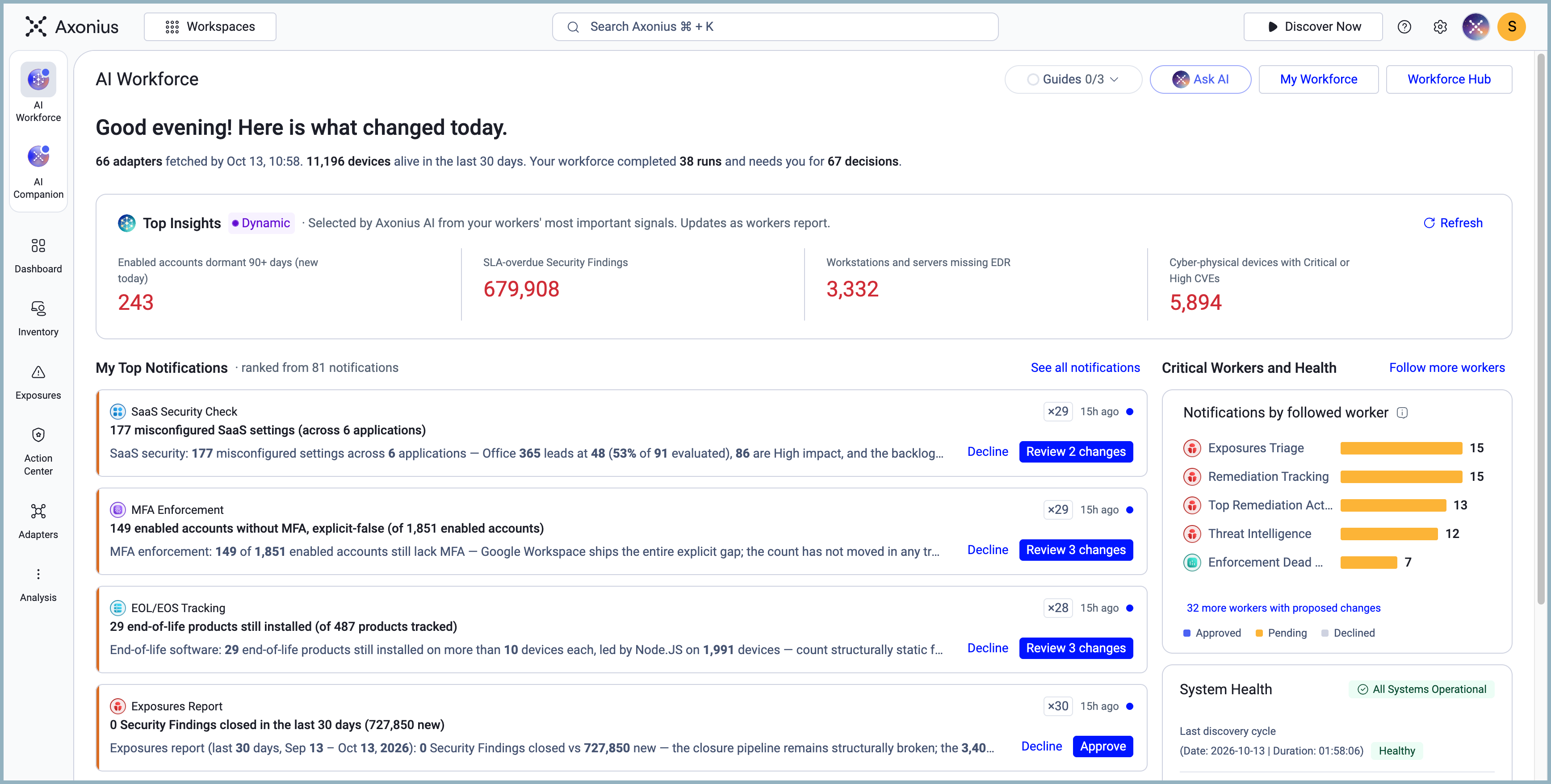
The AI Workforce is a set of Virtual Workers that automatically gather intelligence about your environment and present findings in briefings after each discovery cycle.
The AI Workforce is available on commercial hosted deployments only. It is on by default. To learn more about Axonius AI settings, see:
- General Settings
- Managing Your Axonius AI Credits
- Tool Permissions
- AI Workforce Role Permissions
- Long Term Memory
Permissions
- To open the AI Workforce pages, your role needs the AI Agents > View and interact permission and the global data scope.
- To change a worker's status, Approved Actions, or Standing instructions, your role needs the Configure AI system settings permission.
- To stop or resume AI Workforce runs or change the AI Workforce schedule, your role needs the Manage the AI Workforce permission and the global data scope. For other users, the stop switch is disabled and a note explains why.
Users in a data scope never see the AI Workforce account's runs or digest, and cannot use the Manage the AI Workforce actions.
The AI Workforce Account
The AI Workforce is a built-in account that owns one scheduled task per Virtual Worker, each set to run after every discovery cycle. Tasks are active out of the box, so the first briefings arrive after the first completed cycle.
- No one can sign in as the AI Workforce account, and it doesn't appear under Service Accounts.
- Organizational custom workers — workers created with Run as the AI Workforce — also belong to the AI Workforce account.
- The account follows each worker's settings: a worker set to Paused skips its AI Workforce runs.
- In 10.0.0, a worker set to Live applies its actions on AI Workforce runs too.
The Four AI Workforce Views
The AI Workforce has four pages, available from the sidebar flyout:
- Homepage — Your daily starting point: top insights from your workers, notifications that need action, and system health.
- Notifications — Every finished worker run, with controls to approve or decline proposed changes.
- My Workforce — The workers you starred, with Run now and access to each worker's detail page.
- Workforce Hub — The full catalog of Virtual Workers and your custom workers.
Continuing an AI Workforce Conversation
- In the Activity Log, select Open conversation on a run. The conversation opens read-only.
- Select Clone conversation to copy the conversation to your chat history with the title "(title) (copy)". The copy is editable.
Stopping AI Workforce Runs
- Go to System Settings > AI Settings > General Settings.
- Under AI Workforce, turn off Run the AI Workforce after every discovery cycle.
When disabled, the discovery-cycle trigger skips every AI Workforce task and stops runs already in progress. Enabling the option again resumes runs after the next discovery cycle. Axonius records the change in the Activity Log.
Data Scopes and the AI Workforce
Data scopes affect what you can see and do in the AI Workforce.
If your role uses a data scope (not the global data scope):
- You can't see the AI Workforce account's runs or the Daily Digest.
- The Manage the AI Workforce controls — stop, resume, and cadence changes — are disabled. A note explains why.
- Write tools are not available when you create a custom worker.
- Standing instructions apply only within your data scope.
If your account is connected as a data scope, the AI Companion message box is disabled and you can't use any AI features.
Updated 8 days ago