---
updatedAt: 2026-10-21T02:17:08.000Z
agentTools:
projectIndex: https://docs.axonius.com/llms.txt
---
# Using the AI Workforce Home Page
Use the AI Workforce Homepage to review what your followed workers found and to approve or decline their proposed changes.
The Homepage is the landing page when **Open the AI Workforce as the home page** is on in General Settings (on by default). When an administrator pauses the AI Workforce runs, users land on the dashboards instead.
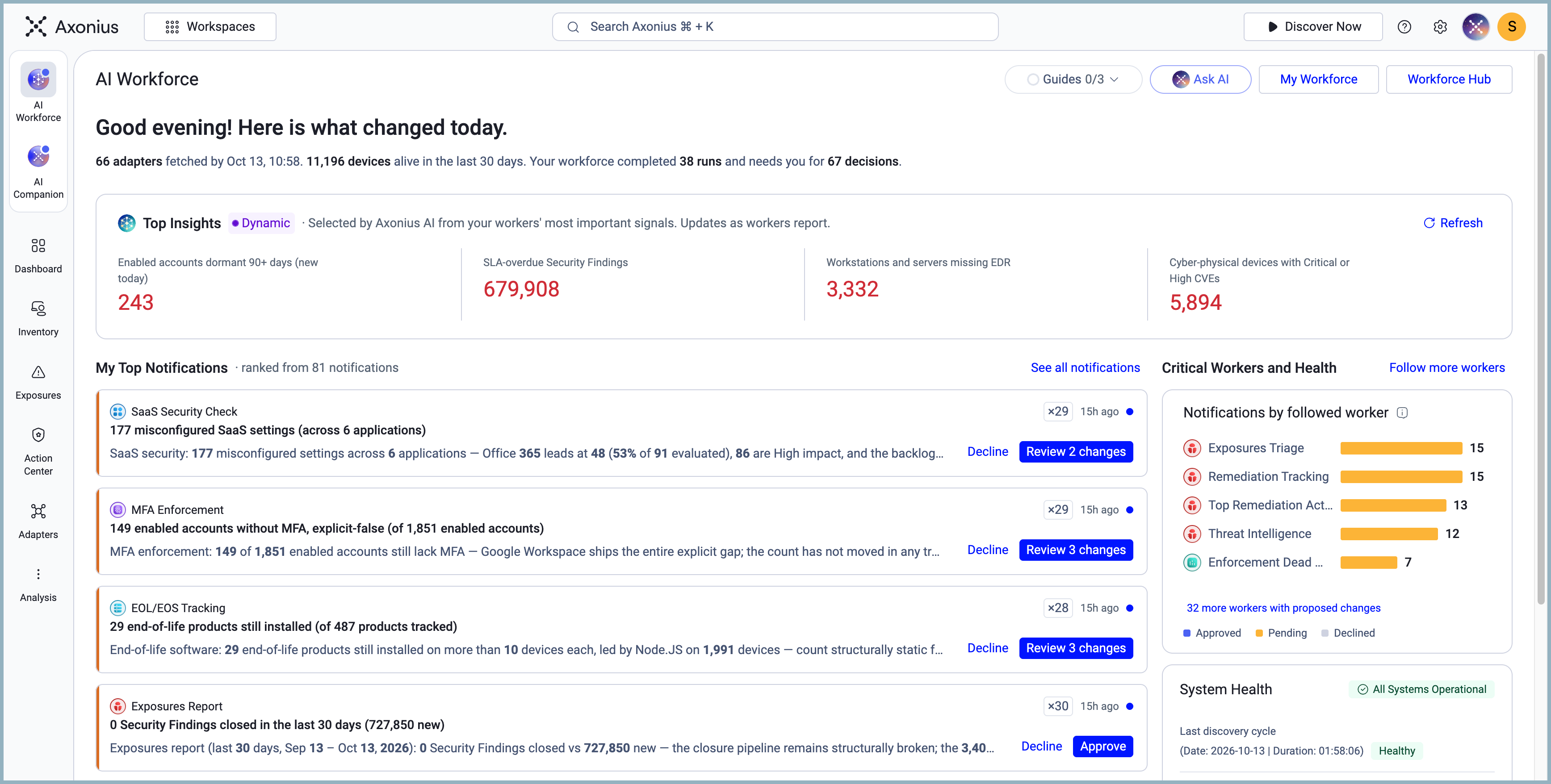
The Homepage shows only the workers you follow. When you first open the Homepage, Axonius follows every worker enabled at that time. Workers you enable later aren't followed automatically. When you choose which workers to follow, Axonius keeps your choice, even when you follow none.
To change the workers you follow, star workers in the **Workforce Hub** to add them to My Workforce, or select the filled star in **My Workforce** to remove a worker.
### Note
When you have no workers set up, the Homepage shows the following content:
* **No notifications or Critical workers** and "No notifications available because no worker is set up yet."
## Required Permissions
You need the following permissions:
* **Enable Axonius AI** must be on in General Settings.
* To open the AI Workforce pages, your role needs the **AI Agents** > **View and interact** permission.
* To refresh **Top Insights**, your role needs the **Manage the AI Workforce** permission and a global data scope.
* If your role has a data scope, the Homepage shows only the sections that apply to your data scope. **Top Insights**, **System Health**, and the **Runs** and **Findings** tiles appear only in the global data scope.
## Workforce Terms
The AI Workforce pages use the following terms:
* **Worker** — One configured automation.
* **Virtual Worker** — A ready-made worker from the catalog.
* **Custom worker** — A worker that you create from a scheduled prompt.
* **Followed workers** — The workers you star in **My Workforce**. The Homepage shows information about your followed workers.
## Opening the AI Workforce Home Page
**To open the AI Workforce Homepage:**
1. In the sidebar, hover over **AI Workforce**. A panel opens with **Homepage**, **Notifications**, **My Workforce**, and **Workforce Hub**.
2. Select **Homepage**.
You can also open **My Workforce** and **Workforce Hub** from the Homepage header.
When you sign in, Axonius opens a different page in the following cases:
* The first insights are still being generated. Axonius opens the AI Companion with the message "Your workforce experience is almost ready."
* The AI Workforce is unavailable, has no active workers, or you follow no workers. Axonius opens your dashboards.
## Following Workers
The workers you follow are the ones you starred in **My Workforce**. **My Top Notifications**, **Notifications by followed worker**, and the **Workforce KPIs** show only the workers you follow.
The first time you open the Homepage, you follow every worker enabled at that time. Axonius doesn't add workers enabled later. After you star or unstar a job, the list of workers you follow is yours to manage.
To follow more workers, select **Follow more workers**, and then select the star beside a worker's name on the Workforce Hub.
## Homepage Sections
The Axonuis AI Homepage has the following sections:
* [Top Insights](#top-insights)
* [My Top Notifications](#my-top-notifications)
* [Critical Workers and Health](#critical-workers-and-health)
* [Notifications by followed workers](#notifications-by-followed-workers)
* [System Health](#system-health)
* [Workforce Tiles](#workforce-tiles)
### Top Insights
Use **Top Insights** to see the most important signals from your workers. The **Dynamic** label indicates that Axonius AI selects the insights. The section description reads "Selected by Axonius AI from your workers' most important signals. Updates as workers report."
The section shows up to four insights. Each insight shows a label, a number, and **Investigate in chat**. The insights are the same for every user.
The insights come from the latest Daily Digest. Axonius AI generates new insights after every discovery cycle. When the digest is older than 24 hours, the section shows "From the latest Daily Digest, \."
To ask the AI Companion about an insight, select **Investigate in chat**. The AI Companion opens with the insight.
#### Refreshing Top Insights
If you have the **Manage the AI Workforce** permission in the global data scope, **Refresh** appears in the section header.
To generate new insights from the last day's runs, select **Refresh**. While Axonius generates the insights, the control shows **Generating…**. If the refresh fails, the message "Couldn't refresh Top Insights" appears.
#### Top Insights Empty States
* **No new insights in the last 24 hours.** — Your workers produced no new insights.
* **Axonius AI will surface the most important insights here once your workers start running.** — No worker ran yet.
* **No data yet** — The first insights are still being generated.
### My Top Notifications
Use **My Top Notifications** to find the notifications that need you first. The text next to the title shows how many notifications the list was ranked from, for example "· ranked from 51 notifications".
The section shows up to five cards, ranked by priority. Severity ranks first. Each card shows the worker name, a headline, the start of the worker's report, and how long ago the worker reported. A dot on the card indicates an unread notification.
The cards come from the following sources:
* Unread runs from the last 24 hours of the workers you follow.
* All runs that include a change that still waits for a decision.
* AI chat conversations that wait for your answer. Up to two of the five cards can be conversations. These cards show the **Waiting on you** tag and **Open in chat**.
Cards of custom workers show the **Personal Custom** or **Organizational Custom** tag.
Click on a notification card to view the card on the Notifications page.
#### Acting on Notifications
Each card offers the actions that fit its content:
* **Approve** — Sends the proposed change to the AI chat. The approval card in the chat makes the change. Nothing changes until you approve it there.
* **Decline** — Rejects the proposed change. Axonius writes nothing, and the change shows as **Declined** to every user who sees the notification.
* **Review N changes** — Opens a run that has more than one change. N is the number of changes.
* **View Actions/Changes** — Opens a run that has results but no change waiting for a decision.
* **Open in chat** — Opens the AI chat for a conversation that waits for your answer.
* **Mark as read** and **Mark as unread** — Change the read state of the notification.
* **Ask AI** — Opens the AI Companion with a question about the headline. This option appears as **Ask AI** on the card, not "Ask about this headline".
When you handle a card, the card leaves the list, and the next notification takes its place. The Homepage has no **Undo** action. To undo a decision, open the notification in the Notifications.
To open a notification in the Notifications, select its card. To open the full list of notifications, select **See all notifications**.
#### Example
You follow three workers. The Homepage greets you with "Good morning, Dana! Here is what changed overnight." The summary line says "Your workforce completed 6 runs and needs you for 2 decisions." The first card in **My Top Notifications** proposes **Create Case — 3 servers**. To create the case, select **Approve**. The AI chat opens with the approval card.
#### My Top Notifications Empty States
* **You're all caught up.** and **There are no notifications requiring your attention.** — You have no notifications that need action.
* **You don't follow any workers yet.** and **Follow workers to get their notifications here.** — Select **Follow workers** to open the Workforce Hub.
* **Nothing new needs you.** — Only older conversations wait for your answer.
### Critical Workers and Health
**Notifications by followed worker** ranks the workers you follow by the changes each proposed, split into **Approved**, **Pending**, and **Declined**. To open a worker's notifications, select the worker's row.
**System Health** shows an **All Systems Operational** or **Attention Needed** badge over three lines:
* **Last discovery cycle**: when the cycle finished, how long the cycle took, and **Healthy**, **Slow**, or **Failed**.
* **Adapter fetches incidents**: the number of adapters whose last fetch failed on an active connection, or **No incidents**.
* **Overall system health**: the System Health Check job's latest result, **Good**, **Attention needed**, or **Not measured yet**.
### Workforce Tiles
Four tiles at the bottom of the page summarize the activity of your followed workers over the last 24 hours.
* **Runs**: completed runs out of expected runs.
* **Findings**: findings from the workers you follow.
* **Requires attention**: previewed changes and conversations that wait for your decision.
* **Actions Done By Workers**: changes the jobs applied.