
Apigee Edge
Apigee Edge is an API management platform that provides tools for designing, securing, deploying, publishing, and analyzing APIs through API proxies, API products, and developer apps.
Use Cases the Adapter Solves
- Monitor API delivery: Track API proxies, their revisions, and deployment environments to improve visibility into API services.
- Review API access configuration: Review API products, developer applications, and their assigned API products to support API governance.
- Maintain developer visibility: Identify API developers and the applications they use when reviewing API-platform access.
Asset Types Fetched
- Application Services
- Application Resources
- Users
- Accounts/Tenants
Data Retrieved through the Adapter
Application Services - fields such as: Name, Revision, API Proxy Type, Deployed Environments
Application Resources - fields such as: Name, Description, Status, API Products
Users - fields such as: User Name, Email Address, Display Name, Developer Status
Accounts - fields such as: Name, Organization, Deployed API Proxies, States
Before You Begin
Required Ports
- TCP port 443 (HTTPS)
Authentication Methods
The adapter supports these authentication methods:
- OAuth 2.0 (Edge for Public Cloud)
- HTTP Basic (Edge for Private Cloud)
APIs
Axonius uses the Apigee Edge management API. The adapter calls these endpoints:
POST /oauth/token- Obtains an OAuth 2.0 access token for Edge for Public Cloud.GET /v1/organizations/{organization}/apis- Lists API proxies.GET /v1/organizations/{organization}/apis/{api_name}/revisions/{revision}- Retrieves API proxy revisions.GET /v1/organizations/{organization}/sharedflows/{shared_flow_name}- Retrieves shared flows and their deployments.GET /v1/organizations/{organization}/apiproducts?expand=true- Retrieves API products.GET /v1/organizations/{organization}/developers?expand=true- Retrieves developers.GET /v1/organizations/{organization}/apps?apptype=developer&expand=true- Retrieves developer apps.GET /v1/organizations/{organization}/environments/{environment_name}/deployments- Retrieves environment deployments.
Required Permissions
The user must have the built-in Read-only Organization Administrator role in the Apigee Edge organization. This role has read-only access to resources in the organization through both the management UI and the management API. For more information, see Edge built-in roles.
Supported From Version
Supported from Axonius version 10.0.1
Setting Up Apigee Edge to Work with Axonius
- Identify the Apigee Edge management API host and the organization to retrieve.
- Select an authentication method that matches your deployment: OAuth 2.0 (Edge for Public Cloud) or HTTP Basic (Edge for Private Cloud).
- Obtain the user name and password for the selected authentication method.
- For OAuth 2.0, identify the Edge OAuth 2.0 service host. Use the identity-zone host for a SAML-enabled organization.
Connecting the Adapter in Axonius
- Navigate to the Adapter Catalog, search for Apigee Edge, and select the adapter.
- Click Add Connection.
- Provide the following parameters.
Required Parameters
- Host Name or IP Address - Enter the Edge management API host, including the
https://prefix. Do not include/v1or an endpoint path. Example:https://api.enterprise.apigee.com - Organization Name - Enter the Apigee Edge organization to retrieve. Add one connection for each organization. Example:
example-organization - Authentication Method - Select OAuth 2.0 (Edge for Public Cloud) or HTTP Basic (Edge for Private Cloud).
- User Name - Enter the user name for the selected authentication method. For OAuth 2.0, use the Apigee user email address or SAML identity-zone machine user.
- Password - Enter the password for the selected authentication method.
- Edge OAuth 2.0 Service Host - For OAuth 2.0, enter the token-service host, including the
https://prefix. Example:https://login.apigee.com
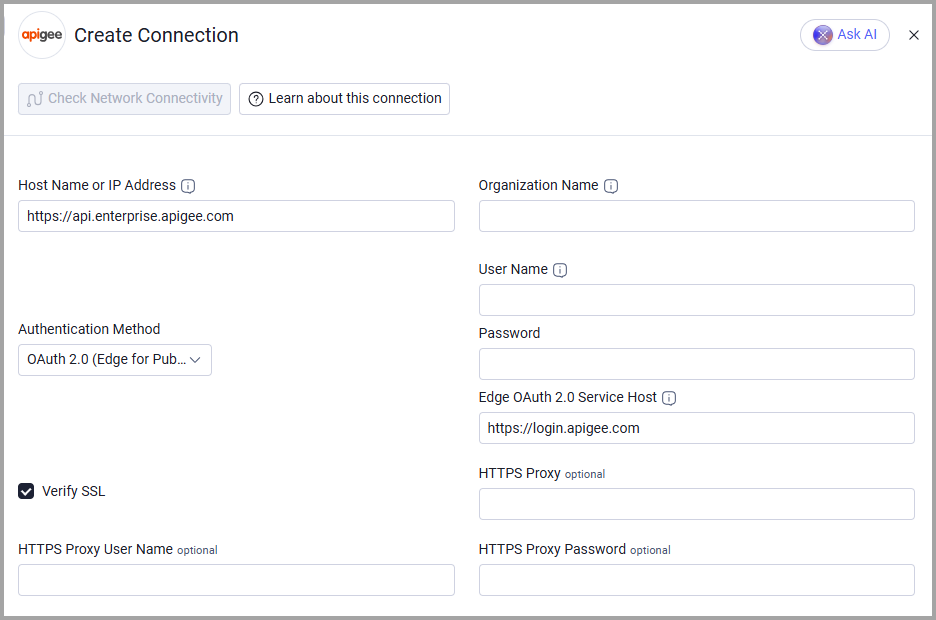
Optional Parameters
- Verify SSL - Select whether to verify the SSL certificate of the server against the CA database inside of Axonius. For more details, see SSL Trust & CA Settings.
- HTTPS Proxy - Connect the adapter to a proxy instead of directly connecting to Host Name or IP Address.
- HTTPS Proxy User Name - Enter the user name to use when connecting to Host Name or IP Address through HTTPS Proxy.
- HTTPS Proxy Password - Enter the password to use when connecting through HTTPS Proxy.
To learn more about common adapter connection parameters and buttons, see Adding a New Adapter Connection.
Advanced Settings
Note:
Advanced settings can either apply to all connections for this adapter, or to a specific connection. Refer to Advanced Configuration for Adapters.
To learn more about Adapter Configuration tab advanced settings, see Adapter Advanced Settings.
- Fetch the deployed environments of each API proxy revision - Fetch the deployment environments for each API proxy revision. Enabled by default.
- Fetch all API proxy revisions (not only deployed) - Fetch API proxy revisions that are not deployed to an environment. Disabled by default.
- Fetch ApplicationResources of sub-type shared_flow from Shared Flow Details - Fetch shared flows. Enabled by default.
- Fetch ApplicationResources of sub-type product from API Products - Fetch API products. Enabled by default.
- Fetch ApplicationResources of sub-type developer_app from Developer Apps - Fetch developer apps. Enabled by default.
- Fetch Accounts from Environment Deployments- Fetch environments. Enabled by default.
Updated about 1 hour ago