
Connect an MCP Client with Your Axonius Login
Axonius Documentation › Integrations › Axonius MCP Server › Connect an MCP client with your Axonius login
Connect an MCP Client with Your Axonius Login
Connect Claude, ChatGPT, Claude Code or another MCP client to Axonius with your own user account. The client can then read your Axonius data in a conversation. This guide explains what the connection gives the client, how to set it up, how to connect, and how to disconnect.
On this page
- Overview
- Before you begin
- Administrator setup
- Connect an app
- The connection page
- What the app can and cannot do
- Disconnect an app
- Manage connected apps as an administrator
- Activity log
- Troubleshooting
- FAQ
Overview
The Axonius MCP server lets an AI client work with your Axonius data: count and query assets, read saved queries, dashboards, reports, enforcement sets, findings and more. There are two ways to connect a client:
- With a service account. An administrator creates a service account with Allow Axonius MCP connection and gives the client its API key and secret. The client acts as that service account.
- With your own login. You sign in to Axonius from the client, choose the tools it may use, approve the connection once, and the client acts as you. This guide covers this option.
When you connect an app with your login, the app receives a read-only access token that is valid for 24 hours. The app can use the tools you selected, within what your role can view in Axonius. It cannot change anything.
Before you begin
- An administrator must turn on Allow users to connect MCP clients with their Axonius login. See Administrator setup.
- Your role must have the API access permission. Ask your administrator if you are not sure.
- The app must be one your administrator allows. Claude (web, desktop and mobile), ChatGPT, and desktop tools such as Claude Code are allowed by default.
- You must be signed in with your own account. An impersonation session cannot connect an app.
- For Claude Desktop, claude.ai and ChatGPT, your Axonius instance must be reachable from the internet. Those apps connect from their own cloud.
Administrator setup
Go to System Settings > API > MCP OAuth Login.
- Turn on Allow users to connect MCP clients with their Axonius login. This setting is off by default. When it is off, no user can connect an app with their login, and apps that were connected earlier stop working until you turn it on again.
- Review Allowed callback hosts. This list names the apps your users may connect. The default list is:
claude.aiandclaude.comfor Claude web, desktop and mobilechatgpt.comfor ChatGPT connectorslocalhost,127.0.0.1and::1for apps that run on the user's own computer, such as Claude Code
To allow another app, add the exact host its sign-in returns to, for exampleperplexity.aiorvscode.dev. A host must match an entry exactly:claude.aidoes not allowapi.claude.ai. An intranet host name is an entry too. Enter a host name only, withouthttps://or a path.
- Click Save. A change takes up to 30 seconds to apply.
Important
Do not leave Allowed callback hosts empty. An empty list refuses every app.
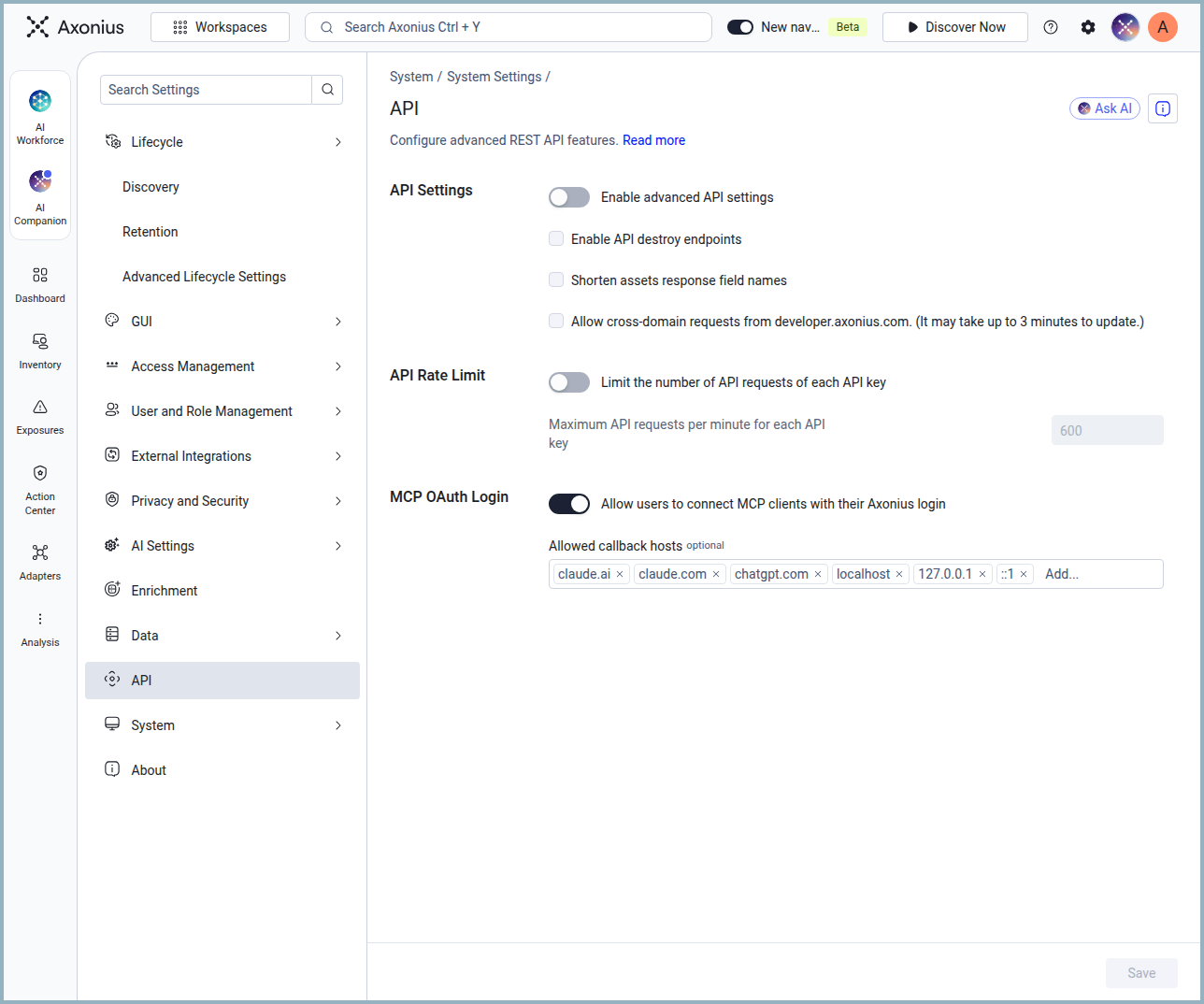
System Settings > API > MCP OAuth Login.
Give the roles of the users who will connect apps the API access permission (System Settings > User and Role Management > Roles). A user whose role has no API access cannot connect an app.
Connect an app
Each app has its own way to add an MCP server. The Axonius MCP server URL is always:
https://<your Axonius address>/mcpClaude Desktop and claude.ai
- Open Settings > Connectors in Claude Desktop or on claude.ai.
- Click Add custom connector.
- Enter a name, for example Axonius, and the server URL. Click Add.
- Click Connect next to the new connector. Your browser opens the Axonius connection page. Sign in to Axonius if asked.
- Review the page, select the tools, and click Connect. The browser returns to Claude, and the connector is ready.
Claude Desktop and claude.ai share the same connectors. A connector you add in one is available in the other.
Claude Code
- Add the server:
claude mcp add --transport http axonius https://<your Axonius address>/mcp - In a Claude Code session, run
/mcp, select axonius, and choose Authenticate. Your browser opens the Axonius connection page. - Sign in to Axonius if asked, review the page, select the tools, and click Connect.
ChatGPT
Add the server URL as a connector in ChatGPT's connector settings, then follow the sign-in that ChatGPT opens. The Axonius connection page is the same as for Claude.
The connection page
The connection page is where you approve the app and choose what it may use. Read it before you click Connect.
-
The title names the app and the website the approval is sent to, for example Connect Claude (claude.ai) to Axonius. Make sure both are what you expect.
-
The page says what the app receives: a read-only token that acts as your user for 24 hours, with the tools you select.
-
The first time you connect a given app, the page shows a warning. Any app can call itself "Claude". Continue only if you started this connection yourself and the website in the title is the app you expect.
-
Tool Permissions lists the tools in nine groups: Asset inventory, Findings and cases, Adapters and fetch, Saved queries, Dashboards and reports, Enforcements, Identity and access, Audit, and System configuration. Each group shows how many of its tools are selected. Click the arrow next to a group to see and select single tools.
-
The groups that read sensitive data, Identity and access, Audit, and System configuration, are marked Sensitive and start unselected. Select them only if the app needs them.
-
A tool your role cannot use shows Not in your role and cannot be selected.
-
The selection cannot be changed later. To change it, disconnect the app and connect it again.
-
When you reconnect an app, the page starts from your earlier selection.
-
Cancel returns to the app without connecting it.

The connection page the first time you connect an app.
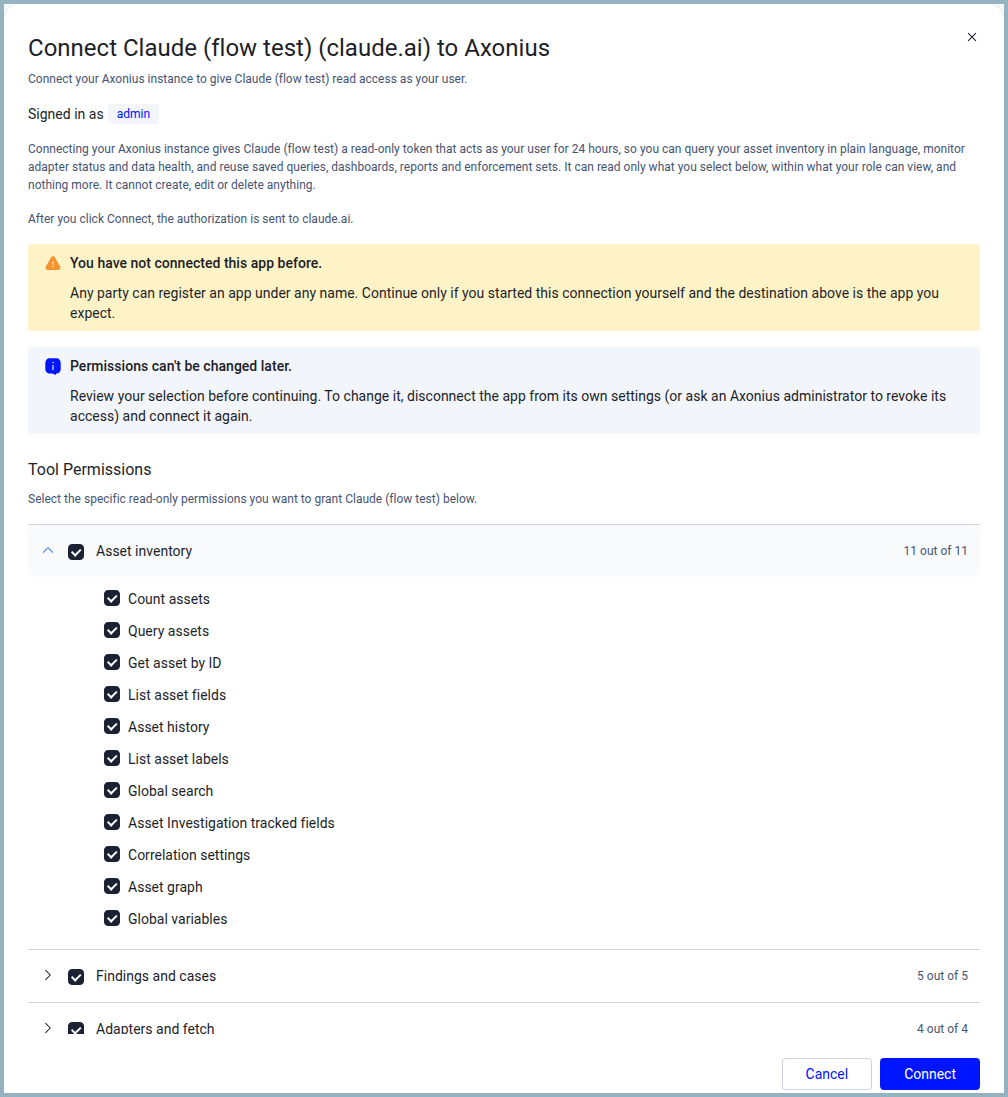
A tool group opened. Each tool has its own checkbox.
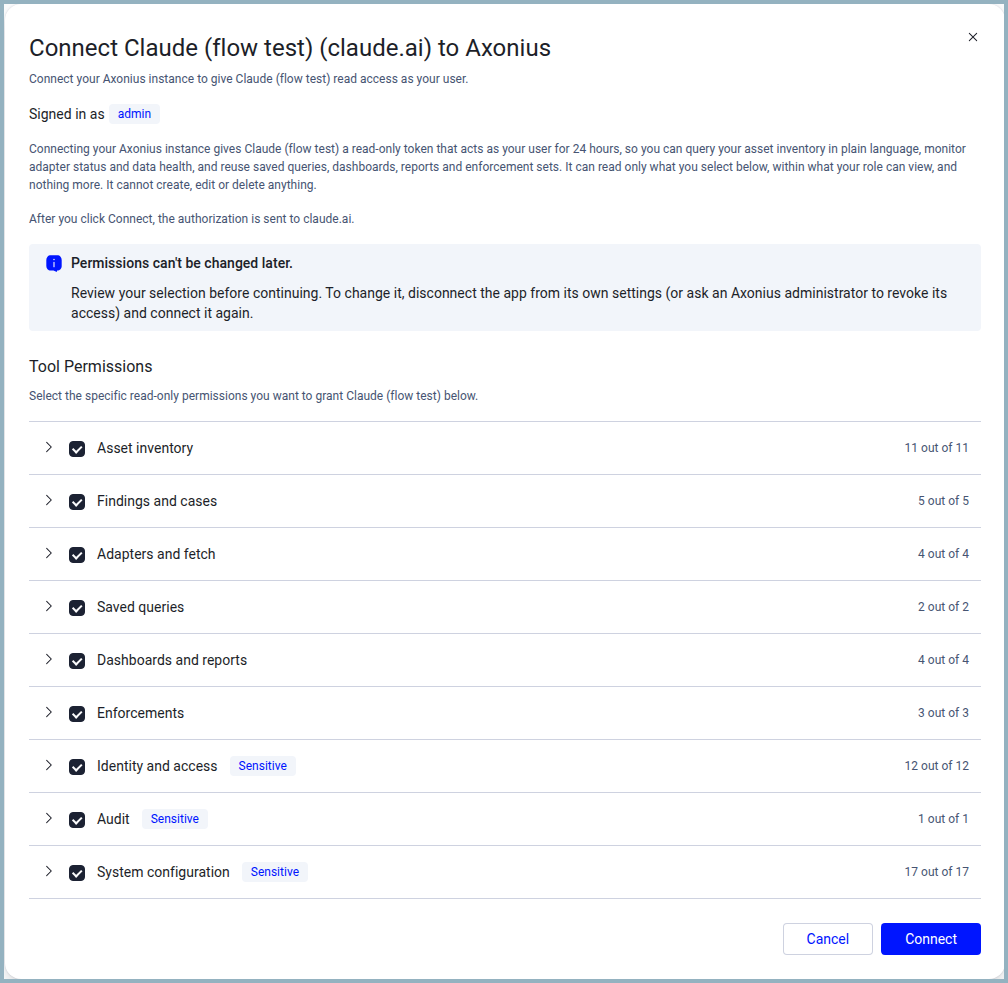
The connection page when you reconnect an app you already approved.
What the app can and cannot do
| The app can | The app cannot |
|---|---|
|
|
Note
Select only the tools the app needs. If you need an app with less access than your own role, connect it with a service account that has a smaller role.
When the 24 hours are over, the app asks you to connect again. You see the connection page again, with your earlier selection, and click Connect.
Disconnect an app
From the app
Use the app's own disconnect. In Claude, open Settings > Connectors and remove or disconnect the Axonius connector. In Claude Code, run /mcp and choose Clear authentication. The app tells Axonius to revoke its token at once.
By an administrator
An administrator can disconnect every app of a user from the user's page. See the next section.
Manage connected apps as an administrator
Go to System Settings > User and Role Management > Users and open a user. The Connected MCP apps section lists each app the user connected: its name, the website it belongs to, when it connected, and how many tools it may use.
Click Disconnect all to revoke every app of that user. The apps lose access immediately. The user's own Axonius sessions are not affected, and the user can connect an app again later.
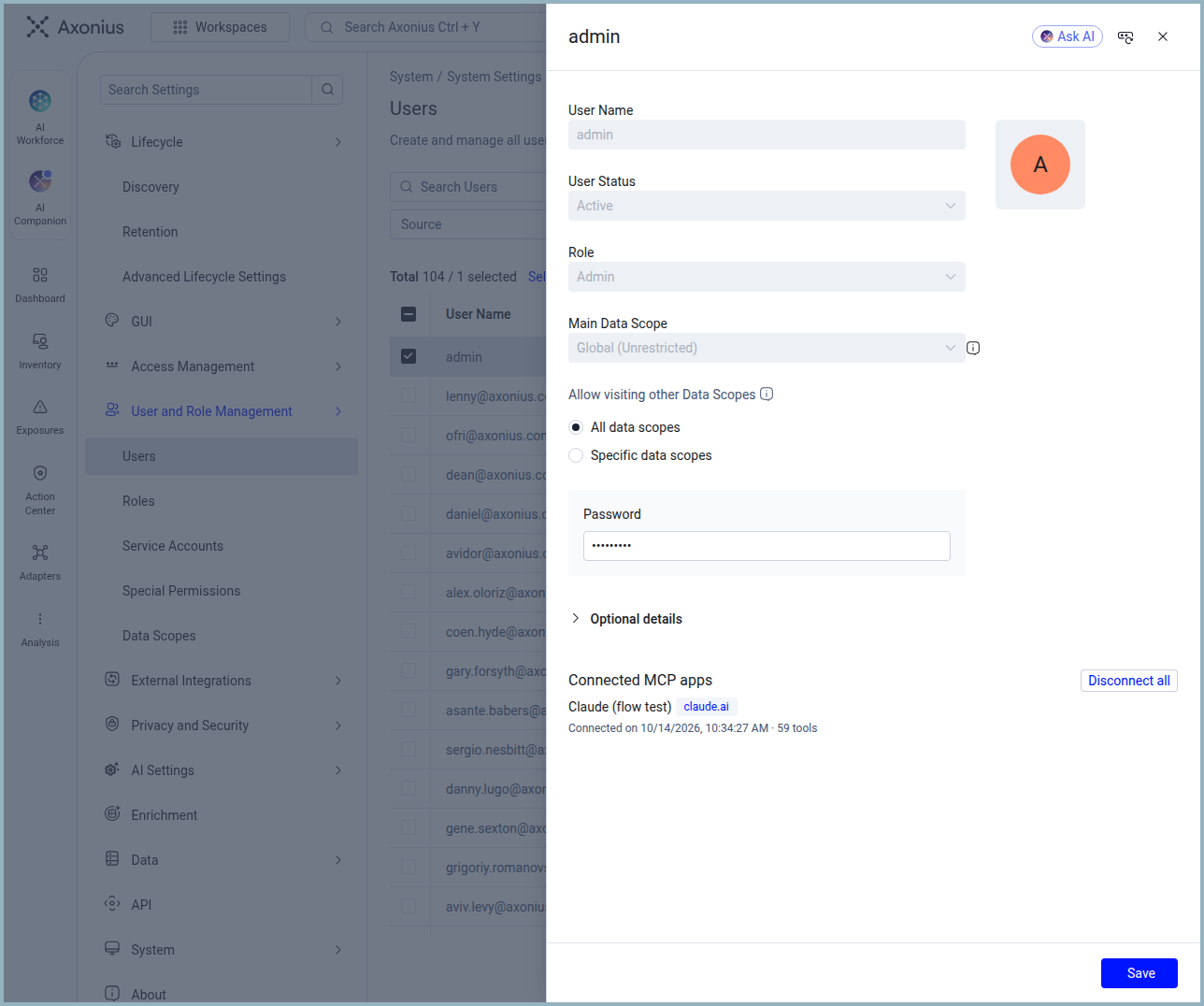
The Connected MCP apps section on a user's page.
Deactivating or deleting a user also disconnects the user's apps. Turning off Allow users to connect MCP clients with their Axonius login stops every connected app at once.
Activity log
The activity log records each connection and disconnection. Filter the log by these actions:
| Action | When it is written |
|---|---|
| MCP Grant | A user approved an app on the connection page. |
| MCP Token Issued | The app received its access token. |
| MCP Revoke | The app disconnected itself. |
| MCP Admin Revoke | An administrator clicked Disconnect all for a user. |
The single read requests an app makes in a conversation are not written to the activity log, the same as other read requests made through the API.
Troubleshooting
| What you see | What it means | What to do |
|---|---|---|
| Connecting MCP clients with an Axonius login is turned off by the administrator | The feature is off. | Ask an administrator to turn on Allow users to connect MCP clients with their Axonius login. |
| The callback host '…' is not allowed by the Axonius administrator | The app is not on the allowed list. | Ask an administrator to add the named host under Allowed callback hosts. |
| Your role has no API access, so it cannot connect an MCP client | Your role lacks the API access permission. | Ask an administrator to add API access to your role. |
| You are signed in through impersonation | An app can be connected only from your own login. | End the impersonation, sign in as yourself, and connect again. |
| Select at least one permission to connect | No tool is selected. | Select at least one tool, then click Connect. |
| The app says it is not authorized, or asks you to connect again | The 24 hours are over, or the token was revoked (disconnect, deactivation, password change, feature turned off), or your role no longer allows any of the selected tools. | Connect the app again. If it still fails, check the rows above with your administrator. |
The app reports 413 or 429 while connecting | The app sent a request that is too large, or too many requests in a short time. | Wait a few minutes and try again. If it persists, contact Axonius support with the app's name. |
| The connection page shows a warning that you have not connected this app before | This is your first connection to this app, or the app was disconnected earlier. | This is normal. Check the website in the title and continue if it is the app you started. |

The connection page when the feature is turned off.

The connection page when the app's website is not allowed.
FAQ
Can I choose which tools the app gets?
Yes. The connection page lists the tools in groups. Select the ones the app needs. Sensitive groups start unselected.
Can the app change anything in Axonius?
No. The token is read-only. A write request is refused.
Can the app use the Axonius API directly?
No. The token works only through the Axonius MCP server, with the tools you selected.
How long does a connection last?
24 hours. Then the app asks you to connect again.
Can an administrator see who connected what?
Yes. Open the user's page under User and Role Management. The Connected MCP apps section lists the user's apps, and the activity log records every connection.
Does this replace the service-account connection?
No. Both exist. Use a service account for an automated integration or for an app that needs a smaller role. Use your login for your own conversations.
Which apps work?
Any MCP client that supports OAuth login and whose website is on the allowed list. Claude (web, desktop, mobile), ChatGPT and Claude Code work with the default list. Cursor and Windsurf are not supported.
Updated about 2 hours ago