
CSV Legacy Remote File Configuration
This adapter configuration page details the configuration of the following CSV based adapters, using the Legacy CSV Remote File Configuration.
For full details about configuration of the CSV and JSON adapters refer to the CSV adapter.
Note
It is possible to configure the CSV based adapters to fetch files from various storage places including: Microsoft OneDrive, Azure, and Amazon S3.
The CSV adapter parameters and functionality are common to all adapters that import files.:
F-Secure Policy Manager - imports .csv files.
Forcepoint Web Security Endpoint CSV File - imports .csv files.
L0phtCrack 7 - imports .csv files.
Masscan - imports .json files.
Nmap Security Scanner - imports .xml files.
SQLite - imports device information from an SQLite database.
Tenable Nessus CSV File - imports .csv files.
Varonis CSV - imports .csv files.
Parameters
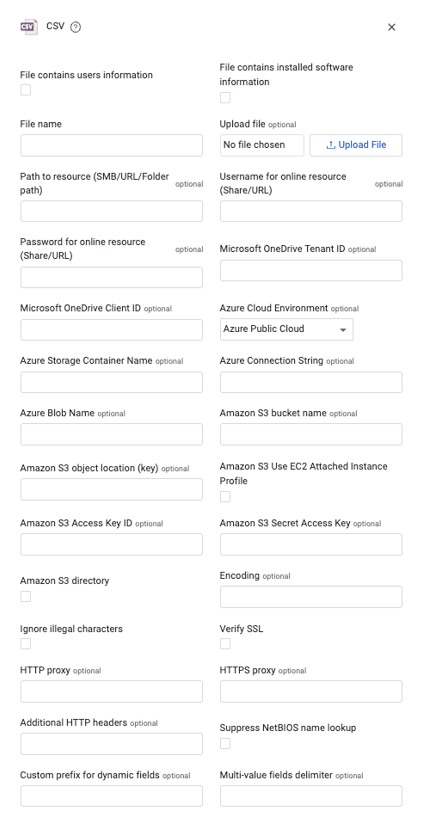
- File contains users information
- Selecting this option imports the file as a list of users instead of devices.
- See the below section for fields required in a Users Information File.
- File contains installed software information
- Selecting this option imports an installed software list instead of devices.
- See the below section for fields required in a Software Applications File.
- File name (required) - A unique name for the adapter connection. The value supplied here is populated in the File name field for the data supplied by a specific adapter connection.
Note
The specified File Name is not required to be the actual imported file name. This field is an identifier for use in the Query Wizard.
- Upload file (optional) - Select a local CSV file to import.
Note
When using this option, the data imported from the CSV will never be fetched again, as the file is static.
Each adapter that imports files supports a different file type: CSV, JSON, or XML.
- Path to resource (optional) - See File Sources for the full list of available sources.
Note
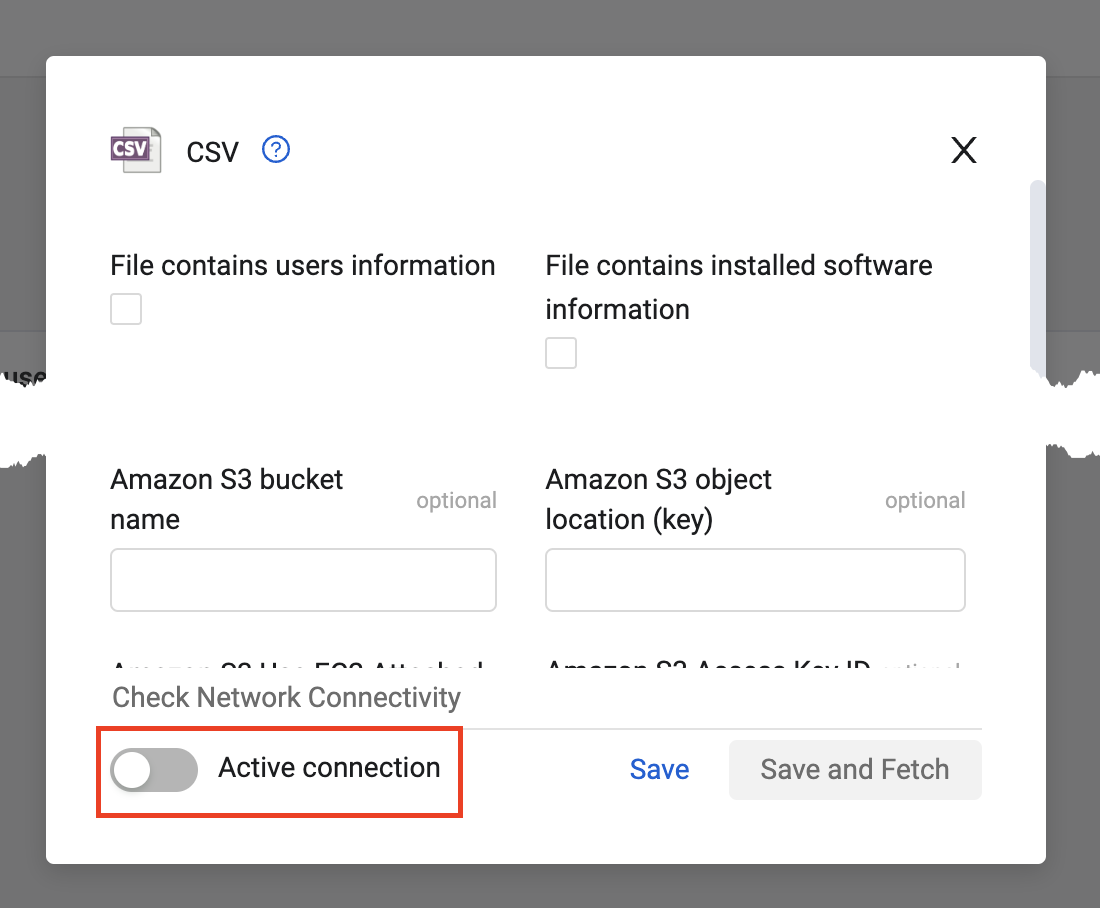
If you are uploading a file from an online storage location and want to use it only for custom enrichment, you must disable the Active connection setting on the CSV adapter connection. In this case, the CSV adapter connection will not fetch new assets.
- This path must include the file name.
- If an SMB share path is supplied:
- The path must start with double-backslashes (
\\). - If Suppress NetBIOS name lookup is enabled, the path must include the server's full NetBIOS name in the following format:
\<full_server_NetBIOS_name>\path\to\file.ext - Wildcards are supported in file names.
- Suppress NetBIOS name lookup must be enabled.
- The asterisk * wildcard matches any sequence of characters (0 or more, including NULL characters).
- The ? wildcard matches a single character (or a NULL at the end of a file name).
- The matching file names are sorted by file creation time.
- If multiple files match the wildcard search, the most recently created file is selected.
- The path must start with double-backslashes (
- If an HTTP(S) URL is supplied:
- The endpoint must support the HTTP GET method.
- All URLs must start with HTTP:// or with HTTPS://
- If an FTP URL is supplied, all URLs must start with FTP:// or with SFTP:// or with FTPS://
- The default port for each method is as follows:
- FTP: 21
- SFTP: 22
- FTPS: 990
- A custom port can be specified in the supplied path, for example: ftps://my.host.in.axonius.com:21/path/to/file.ext
- The default port for each method is as follows:
- If a folder path is supplied:
- The remaining necessary parameters for Microsoft OneDrive must be provided.
- The path must be separated by forward slashes.
- For personal files on Microsoft OneDrive, use the path relative to 'My files'. For example, the folder path for "My files
>Documents>Axonius>file.csv" should be Documents/Axonius/file.csv). - Use the URL of the file when opened in the browser (recommended). Alternatively, use the Copy Link from the file (this method will work, but, the link will expire and will need to be regularly updated)
- Username for online resource (Share/URL) and Password for online resource (Share/URL) (optional) - Username and password for the SMB share, URL, or folder path. These settings may be required if the "ubuntu" user on the Axonius system does not have access to the SMB share / URL / folder path.
- If supplied for an SMB or folder path, the username and password are used for authentication of this connection.
- If supplied for a URL, the username and password are used for BASIC authentication of this connection.
Note
When you configure the CSV adapter to fetch CSV files from Microsoft OneDrive, you are required to supply File name, Path to resource (SMB/URL/Folder path), Username for online resource (Share/URL), and Password for online resource (Share/URL), as well as the following three fields Microsoft OneDrive Tenant ID, Microsoft OneDrive Client ID, and Azure Cloud Environment. When multi-factor authentication is used in the Azure/Microsoft Office account Username for online resource (Share/URL), and Password for online resource (Share/URL) may not be used.
- Microsoft OneDrive Tenant ID (optional) - Microsoft Entra ID (Azure AD) ID. Used to authenticate Microsoft OneDrive through Microsoft Entra ID (Azure AD) and use the Graph API.
- Microsoft OneDrive Client ID (optional) - The Application ID of the Axonius application.
- Azure Cloud Environment (optional) - Select your Microsoft Azure or Microsoft Entra ID (Azure AD) cloud environment type.
Note
When you configure the CSV adapter to fetch a file from Azure, you are required to supply File name, as well as the following three fields Azure Storage Container Name, Azure Connection String, and Azure Blob Name.
-
Azure Storage Container Name (optional) - The name of the container on Azure where the CSV file is located.
-
Azure Connection String (optional) - The connection string that includes the authorization information required to access data in the Azure Storage account. You can find the connection string in the Azure portal under Storage Accounts -> [Account Name] -> Access Keys, where [Account Name] is the specific storage account that contains the CSV files to be ingested into Axonius. Copy the entire connection string and paste it into this field.
-
Azure Blob Name (optional) - The Azure Blob Name.
-
Amazon S3 bucket name (optional) - The name of the S3 bucket to fetch the file.
-
Amazon S3 object location (optional) - The location within the S3 bucket where the file can be fetched.
-
Amazon S3 Use EC2 Attached Instance Profile
- If enabled, Axonius uses the EC2 instance (Axonius installed on) attached IAM role / instance profile.
- If disabled, Axonius uses the supplied account details in the AWS Access Key ID and AWS Access Key Secret.
-
Amazon S3 Access Key ID and Amazon S3 Secret Access Key (optional) - The credentials used to access the S3 object.
-
External Role ARN (optional; for Axonius-Hosted users only, and for both CloudFormation/Organizations connections) - Enter your External Role ARN using the following format:
arn:aws:iam::[AWSLaunchAccountID]:role/[AccessName]. -
Entry Point External ID (optional; for Axonius-Hosted users only, and for both CloudFormation/Organizations connections) - Copy your Customer ID from your Axonius Instance. To find your Customer ID, log into your Axonius instance and navigate to System Settings → About.
-
Box Platform private key configuration file (optional) - The private key configuration file that provides the Required Permissions to fetch assets. This JSON authentication file must have permission to read/download the specified File ID. In order to fetch files from Box Platform both of these settings must be configured.
-
Box File ID (optional) - The ID of the Box file. The ID for any file can be determined by visiting a file in the web application and copying the ID from the URL. For example, for the URL https://*.app.box.com/files/123 the file_id is 123. Refer to Box Platform documentation for more information
-
Encoding (optional) - Specify a specific file encoding or let Axonius encode it.
- If supplied, Axonius tries to encode the CSV file based on the specified file encoding type (for example, utf-8) for this connection.
- If not supplied, Axonius tries to encode the CSV file based on common file encoding types for this connection.
-
Ignore illegal characters - Select whether illegal characters are ignored during the data import. An illegal character is any character that cannot be translated in the specified file encoding.
- If enabled, Axonius ignores illegal characters and omits those from the imported data.
- If disabled, if an illegal character is found, the entire data import fails.
-
Verify SSL - If an HTTP(S) URL is specified, verify the SSL certificate offered by the host supplied in the Path to Resource (SMB/URL/Folder path) field. For more details, see SSL Trust & CA Settings .
-
HTTP proxy (optional) - A proxy to use when connecting to the HTTP(S) URL specified in Path to Resource (SMB/URL/Folder path).
-
HTTPS proxy (optional) - A proxy to use when connecting to the HTTP(S) URL specified in Path to Resource (SMB/URL/Folder path).
-
Additional HTTP headers (optional) - Specify additional information to pass with the HTTP request.
- If supplied, Axonius passes additional information with the HTTP request (for example,
{"Accept": "text/csv"}) for this connection. - If not supplied, Axonius does not pass additional information with the HTTP request for this connection.
- If supplied, Axonius passes additional information with the HTTP request (for example,
-
Suppress NetBIOS name lookup - Applicable only for files fetched from SMB share.
- If enabled and the file is fetched from SMB share, Axonius does not verify the server's name via NetBios for this connection. This option must be enabled in order to use wildcards in SMB file names.
- If disabled and if the file is fetched from SMB share, Axonius verifies the server's name via NetBios for this connection.
-
Custom prefix for dynamic fields (optional) - Specify a prefix to be added for dynamic fields. A dynamic field refers to any field that is not part of an asset default field.
- If supplied, Axonius adds the specified prefix for any dynamic field. This can assist you in identifying such fields.
- If not supplied, Axonius does not add any prefix for any dynamic field.
-
Multi-value fields delimiter (optional) - Specify a delimiter to separate between values within the same field in the imported CSV file.
- If supplied, Axonius considers fields that contain the specified delimiter as multi-value fields. For example, ';'.
- If not supplied, Axonius considers all imported fields as single-value fields.
-
File Type - Select the type of file uploaded, either CSV, or Excel Spreadsheet. When you select "Excel Spreadsheet", the adapter supports .xls , and.xlsx files, and pulls in the entirety of the first Worksheet as if it were a CSV table. Functionality for tables uploaded from Excel is the same as for CSV files.
To learn more about common adapter connection parameters and buttons, see Adding a New Adapter Connection.
Advanced Settings
Note
Advanced settings can either apply for all connections for this adapter, or you can set different advanced settings and/or different scheduling for a specific connection. Refer to Advanced Configuration for Adapters.
- Set Time Zone - Set the time zone of date fields fetched with this adapter. Default is UTC.
- Use fetch time for Last Seen - Select this option to set that all entities (devices and users) fetched by this adapter have their Last Seen set to the time the entity was fetched (fetch_time).
APIs
When uploading files from Microsoft OneDrive, Axonius uses the List FIles Shared With Me - OneDrive API - OneDrive dev center.
Required Permissions
When uploading files from Microsoft OneDrive, and using OAuth authentication the value supplied in Microsoft OneDrive Client ID must have Files.Read.All delegated permissions in the Azure application in order to to fetch files.
When uploading files from Microsoft OneDrive, the value supplied in Username for online resource (Share/URL) must have Files.Read.All permissions to fetch files.
Which fields are imported with each Assets file?
See Asset Fields Imported in File-Based Adapters for details on which fields are imported as common data fields for each asset file (Devices, Users, etc.)..
Example CSV File
For an example of a CSV file, download the following zipped csv:
Updated 6 days ago