
Deploying the Atlassian Adapter in Axonius
To connect the adapter in Axonius:
-
Navigate to the Adapters page → search for
Atlassian (formerly Atlassian Jira Software)→ click on the adapter tile.
-
On the top right side, click Add Connection.
Required Parameters - All Asset Types
-
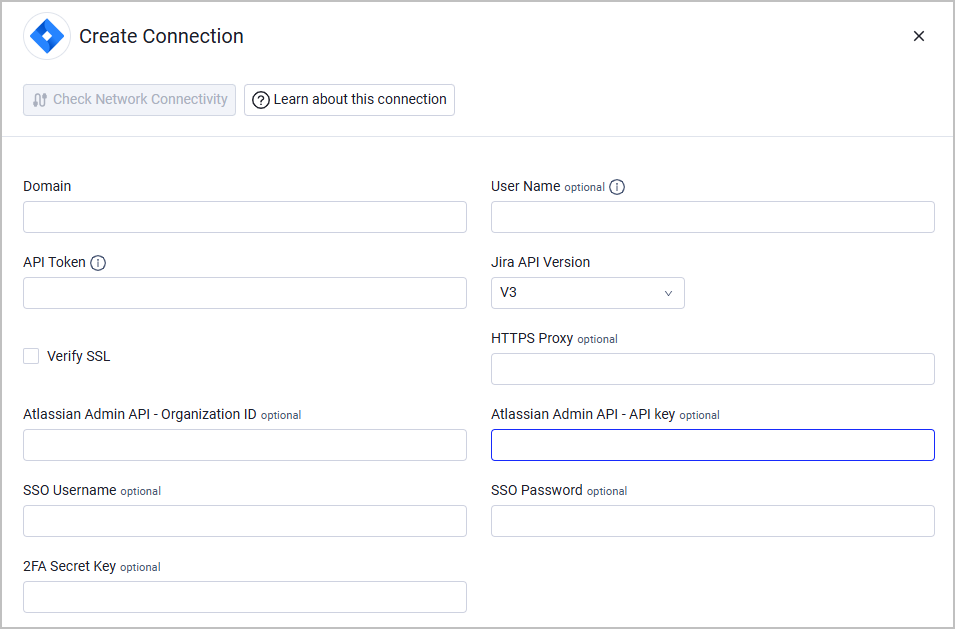
Domain - The hostname or IP address of the Jira Software server.
-
User Name - The username for a user account that has the required permissions to fetch assets.
-
API Token - An API Token associated with a user account that has the required permissions to fetch assets. Note: The API Token is not the same as the Admin Key.
Authentication Method Options
For the User Name and API Token connection parameters, enter values according to the authentication method you want to use.
Option 1 - API Token Authentication (Email + API Token)
- User Name: Enter your Atlassian email address (
[email protected]). - API Token: Enter your API token, retrieved from Atlassian API Tokens.
Option 2 - OAuth 2.0 Client Credentials (Client ID + Client Secret)
This option requires OAuth app registration.
- User Name: Enter your OAuth Client ID. It must not contain the
@symbol. - API Token: Enter your OAuth Client Secret.
- User Name: Enter your Atlassian email address (
-
Jira API Version (default: V3) - Select your Jira API version.
Required Parameters - Application Settings
- Password - The password for the Atlassian user account.
- 2FA Secret Key - If your organization requires two-factor authentication to access Atlassian, and you want to fetch Application Settings from Atlassian, you will need to generate a secret key in a 2FA solution such as Google authenticator and paste it here. See for example Set Up Google Authenticator in the Okta adapter documentation.
- SSO Username and SSO Password - If your organization accesses Atlassian with an SSO provider (such as Google, Microsoft 365, Okta, etc.), enter your credentials for the SSO platform here.
Required Parameters - Fetching Secrets and Users Organizational Data
- Atlassian Admin API - Organization ID and Atlassian Admin API - API key - See Initial Setup for instructions on how to retrieve these parameters.
Optional Parameters
The following parameters are optional for fetching all asset types:
- Verify SSL - Select whether to verify the SSL certificate of the server against the CA database inside of Axonius. For more details, see SSL Trust & CA Settings.
- HTTPS Proxy - Connect the adapter to a proxy instead of directly connecting it to the domain.
To learn more about common adapter connection parameters and buttons, see Adding a New Adapter Connection.
Updated 8 days ago