
Viakoo
Viakoo is an IoT device management platform that provides discovery, firmware and password remediation, and service assurance for physical security devices such as cameras and access control systems.
Use Cases the Adapter Solves
- Improve physical-security device visibility: Discover Viakoo-managed devices, including cameras, switches, streams, and access-control devices, in Axonius.
- Monitor device status and compliance: Review component status, compliance status, firmware version, and last-seen information to identify devices that need attention.
- Support site-based asset governance: Associate devices with their Viakoo site so teams can investigate assets in the right operational context.
Asset Types Fetched
- Devices
Data Retrieved through the Adapter
Devices - fields such as: Device Name, IP Address, MAC Address, Firmware Version
Before You Begin
Required Ports
- TCP port 443 (HTTPS)
Authentication Methods
The adapter uses OAuth 2.0 Resource Owner Password Credentials authentication through a Viakoo Azure AD B2C ROPC token endpoint.
APIs
Axonius uses the Viakoo API. The following endpoints are called:
POST {Token URL}- Obtains an OAuth 2.0 access token.POST /reports/siteReport- Retrieves sites beneath the configured sphere or site and associated device-type counts.POST /component/list- Retrieves device components for each discovered site and component type.
Required Permissions
Viakoo user account (username/password) with read scope.
Supported From Version
Supported from Axonius version 10.0.1
Connecting the Adapter in Axonius
- Navigate to the Adapter Catalog, search for Viakoo, and select the adapter.
- Click Add Connection.
- Provide the following parameters.
Required Parameters
- Host Name or IP Address - Enter the Viakoo API base URL, including the
https://prefix. Usehttps://reader.viakoo.comfor Production orhttps://api-testing.viakoo.comfor Testing. Do not add a specific API endpoint to this value. - Token URL - Enter the OAuth 2.0 token URL for the Azure AD B2C ROPC policy provided by Viakoo.
- Client ID - Enter the client ID that Viakoo issued for this integration. Testing and Production use separate client IDs.
- User Name - Enter the Viakoo user account with read access.
- Password - Enter the password for the specified User Name.
- Scope - Enter the OAuth 2.0 scope supplied by Viakoo. Use the scope that matches the selected environment.
- Sphere / Site ID - Enter the Viakoo sphere or site ID whose sites and devices the adapter retrieves.
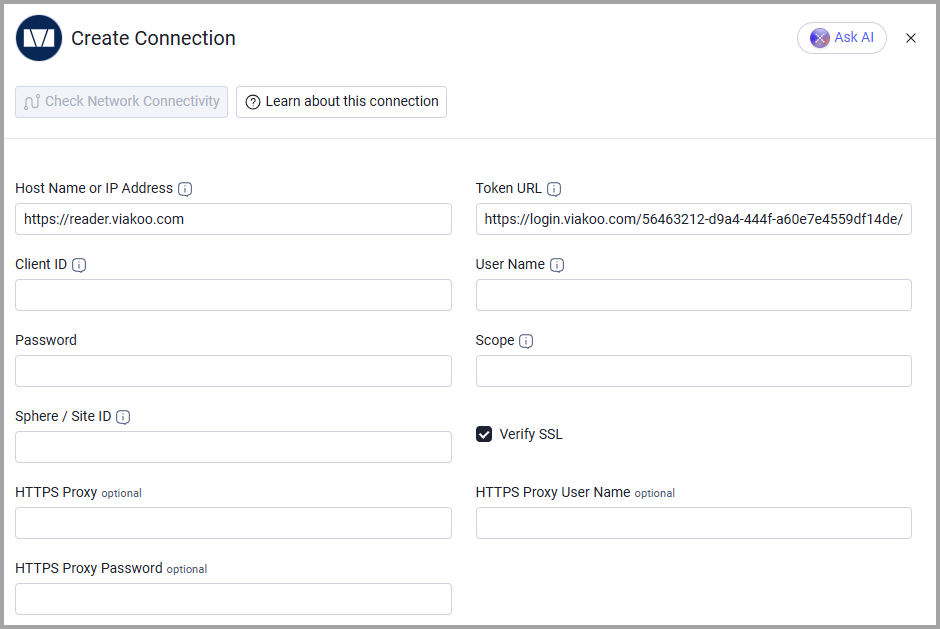
Optional Parameters
- Verify SSL - Select whether to verify the SSL certificate of the server against the CA database inside of Axonius. For more details, see SSL Trust & CA Settings.
- HTTPS Proxy - Connect the adapter to a proxy instead of directly connecting it to the Viakoo API.
- HTTPS Proxy User Name - Enter the user name to use when connecting through HTTPS Proxy.
- HTTPS Proxy Password - Enter the password to use when connecting through HTTPS Proxy.
To learn more about common adapter connection parameters and buttons, see Adding a New Adapter Connection.
Advanced Settings
Note:
Advanced settings can either apply to all connections for this adapter, or to a specific connection. Refer to Advanced Configuration for Adapters.
To learn more about Adapter Configuration tab advanced settings, see Adapter Advanced Settings.
- Components page size - Set the number of components retrieved per
POST /component/listrequest. The default is 100; allowed values are from 1 to 1000. - Component types to skip - Specify component types that the adapter should not retrieve. Use the device-type portion of the site report key without the
Countsuffix; for example, enterstreamto skip stream components.
Updated about 2 hours ago