
Connecting the Box Platform Adapter in Axonius
To connect the adapter in Axonius, provide the following parameters. Refer to Resources Required by Asset Type for the parameters required for specific asset types.
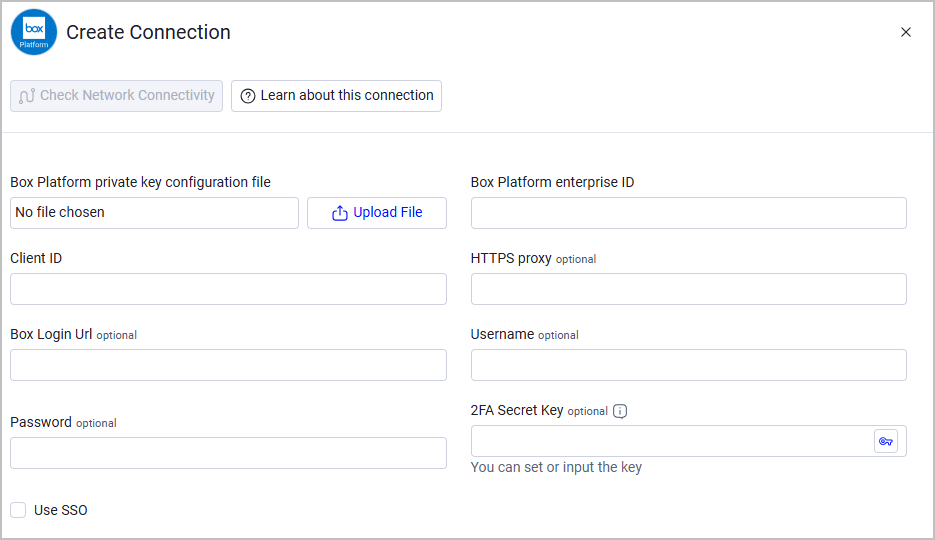
- Box Platform enterprise ID - Specify your Box enterprise account ID. The Box Platform enterprise ID is located in the Enterprise settings view. Click the Admin Console link from the top of your Box account. Then choose the Gear icon / Enterprise settings. Your Enterprise ID may also be located in the Account and Billing tab of the Admin Console.
- Box API URL (optional, default:
https://api.box.com) - The Box API root URL. The adapter uses this value for its REST API requests and for the OAuth 2.0 JWT token exchange. Change it only if your Box connection needs a different API root URL. - Client ID and Box Platform private key configuration file - The Client ID and private key configuration file that provides the Required Permissions to fetch assets. Refer to Create an Application for instructions on how to obtain these parameters.
- HTTPS Proxy (optional) - Connect the adapter to a proxy instead of directly connecting it to the domain.
Parameters required to fetch SaaS Application Settings:
- Box Login URL - The URL as it appears in the browser's address bar after signing-in.
- Username and Password - The username and the password of the dedicated account created for Axonius SaaS Applications.
- 2FA Secret Key - The secret generated in the adapter for setting up 2-factor authentication (if your organization uses it) for the adapter user created to collect SaaS Applications Settings.
- Use SSO - Select this option if your organization uses SSO to log in to Box Platform. When you check Use SSO enter the SSO username, password, and the 2FA from the SSO provider, in these configuration fields, instead of BOX credentials.
To learn more about common adapter connection parameters and buttons, see Adding a New Adapter Connection.
Updated 5 days ago
Did this page help you?