
SirionLabs
SirionLabs is a contract lifecycle management platform that offers automated contract creation and analytics.
The SirionLabs adapter enables Axonius to fetch and catalog user identities, roles, and permissions, ensuring comprehensive visibility into access governance and compliance within your contract lifecycle management environment.
Asset Types Fetched
- Users
Data Retrieved through the Adapter
- Users - Full name, email address, employee type, department, user remote ID, MFA status, email verification status, SSO identity provider, creation/update dates, assigned roles, and access permissions.
Before You Begin
Required Ports
- TCP port 443
Authentication Methods
- OAuth 2.0 (Client Credentials)
Required Permissions
The Client ID and Client Secret used for the connection must be associated with an account that has permissions to fetch assets via the SirionLabs API, and must be generated by a SirionLabs administrator.
- Read Access - The OAuth 2.0 token must have read permissions for the User Management and User Group Management entities via
b2bapi/v2/users/searchto successfully fetch data of users and their roles.
Generating the Client ID and Client Secret
- Log in to the SirionLabs application as an Administrator.
- Navigate to Administration > Integrations (or API Management).
- Locate the B2B API section.
- Select the option to Generate OAuth 2.0 Credentials (or Create New Client).
- Assign the necessary permissions (ensure the client has Read access to Contracts and Supplier data).
- Copy the Client ID and Client Secret and save those in a secure location.
APIs
Axonius uses the SirionLabs API to retrieve asset data.
Note
The SirionLabs API documentation is not publicly available. For more information or to request access to the API reference, contact your SirionLabs support representative.
Supported from Version
This adapter is supported from Axonius version 8.0.7.
Connection Parameters
To connect the adapter in Axonius, provide the following parameters.
Required Parameters
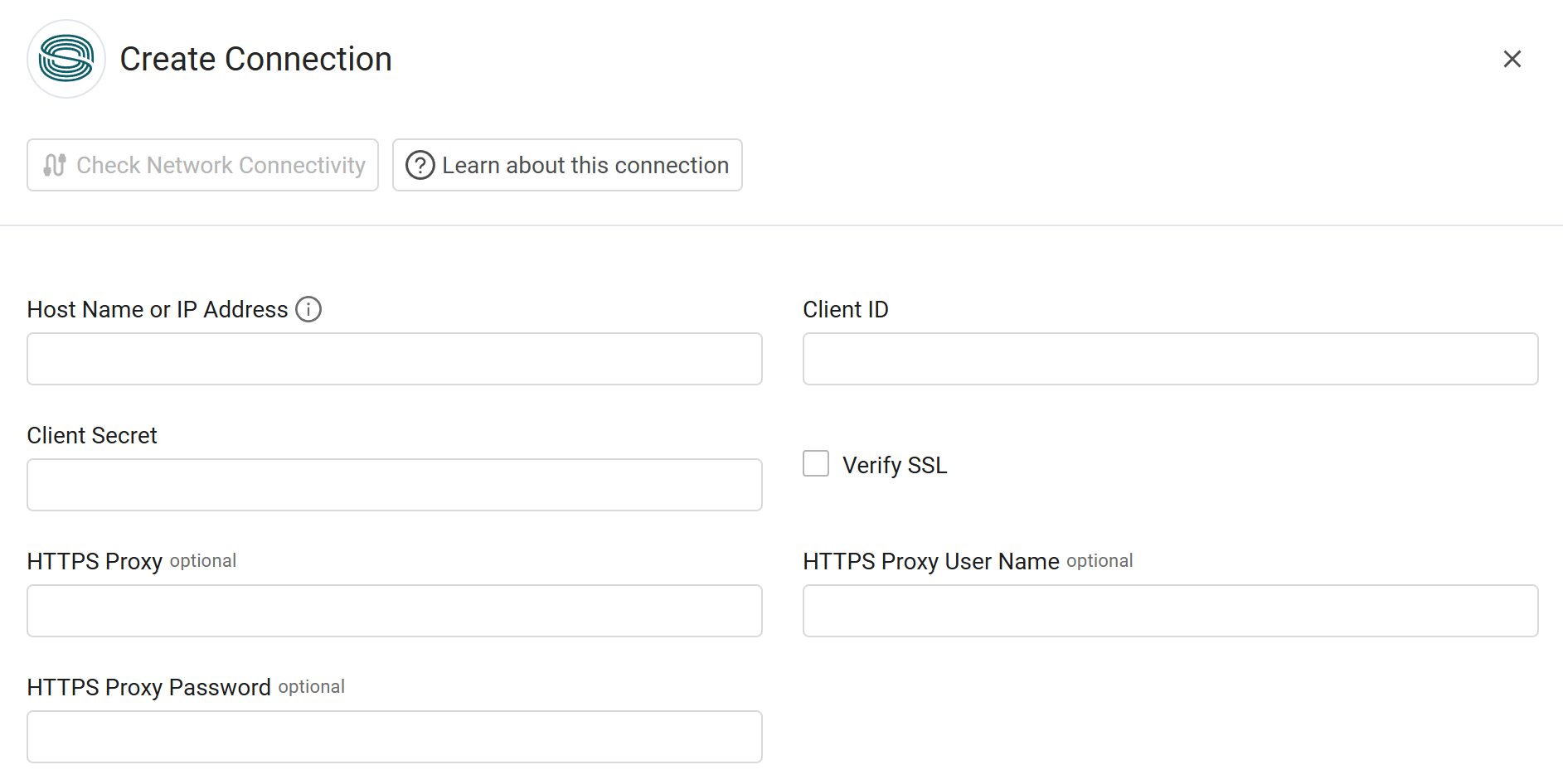
- Host Name or IP Address - Enter the hostname or IP address of the SirionLabs instance.
- Client ID - Enter the Client ID (OAuth 2.0) for the account that has permission to fetch assets.
- Client Secret - Enter the Client Secret (OAuth 2.0) associated with the Client ID.
Optional Parameters
-
Verify SSL - Select whether to verify the SSL certificate of the server against the CA database inside of Axonius. For more details, see SSL Trust & CA Settings.
-
HTTPS Proxy - Enter an HTTPS proxy address to connect the adapter to a proxy instead of directly connecting it to the domain.
-
HTTPS Proxy User Name - Enter the user name to use when connecting to the value supplied in Host Name or IP Address via the value supplied in HTTPS Proxy.
-
HTTPS Proxy Password - Enter the password to use when connecting to the server using the HTTPS Proxy.
To learn about additional optional/common adapter connection parameters, see Adding a New Adapter Connection.
Updated 9 days ago