
1Password Account Management
1Password Account Management provides information about audit activities and user management. Using the Events API, it tracks actions performed by team members in a 1Password account, such as changes to the account, vaults, groups, users, and more. Using the Users API for Partners, it enables programmatic listing and retrieval of users in a 1Password Business account without requiring vault access.
Types of Assets Fetched
This adapter fetches the following types of assets:
- Activities (Events API)
- Users (Users API for Partners)
Before You Begin
Required Ports
- TCP port 443 (HTTPS)
Authentication Methods
The adapter supports two authentication methods, depending on the selected API type:
- Events API — API Key authentication. Used to fetch audit activities.
- Users API for Partners — OAuth 2.0 Client Credentials grant (server-to-server, no user redirect required). Used to fetch user data without vault access.
APIs
Events API:
Axonius uses the 1Password Events Reporting API.
POST /api/v2/auditevents- Retrieve audit events
Users API for Partners:
Axonius uses the 1Password Users API for Partners.
POST /v1beta1/users/oauth2/token- Obtain OAuth 2.0 access tokenGET /v1beta1/accounts/{account_id}/users- List users
Required Permissions
Events API
The API Key used must have permission to access the 1Password Events Reporting API. For more information, see Get started with 1Password Events Reporting.
Users API for Partners
The user creating the OAuth application must have one of the following roles in the 1Password account:
- Owner
- Administrator
- Security group member
A 1Password Business account is required.
Supported From Version
Supported from Axonius version 6.1
Setting Up 1Password Account Management to Work with Axonius
Events API Setup
- Sign in to your 1Password account.
- Click your name in the top right and select Integrations.
- Select Events Reporting.
- Create a new token with the required permissions. Copy the token to use as the API Key.
For more information, see Get started with 1Password Events Reporting.
Users API for Partners Setup
The Users API for Partners requires a 1Password Business account and is currently in Public Preview.
- Contact 1Password support or your account manager to request access to the Users API for Partners.
- Once approved, navigate to your 1Password account's developer settings.
- Create an OAuth 2.0 application to obtain a Client ID and Client Secret.
- Locate your Account ID in your 1Password account settings.
For more information, see the 1Password Users API documentation.
Parameters
-
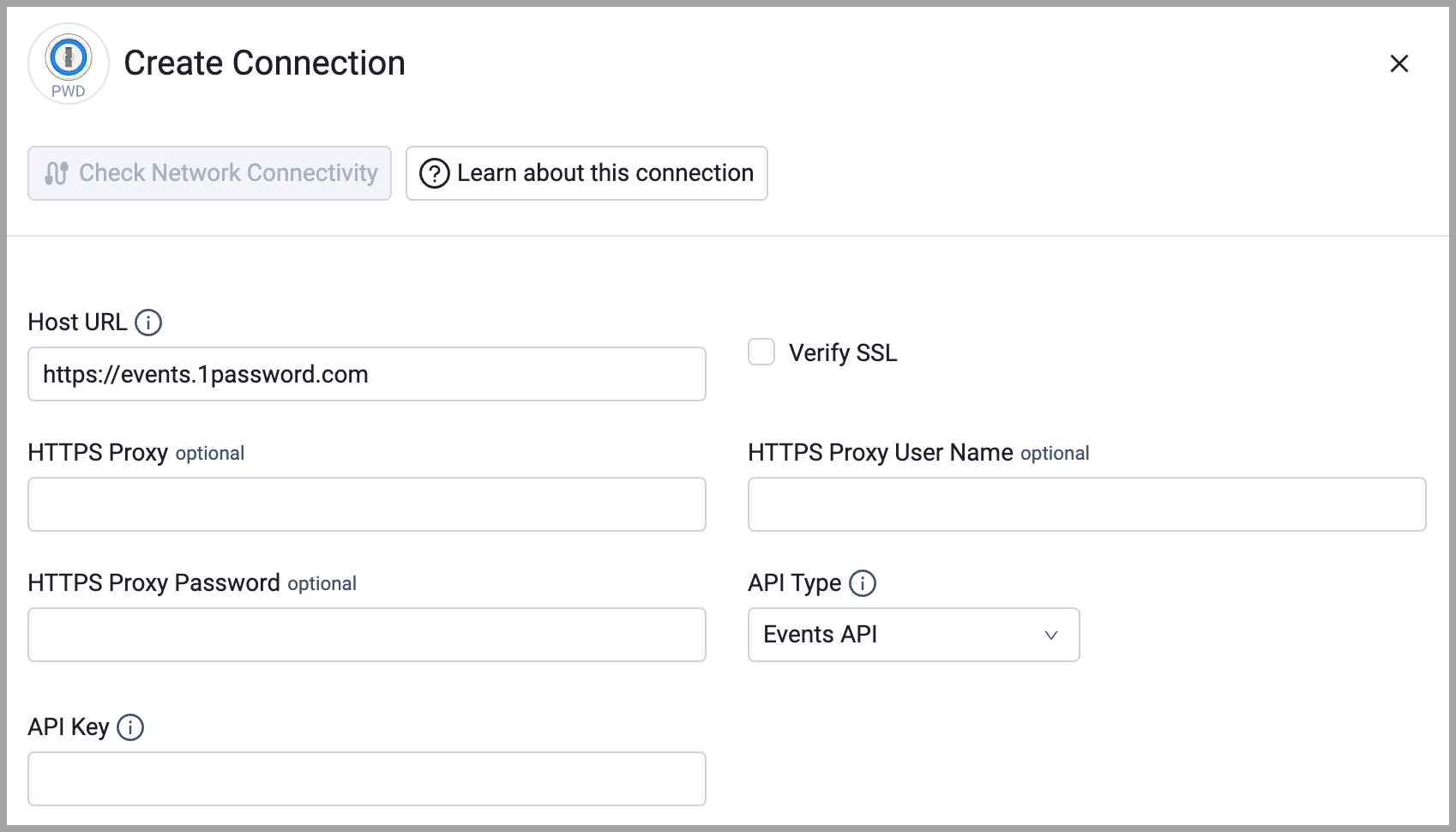
Host URL (required) - The base URL for API calls. The URL depends on both the selected API type and the server hosting your 1Password account.
For Events API:
| If your account is on: | Your base URL is: |
|---|---|
| 1Password.com | https://events.1password.com (1Password Business)https://events.net.1password.com (1Password Enterprise) |
| 1Password.ca | https://events.1password.ca |
| 1Password.eu | https://events.1password.eu |
For Users API for Partners:
| If your account is on: | Your base URL is: |
|---|---|
| 1Password.com | https://api.1password.com |
| 1Password.ca | https://api.1password.ca |
| 1Password.eu | https://api.1password.eu |
-
API Type (required, default: Events API) - Select the API type to use for this connection:
- Events API - Uses API Key authentication to fetch audit activities.
- Users API for Partners - Uses OAuth 2.0 Client Credentials to fetch user data without requiring vault access.
If Events API is selected:
- API Key (required) - An API Key with permissions to access the 1Password Events Reporting API. For more information, see Get started with 1Password Events Reporting.
If Users API for Partners is selected:
- Account ID (required) - The 1Password account ID.
- Client ID (required) - The OAuth 2.0 Client ID for the registered application.
- Client Secret (required) - The OAuth 2.0 Client Secret for the registered application.
Note
When using the Events API, this adapter fetches audit activity data only and does not provide user identity information. Use the Users API for Partners to fetch user data without vault access.
-
Verify SSL - Select whether to verify the SSL certificate of the server against the CA database inside of Axonius. For more details, see SSL Trust & CA Settings.
-
HTTPS Proxy (optional) - Connect the adapter to a proxy instead of directly connecting it to the domain.
-
HTTPS Proxy User Name (optional) - The user name to use when connecting to the value supplied in Host URL via the value supplied in HTTPS Proxy.
-
HTTPS Proxy Password (optional) - The password to use when connecting to the server using the HTTPS Proxy.
To learn more about common adapter connection parameters and buttons, see Adding a New Adapter Connection.
Updated 23 days ago