
Microsoft Power Platform
Microsoft Power Platform is a low-code development suite that enables organizations to build custom business applications (PowerApps), automate workflows, and analyze data.
Asset Types Fetched
- Application Resources, Application Settings
Use Cases the Adapter Solves
This adapter:
- Identifies all PowerApps applications deployed across your organization, including those created outside of IT oversight, to gain complete visibility into your application landscape.
- Tracks who owns and maintains each PowerApp, which ensures accountability and enabling proper governance of low-code applications across different environments.
- Verifying that PowerApps applications are deployed in approved environments and meet organizational security standards, which helps maintain compliance with data residency and access control policies.
Data Retrieved through the Adapter
Data retrieved for Application Resources:
- Name, Display Name, Description
- Environment Name, Owner Display Name, Owner Email
Before You Begin
Required Ports
- TCP port 443 (HTTPS)
Authentication Methods
The adapter authenticates using Azure Active Directory (Microsoft Entra ID) with the OAuth 2.0 client credentials flow. You must create an application registration in your Azure tenant and configure it with the necessary API permissions for Power Platform API access. For more information, see Setting Up Microsoft Power Platform to Work with Axonius.
APIs
Axonius uses the Power Platform API. The following endpoints are as follows:
POST /{tenant_id}/oauth2/v2.0/token- Authenticates and retrieves an access tokenGET /providers/Microsoft.BusinessAppPlatform/environments- Retrieves all Power Platform environmentsGET /providers/Microsoft.PowerApps/environments/{environment_id}/apps- Retrieves PowerApps applications for each environment
Required Permissions
The following Application permissions must be configured in your Azure application registration for the Power Platform API (App ID: 8578e004-a5c6-46e7-913e-12f58912df43):
EnvironmentManagement.Environments.Read- Allows reading of Power Platform environmentsPowerApps.Apps.Read- Allows reading of PowerApps applications
Note
When using Service Principal authentication (Client Credentials flow), the service principal is treated as a Power Platform Administrator. You must register the service principal following the instructions in the PowerShell - Create service principal documentation.
Permissions for Fetching Application Settings
Below is a list of the API endpoints called when fetching Application Settings and the permissions required for each endpoint:
| Namespace | Endpoints | Permission Required |
|---|---|---|
| Environment Management | List Environments, Get Environment by ID, List Environment Management Settings, List/Get Environment Groups | EnvironmentManagement.Environments.Read, EnvironmentManagement.Settings.Read, EnvironmentManagement.Groups.Read |
| Governance | List Cross-Tenant Connection Reports, Get Cross-Tenant Connection Report | Governance.CrossTenantConnectionReports.Read |
| Connectivity | List Connectors, Get Connector by ID | Connectivity.Connectors.Read |
| Power Apps | List Apps (admin), Get App by ID | PowerApps.Apps.Read |
| Power Automate | List Cloud Flows, List Flow Runs, List Flow Actions | PowerAutomate.Flows.Read |
| Application Management | Get Environment App Packages, Get Tenant App Packages, Get Install Status | AppManagement.ApplicationPackages.Read |
| Licensing & Billing | List/Get Billing Policies, List/Get Billing Policy Environments, Get Environment Billing Policy, List ISV Contracts | Licensing.BillingPolicies.Read, Licensing.IsvContracts.Read |
Supported From Version
Supported from Axonius version 6.7
Setting Up Microsoft Power Platform to Work with Axonius
Follow these steps to create an Azure application registration and configure it for Power Platform API access:
- Navigate to the Microsoft Entra app registration page and create a new registration.
- Give the application a name (for example, "Axonius Power Platform Integration") and ensure that the Single tenant option is selected.
- Navigate to Manage > API Permissions and click Add a Permission.
- Select the APIs my organization uses tab and search for Power Platform API using the App ID
8578e004-a5c6-46e7-913e-12f58912df43. - Select the following Application permissions:
- EnvironmentManagement.Environments.Read
- PowerApps.Apps.Read
- Click Grant admin consent to complete the permission setup.
- Navigate to Manage > Certificates & secrets and create a new Client Secret.
- Copy the Client secret value to a secure location (it will only be shown once).
- From the Overview page, copy the Application (client) ID and Directory (tenant) ID to their respective fields in Axonius, as explained in Connecting the Adapter in Axonius.
Reminder
If you plan to use a service principal for authentication, you must register the service principal following the instructions in the PowerShell - Create service principal documentation.
Connecting the Adapter in Axonius
- Navigate to the Adapters page, search for
Microsoft Power Platform, and click on the adapter tile. - Click Add Connection.
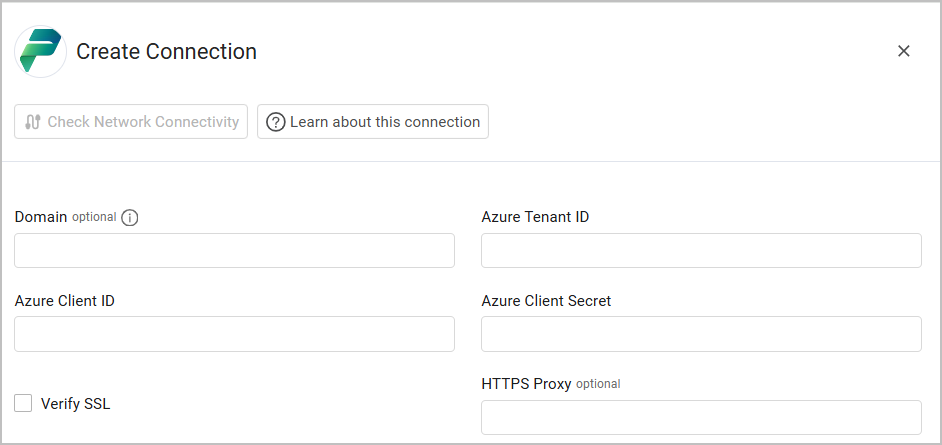
To connect the adapter in Axonius, provide the following parameters:
Required Parameters
- Azure Tenant ID - The ID for Microsoft Entra ID (which is the Directory (tenant) ID from your Azure app registration). Example:
12345678-1234-1234-1234-123456789abc - Azure Client ID - The Application (client) ID from your Azure app registration. Example:
87654321-4321-4321-4321-cba987654321 - Azure Client Secret - The Client secret value generated in your Azure app registration.
- Verify SSL (default: yes) - Select whether to verify the SSL certificate of the server against the CA database inside of Axonius. For more details, see SSL Trust & CA Settings.
Optional Parameters
- Domain - Override the API base URL. Leave empty to use the default Power Platform API endpoint. This parameter is primarily used for testing purposes.
- HTTPS Proxy - Connect the adapter to a proxy instead of directly connecting it to the domain.
- HTTPS Proxy User Name - The user name to use when connecting to the value supplied in Domain via the value supplied in HTTPS Proxy.
- HTTPS Proxy Password - The password to use when connecting to the server using the HTTPS Proxy.
To learn more about common adapter connection parameters and buttons, see Adding a New Adapter Connection.
Advanced Settings
Note
Advanced settings can either apply for all connections for this adapter, or you can set different advanced settings and/or different scheduling for a specific connection, refer to Advanced Configuration for Adapters.
To learn more about Adapter Configuration tab advanced settings, see Adapter Advanced Settings.
- Fetch Application Settings - Enable this to fetch Aplication Settings.
Updated 12 days ago