
Global Variables
Axonius Global Variables provide a centralized way to manage and reference static or dynamic values within the system. A Global Variable is a named, editable value that acts as a system-wide alias for a specific data point, primarily used to establish consistent filters across all assets.
How Global Variables Help You
- Consistency and Standardization: Define a single source of truth for frequently changing information that is used in multiple queries across the system. Basing the queries on global variables ensures that every team member is using the pre-defined, standardized values, thus reducing duplications and errors.
- Centralized Control and Policy Enforcement: Policies that rely on dynamic values tend to change frequently. Use global variables to update all critical compliance or policy values in one place instead of manually updating them in every query, report, dashboard, or Assets page. After the relevant global variable is updated, the system immediately reflects the new standard for querying, filtering and reporting.
Example Use Cases
Software such as VPN agents, TOR agents, or password managers are often represented in queries as long, complex Regex expressions. For such a query, you can define the Regex expression as a global variable, so that every time the organization’s compliance policy changes, you can update the Regex expression once and apply it to all queries.
Example Scenario:
- A list of software that are considered unauthorized in your company: 1Password, Taliscale, Bitwarden, StealthGate. To query these software, you use the following Regex expression:
(?i).*(vpn|tor\b|tailscale|1password|bitwarden|stealthgate).* - Create a variable named
Unauthorized Softwareand set this expression as its value. - One day, your company decides to officially partner with 1Password and Taliscale, meaning, you no longer want them showing up in your "Unauthorized Software" reports.
- Change the value of the Unauthorized Software variable to:
(?i).*(vpn|tor\b|bitwarden|stealthgate).* - All queries pointing to that variable automatically update, telling the system there is no longer a need to query for 1Password and Taliscale.
With global variables, you can quickly shift focus to all assets exposed to a specific, newly discovered threat, such as a "zero-day" vulnerability or a malicious IP address.
- Create a variable named
Critical Threat Indicator. - Every time a new threat emerges, update the value of that variable with the specific CVE ID or malicious hash.
- Every related query, dashboard, and automated alert across the organization immediately pivot to track the new threat. This allows for a near-instant response across the entire environment without manual query rebuilding.
Managing Global Variables
To access the list of global variables in your organization, go to System Settings > Data > Global Variables.
The Global Variables table provides the following details for each variable: name, value, field type and value type, who created this variable and its update time.
Permissions
By default, only admins can view, create, edit, or delete global variables. Admins can assign any of all these permissions to other users in the system.
Creating a Global Variable
- In the Global Variables page, click Create New Variable.
- Provide the Variable Name.
- Select a Field Type: Single Values or Multiple Values.
- Example for a Multiple Values variable: "PM Team", listing all the employees who belong to the Product Management team.
- Select a Value Type: string, date, float, or integer.
- Provide a Value for the variable.
- Click Create New Variable.
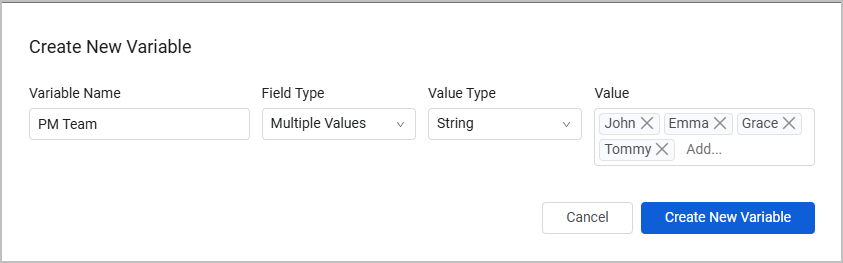
The Global Variables table should refresh itself in a few seconds, and after that, the new variable appears.
Note
You can create multiple variables with the same name, if that fits your needs.
Editing a Global Variable
To edit a variable's name or value, hover over the variable row and click the Edit (pencil) icon next to the variable's name or value. A dialog box appears where you can enter a new name or value. When finished, click Save Changes.
Note
Only the name or value of a global variable can be edited. The variable's field type or field value cannot be edited after the variable is created.
Your changes will impact any queries, modules or configurations using it, starting from the next run.
Deleting a Global Variable
You can only delete global variables that are not used in any place across the system. This information is available under the Used In column in the Global Variables table:
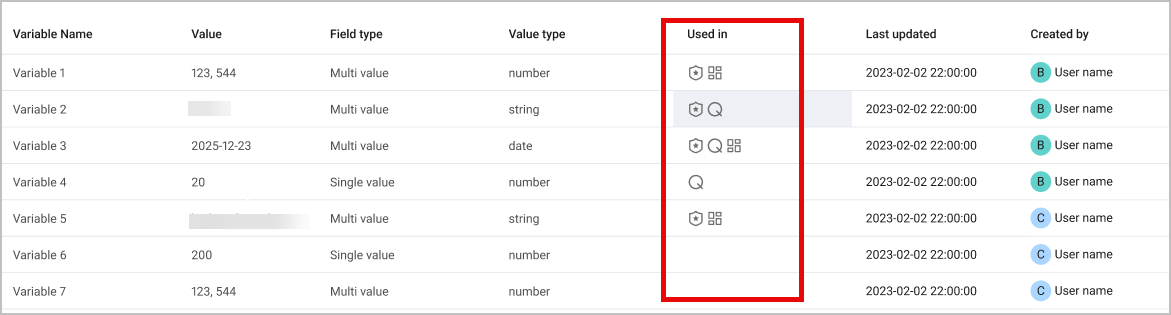
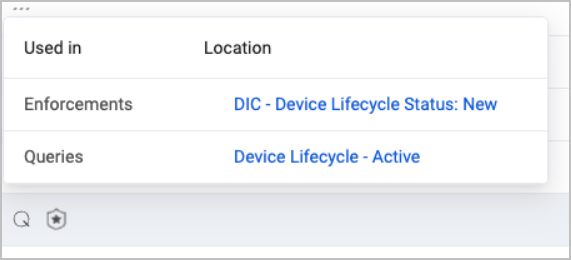
Hover over the value of Used In to see in which Queries, Enforcement Actions, or Dashboards this variable is used.
To delete a global variable, hover over the variable row and click the Delete Variable (trash bin) icon at the right side of the row. To delete multiple variables, select the relevant rows and click Delete above the table.
If you try to delete a variable that is used somewhere in the system, a warning message appears and you can’t complete the action.
Global Variables History
Use the Global Variables History page to track changes in your variable values over time. Monitoring variable values helps identify abnormal behavior in a specific asset or a set of assets in the system. For example, if you see that a variable pointing to some software version barely ever changes, you might want to make sure your organization is indeed working with the most updated version.
To access this page, from the Global Variables page, click Global Variables History.

Events Table
The Global Variables History page displays an Event Table for all variables. This table contains the same fields as in an Asset Investigation page. See Events Table for information on each field. The filtering function is also identical to filtering events in Asset Investigation, except for the Adapter Connections and Query filters.
One difference from the Events Table in Asset Investigation is that in Global Variable History, the Field Name column is called Parameters. This is because it details the variable parameter that was changed - either Variable Name or Value.
Using Global Variables in the Query Wizard
Note
Currently, Axonius doesn't support Data Scopes for global variables. Therefore, if a query containing global variables is saved as Shared, its view from Data Scopes will be broken.
To use global variables in a query, in the Query Wizard:
- Select a field from the Field drop-down.
- Select an operator. If the operator enables adding a variable value, a new (x) button appears on the right side of the Value field. Click on it to add a variable value to the queried field.
Note
All operators support adding a variable value except for:
in (plain text),regex,exists.
-
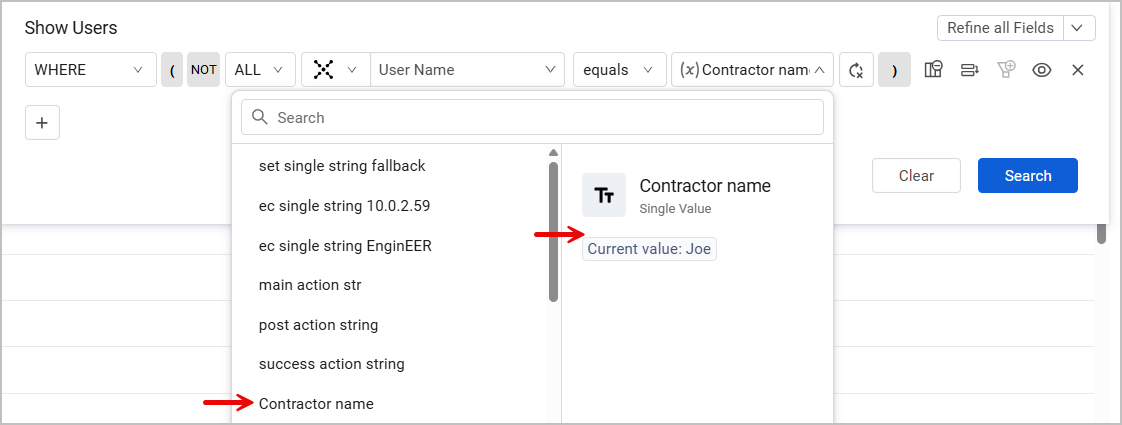
After you click (x), a Select Variable dropdown appears. Select a global variable to enter as the field value. Only variables that match the value type of the queried field are available for selection and the rest are greyed out. For example, if the field is Last Seen, only date-type variables can be selected.
- The variable selection pane displays the current value of the variable you hover on. For example, assume that we want to show assets that are handled by a temporary contractor for the company, and that a Contractor name global variable was created beforehand for that purpose. When we hover over Contractor name in the variable selection pane, we can see that the current value of this variable is Joe, meaning, Joe is currently acting as the temporary contractor.
-
To switch back to a default value field (not a variable), click the Refresh icon on the right side of the Value field.

Updated 3 months ago