
Data Refinement
Note
Data refinement applies to Assets tables only.
Use complex expressions to refine the display in Assets table so you can zoom in on the information that interests you the most. The following types of data refinement are available:
- Refine display by field value
- Refine field values by adapter connection
- Refine asset entities by field value
- Refine asset entities by adapter connection
Data refinement does not impact the 'count' of the results, only the results that are displayed.
To open the Refine Data Display dialog, click the .png) icon on the right of each column header.
icon on the right of each column header.
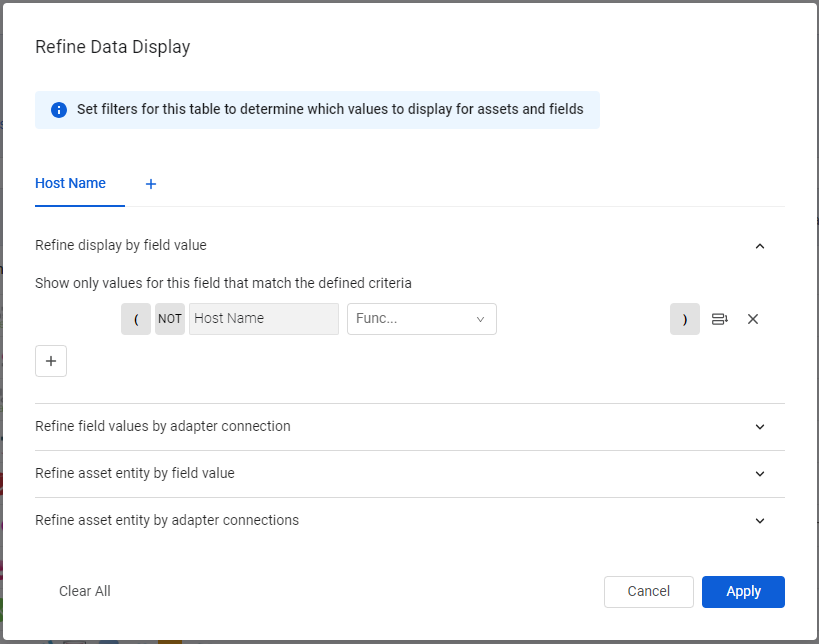
Configuring data refinement does the following:
-
Sets the columns and rows displayed in the queries that you create.
-
Sets the display of CSV exports, including reports or Enforcement Actions that export data as CSV files.
Refining Display by Field Value
Use complex expressions to create sophisticated filters to:
- Refine the display.
- Search for specific values to be displayed in each table column on the page, including multi-field columns.
Open the Refine display by field value pane, which acts as a sophisticated column filter.

Each row in the Field values - refine by condition pane is a filter expression that consists of the following elements:
-
AND / OR switch
-
NOT Flag
-
Field dropdown
-
Operator dropdown
-
Value field
-
Parentheses controls
See Creating Queries with the Query Wizard for more information on each element and how to define it.
The Field Name drop-down shows the column on which you are filtering. The options available depend on the field type: if this is a complex field, all values that are part of the complex field are displayed and you can select the field to filter by.
For example, If you filter on the Installed Software complex field, the field dropdown contains the following range of possible values to filter by:
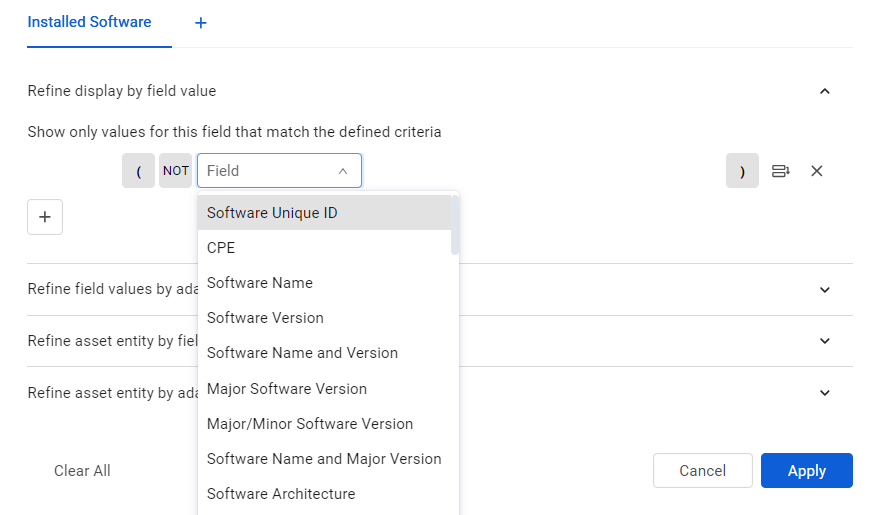
Axonius displays only values that match the complete filter.
Keeping Only the Latest or Earliest Entry of a Complex Field
Use this option to keep only the most recent or oldest entries of a first-level complex field that has date sub-fields, such as Installed Software.
- Open the Refine Data dialog for the complex field.
- In the first dropdown, select one of the field's date sub-fields.
- In the second dropdown, select Latest or Earliest.
For example, to show only the latest software entry on each device, refine the Installed Software field, select a date sub-field of that field, and select Latest.
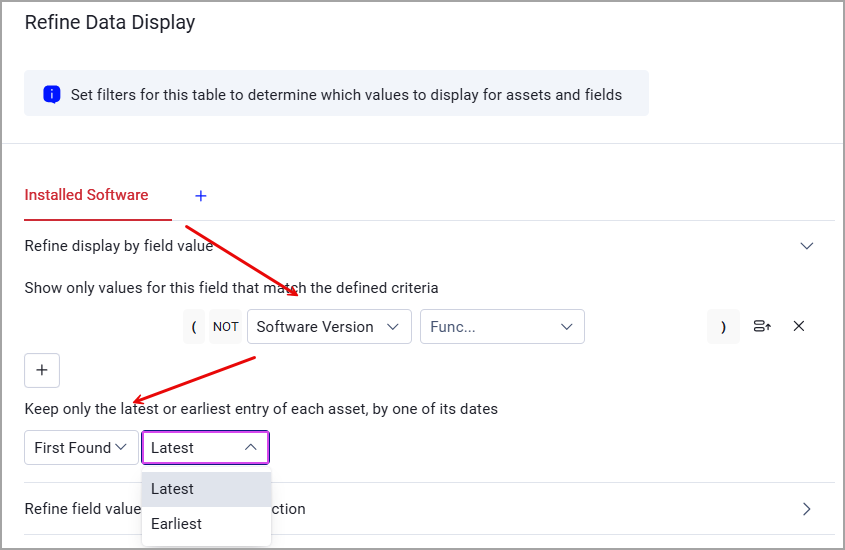
The default, All entries, leaves the data unchanged.
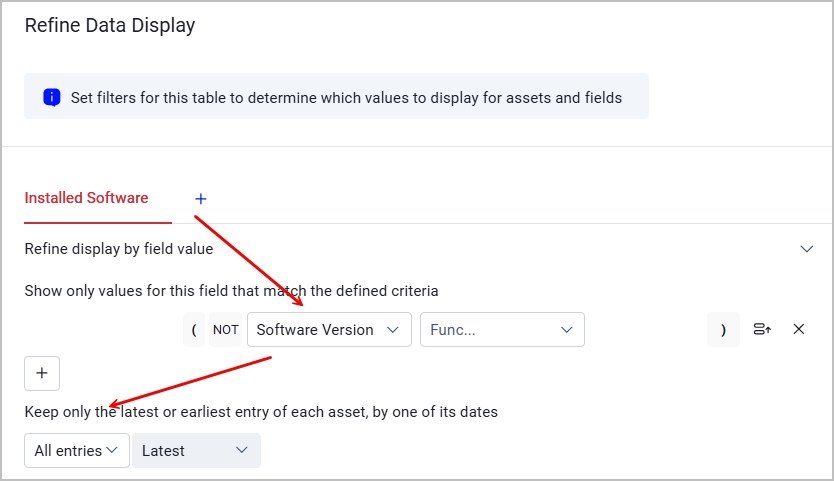
How this works:
- Each asset keeps only the entries with the newest (or oldest) date. Axonius compares the entries of that field across all the asset's adapters and custom data.
- When an asset has entries with and without the date, Axonius drops the entries without the date. An asset with no dated entry keeps all its entries.
- The field's condition and the column's adapter exclusions apply first.
- The option applies to the assets table and to CSV exports. It's ignored in Historical Date (snapshot) views.
- A query that uses this option counts as a refined query, so you can't use it as a data scope query.
Refining Field Values by Adapter Connection
Configure the system to hide or show values from specific adapter connections in a selected column. Only values from the included adapters will be displayed in that column.
- Open the Refine field values by adapter connection pane.
- From the dropdown menu, select whether to include or exclude values.
- In the adapters list, start typing to search for a specific adapter or connection name, then select the adapter or connection that you want to exclude or include values from.
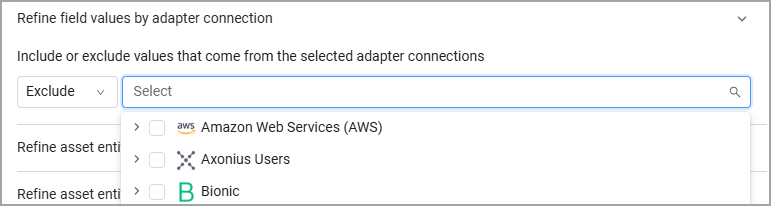
- Mark the adapter to select all its connections or specific connections, or click Select All to select all adapters and connections.
- To undo your selections, click Clear All.
Refining Asset Entities by Field Value
Use Refine asset entities by field value to refine the contents of the asset entity that are displayed according to the rows.
For example, you can hide a row, an asset entity, which contains a Software Version with a specific value.
- Open the Refine asset entities by field value pane.
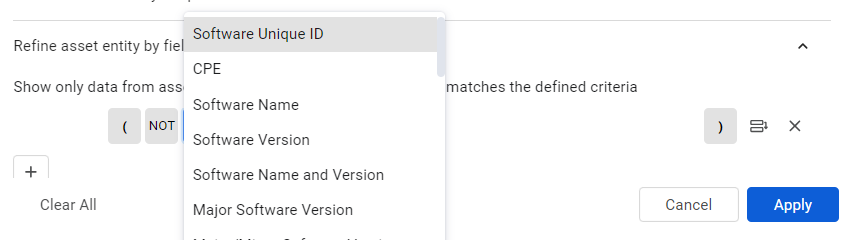
- Create a filter as explained in Refining Display by Field Value.
Refining Asset Entities by Adapter Connection
Use Refine asset entities by adapter connection to hide or show asset entities from specific adapter connections. You can hide or show a row (an asset entity) if it comes from a specific adapter or adapter connection. An asset without any asset entities might be completely hidden or shown.
- Open the Refine asset entities by adapter connection pane.
- Create a filter as explained in Refining Field Values by Adapter Connection.

Refining Data for the Entire Table
Instead of refining data for each field separately, you can manage data refinement for all table columns in a single dialog. Note that you cannot refine data for only parts of the table - you can select either one row or all rows.
- Click Refine Data (next to Edit Table button).

- If no fields to be refined were selected yet, select a field. You can only select fields that are currently included in the table. Next, click Add.
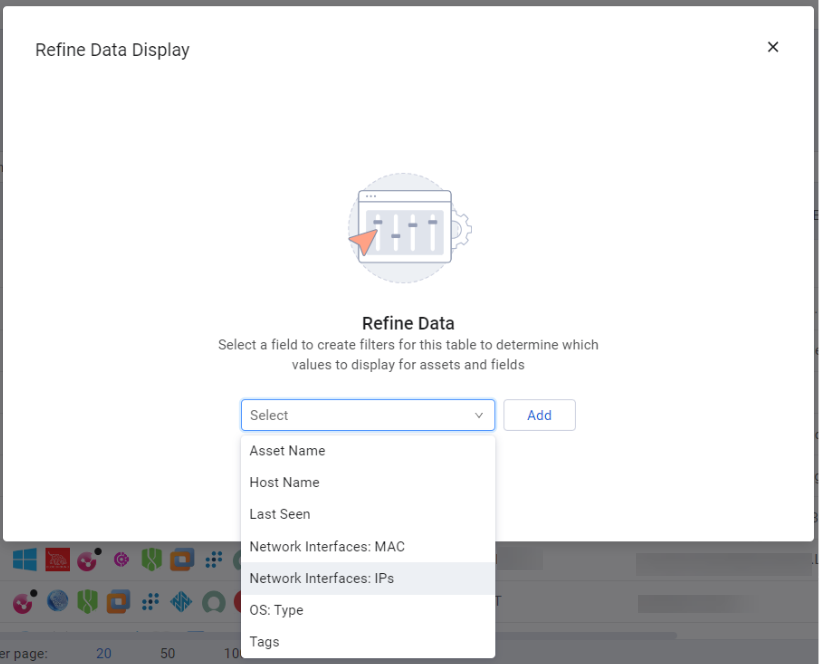
- Select a data refinement method and set the required filters, as explained in previous sections.
- To refine data for another field, click
+and select a field. It appears as a new tab in the Refine Data Display dialog.
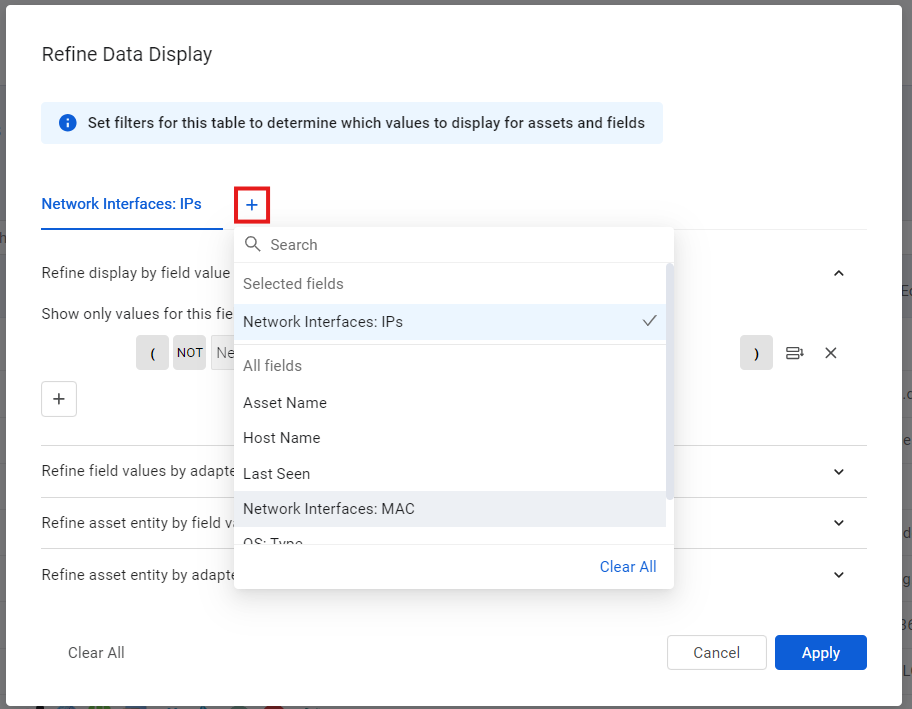
- Select Apply to save your changes.
- Click X next to the field's tab to remove it.

You can open the general Refine Data dialog at any time to see all the refinements defined for this table.
Updated 12 days ago