
Creating a Device Scan Job
Use device scan jobs to define what devices to scan, when to scan them, and how to connect to them. You can create device scan jobs from the Device Intelligence Hub.
Creating a Device Scan Job
-
In the Device Intelligence Hub, click Create New Device Scan Job. You can also select Create New Device Scan Job from the adapter tile's More menu (In this case, the Create Device Scan drawer opens immediately).
-
In the Create Device Scan dialog, select the adapter you want to use for the scan, and click Next.
-
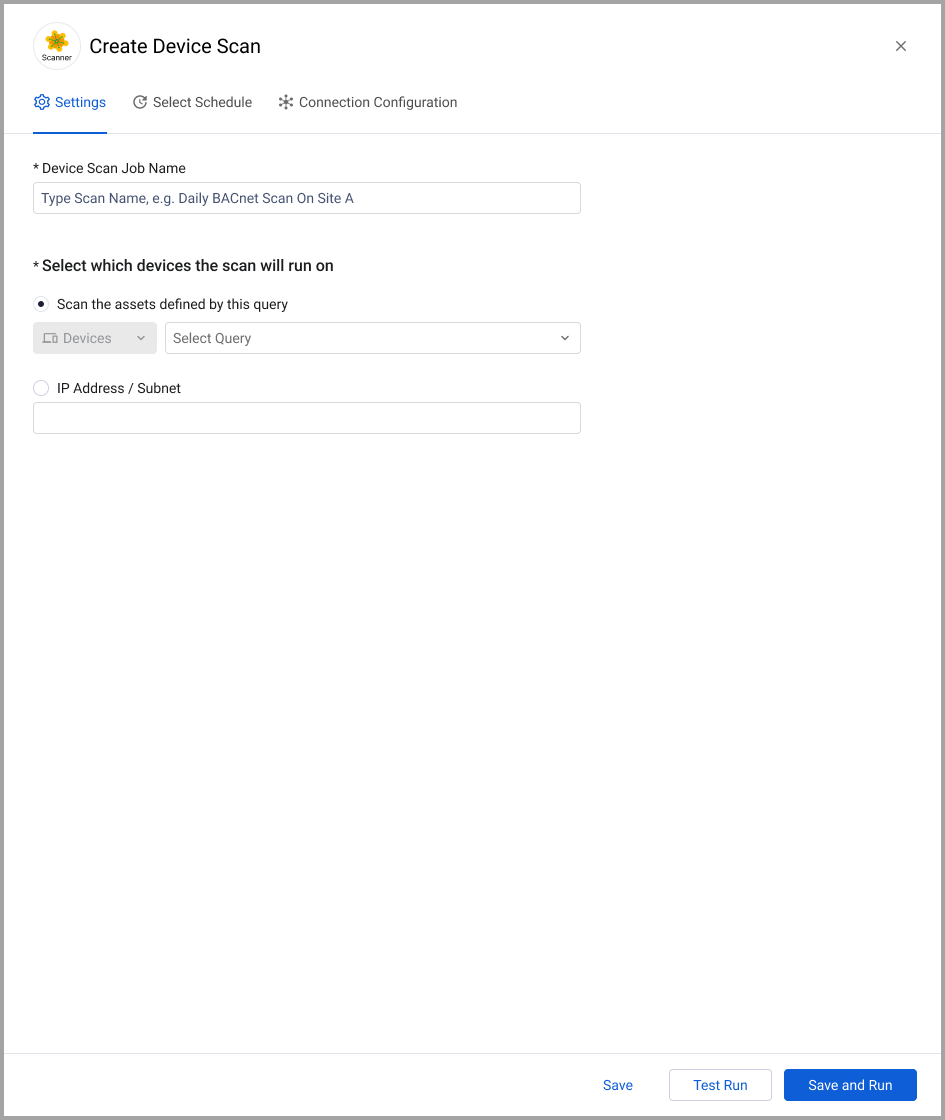
The Create Device Scan drawer opens on the Settings tab.
-
Configure the scan job settings on the Settings, Select Schedule, and Connection Configuration tabs as described in the following sections.
-
When done, click one of the following:
- Save - Save the scan job configuration without running it.
- Test Run - Run a test scan to verify the configuration.
- Save and Run - Save the configuration and immediately run the scan.
Settings Tab
Configure the basic scan job settings:
-
Device Scan Job Name (required) - Enter a descriptive name for the scan job (for example, "Daily BACNet Scan On Site A").
-
Select which devices the scan will run on (required) - Choose which devices to include in the scan. Select one of the following options:
-
Scan the assets defined by this query - Select this option to scan devices that match a saved query. The asset type Devices is selected. Choose a query name from the dropdown list.
-
IP Address / Subnet - Select this option to scan a specific IP address or subnet range. Enter the IP address or subnet in the text field.
-
Select Schedule Tab
Use the Select Schedule tab to configure when the scan job runs. See Scheduling Enforcement Set Runs for details about configuring a schedule.
- Enable custom scheduling - Enable this option to configure a scan schedule. When disabled, the scan job runs only when triggered manually.
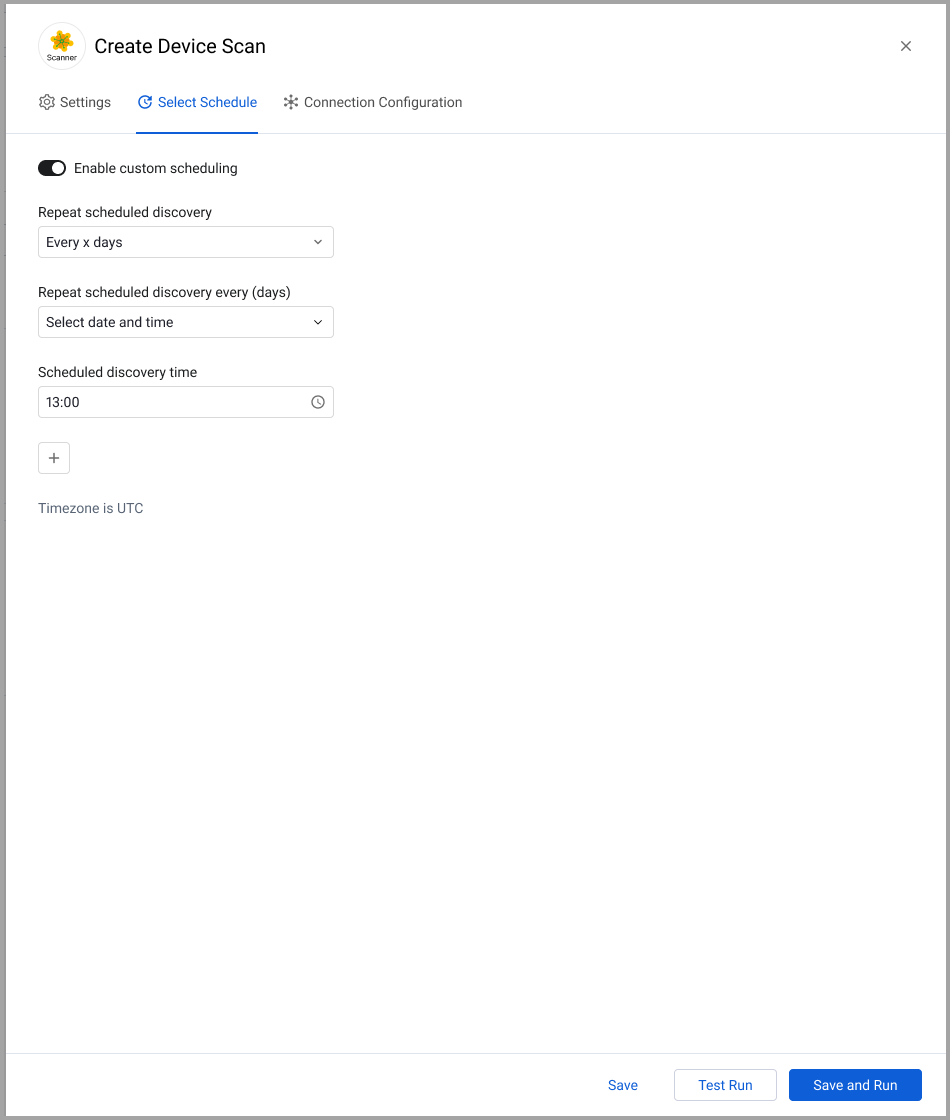
When custom scheduling is enabled, configure the following:
-
Repeat scheduled discovery - Select the frequency for the scan schedule from the dropdown list (for example, "Every x days").
-
Repeat scheduled discovery every (days) - Select the interval for the repeating schedule.
-
Scheduled discovery time - Set the time of day for the scan to run (in 24-hour format).
-
+ (Add Schedule) - Click to add additional schedule entries.
Connection Configuration Tab
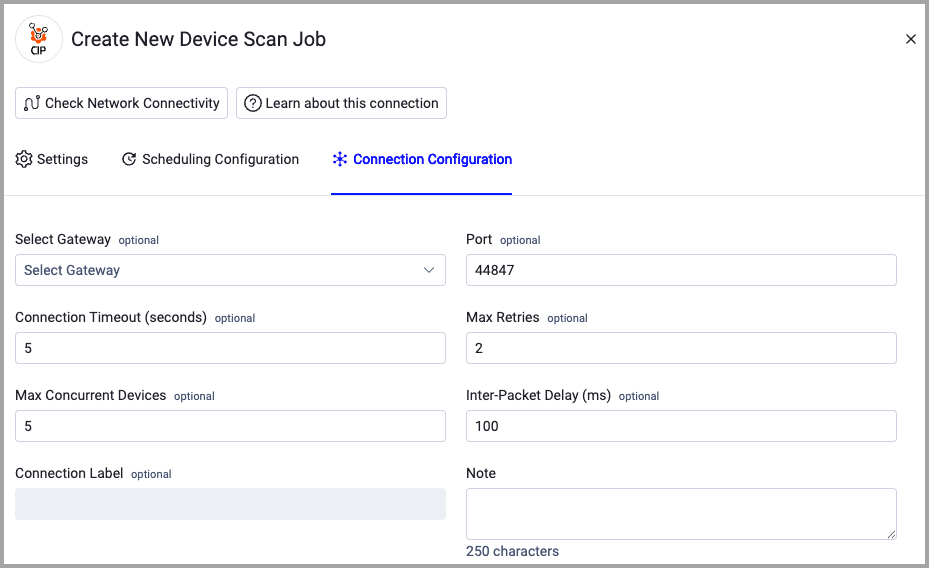
Configure the connection parameters for the scan job. The available connection settings depend on the adapter type selected. Click Check Network Connectivity to test whether the connection is active. Click Learn about this connection for details on configuring an adapter connection.
Editing a Device Scan Job
-
In the Device Intelligence Hub, click the Device Scan Jobs tab.
-
Click a scan job row to open the Edit drawer.
-
Modify the settings on the Settings, Select Schedule, or Connection Configuration tabs as needed.
-
Click Save, Test Run, or Save and Run.
Updated 14 days ago