
Data Scope Settings
Use data scope settings to configure the following:
- Data scope update interval (hours) - Asset scope queries are updated every X hours.
- Update complete history with scope interval - When selected, and the data scope queries have been updated, historical data is re-filtered according to the new query parameters.
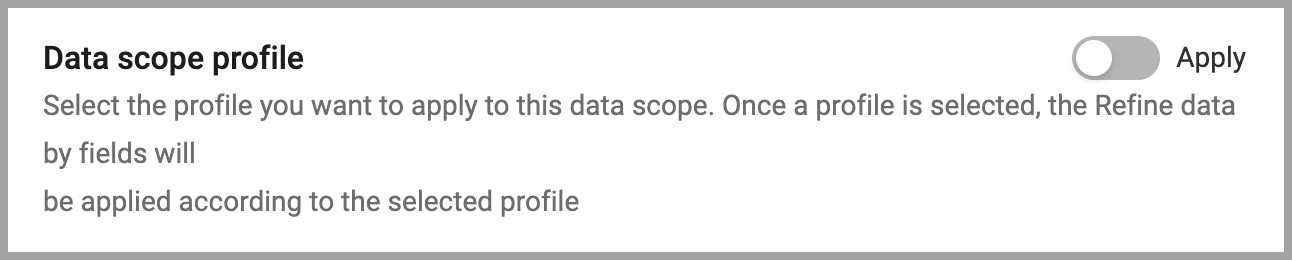
- Enable data scope profiles - When selected, you can apply data scope profiles to data scopes. When data scope profiles are enabled, the "Data scope profile" section is added to the top of the data scope configuration drawer (including existing data scopes).
Note
When a profile is applied to a data scope, profiles cannot be disabled. To disable data scope profiles, first remove all profiles from all data scopes. Then disable them in Data Scope Settings.
To access data scope settings:
-
From the top right corner of any page, click
.png) . The System Settings page opens.
. The System Settings page opens. -
In the Categories/Subcategories pane of the System Settings page, expand User and Role Management, and select Data Scopes.
-
The Data Scopes tab is displayed. Data scope settings are only accessible from the Data Scopes tab.
-
Click Settings.

The Data Scope Settings dialog is displayed.
Updating the Data in a Data Scope
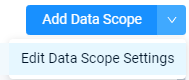
From the Add Data Scope menu, click Edit Data Scope Settings to define the frequency at which the data scope data is updated. These settings apply to all data scopes.
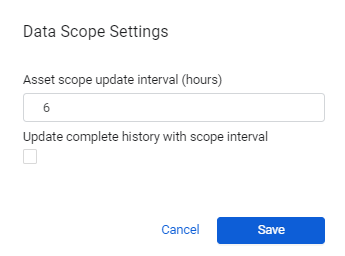
- Set the frequency in hours in which the asset scope query results are updated. The default value is every 6 hours.
- Select Update complete history with scope interval to include historical data in the asset scope, otherwise the relevant roles can see data only from the day the scope was created.
Updated 3 days ago