
Organizing Chats into Folders
Use folders to organize your AI Companion conversations by topic, project, or any grouping that works for your workflow.
The Folders section appears in the chat list sidebar above the Chats section. Each folder displays its name and the number of conversations it contains. Folders can be expanded to show their conversations or collapsed to keep the sidebar tidy.
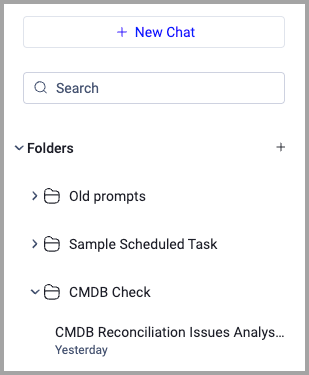
Conversations inside folders support the same management options as conversations in the Chats section — hover over any conversation to access the three-dot menu for renaming, pinning, moving, or deleting. See Managing Chats for details.
Creating a Folder
To create a new folder:
- In the chat list sidebar, locate the Folders section.
- Click the + button next to Folders.
- Enter a name for the folder in the field that appears.
- Press Enter to save.
The new folder appears in the Folders section.
Moving a Chat into a Folder
To move a conversation into a folder, use the three-dot menu on any conversation in the Chats section. For step-by-step instructions, see Managing Chats.
Expanding and Collapsing Folders
To expand a folder and view its conversations, click the folder name. Click the folder name again to collapse it.
Updated 17 days ago