
Setting Up Box Platform to Work with Axonius
Before connecting Box Platform in Axonius, follow these steps:
Create an Application
Note
Only users with a Developer account can create an application.
The values supplied in Client ID and Box Platform private key configuration file refer to the generated Client ID and private key configuration file of your Custom App.
- For details on setting up a Custom App using JWT authentication, see Box Guides - Setup with JWT. The following App Scopes (permissions) are required for creating a Custom App:
- Read and write all files and folders stored in Box
- Manage groups
- Manage enterprise properties
- Manage users
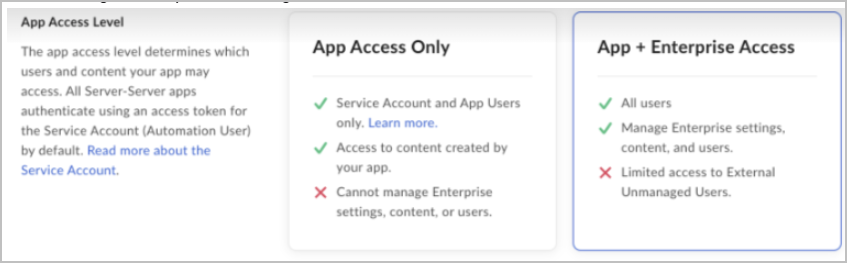
- Select Configuration from the left sidebar in your application, scroll down to App Access Level, and select App + Enterprise Access. This enables your application to access all users and manage enterprise settings, content, and users.
-
Create a configuration file from the Developer Console. This file will include the keypair as well as a number of other application details that are used during authentication.
- Select Configuration from the left sidebar in your application and scroll down to Add and Manage Public Keys.
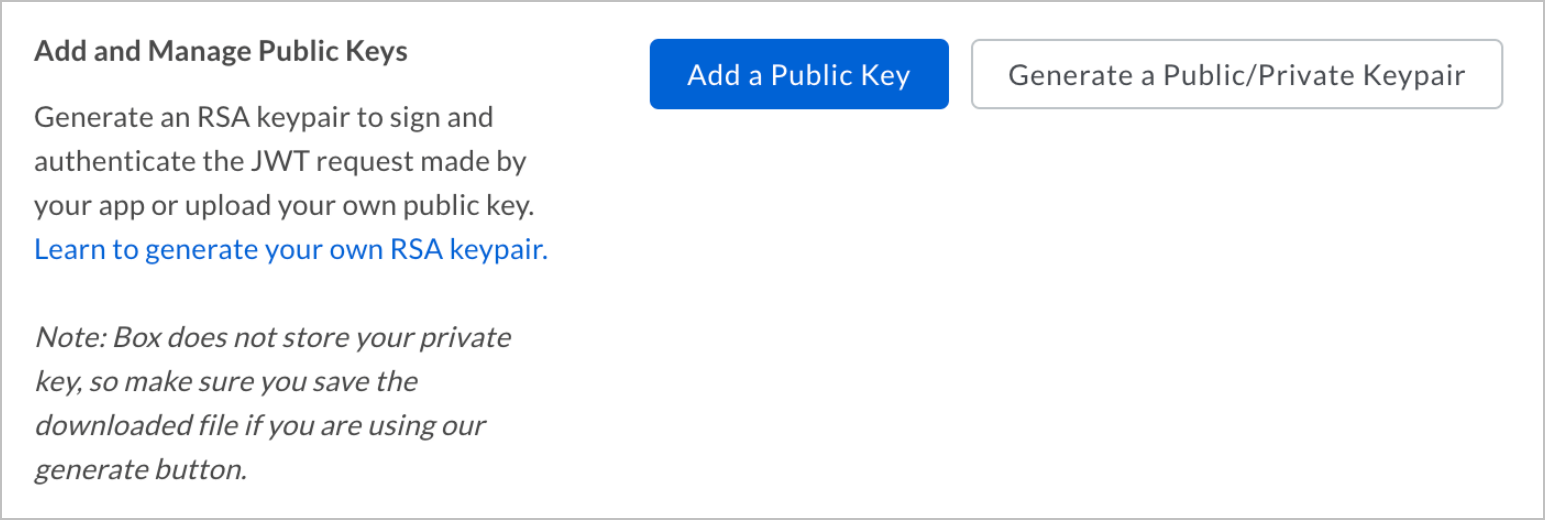
- Click Generate a Public/Private Keypair to have Box generate a keypair. This triggers the download of a JSON configuration file that you can move to your application code.
- Upload this file as the Box Platform private key configuration file.
- Select Configuration from the left sidebar in your application and scroll down to Add and Manage Public Keys.
-
To get the Client ID, log into your Box developer console and select Edit Application for the application you're working with.
-
In the OAuth 2.0 Parameters section of the configuration page, find the item labelled
client_id. The text of that item is your application's Client ID.
Create a User Account
Notes
This step required only to fetch some Application Settings. While to access Application Settings data you need to grant roles and/or permissions that include write capabilities, the adapter only actually reads data from the application.
It is recommended for the username and password to be derived from a newly created user account dedicated for the usage of Axonius SaaS Applications. Retrieve the username and password from that user account.
When single-sign-on is enabled, and direct login flow is disabled, then it is recommended to derive the username and password from a user account maintained by the single-sign-on solution.
-
Log into Box as an administrator and navigate to Admin Console
>Users & Group. -
Click the + User button.
-
Clear Allow this user to sync files between Box and the user's desktop.
-
Click Add User.
-
Look up for the newly created user, click on its options button, and select Change User Settings.
-
Check Exempt this user from maximum allowed devices.
-
Check Exempt this user from 2-step login verification.
-
Check User is granted the following administrative privileges.
-
Clear the following:
- Manage users
- Manage groups
- View users' content
- Edit users' content
- Log in to users' accounts
- Create, edit and delete automations for your company
- Create and edit metadata templates for your company
-
Check the following:
- View settings and apps for your company
- Edit settings and apps for your company
- Run new reports and access existing reports
- View automations set up for your company
-
Click Save.
Updated 20 days ago