
Radware Cloud Services
Radware Cloud Services provides cloud web application and DDoS protection (Cloud Application Protection) and cloud infrastructure protection for network and server assets (Cloud Infrastructure Protection), exposed via a REST API.
Use Cases the Adapter Solves
- Monitor protected network assets: View Cloud Infrastructure Protection network and server assets in Axonius.
- Review application protection posture: Identify application settings that show whether protection features are active, passive, or disabled.
Asset Types Fetched
- Networks
- Application Settings
Data Retrieved through the Adapter
Networks - fields such as: Name, CIDR Blocks, State, Notes
Application Settings - fields such as: Application Deployment Status, Access Control Default Operation, AllowList Protection Status, Vulnerability Protection Status
Before You Begin
Required Ports
TCP port 443 (HTTPS).
Authentication Methods
API key authentication.
Axonius connects to the Radware Cloud Services REST API using an API key, sent as the X-API-KEY request header. The API key is generated in the Radware Cloud Services portal under Accounts > API Keys.
Two separate account context IDs are also required — one for Infrastructure Protection and one for Application Protection — sent as a Context header on each request.
APIs
Axonius uses the Radware Cloud Services REST API. The following endpoints are called:
GET /api/assets- Retrieves Cloud Infrastructure Protection assets.GET /v1/gms/applications- Retrieves Cloud Application Protection applications.GET /v1/gms/applications/{application_id}- Retrieves configuration data for each application.
Required Permissions
Permission Verification: ⚠️ Radware Cloud Services portal documentation requires customer login. Verify the exact permissions name in the documentation.
Required Permissions
The Axonius adapter makes read-only API calls to fetch network assets and application settings. The API key must belong to a user who has the following minimum roles assigned in the Radware Cloud Services portal:
| Module | Read-Only Role Required |
|---|---|
| Infrastructure Protection (network assets) | Basic User |
| Application Protection (application settings) | Basic Users WAF |
Option 1: Administrator Role (Recommended)
Assign the Administrator role. This grants full access to all organization and application configurations, covering both Infrastructure Protection and Application Protection data without requiring multiple role assignments.
Role name: Administrator
Option 2: Minimum Permissions (Custom)
Verify exact roles and names in the documentation.
Assign the following read-only roles to the user:
Basic User— Read-only access to the Infrastructure Protection management portal (required to retrieve network assets).Basic Users WAF— Read-only access to the Application Protection management system (required to retrieve application settings).
Note: Roles are assigned per user in the Radware Cloud Services portal at Account > Users > [user] > Membership. A user can hold multiple roles simultaneously.
Supported From Version
Supported from Axonius version 9.0.7
Connecting the Adapter in Axonius
- Navigate to the Adapter Catalog, search for Radware Cloud Services, and select the adapter.
- Click Add Connection.
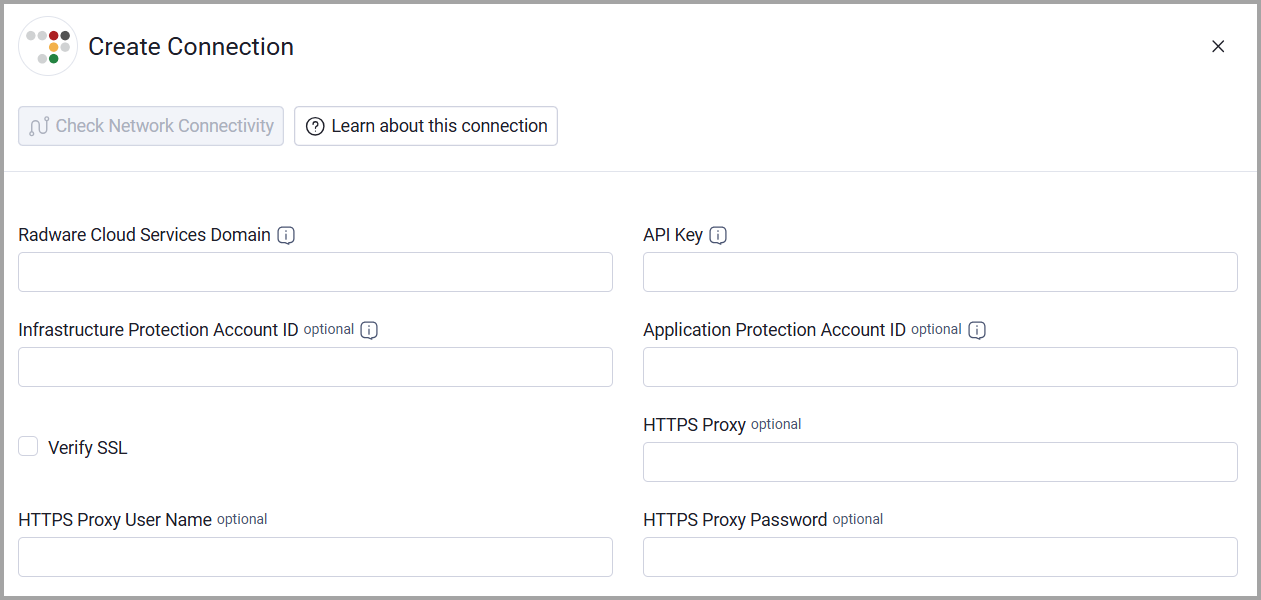
- Provide the following parameters.
Required Parameters
- Radware Cloud Services Domain - The base domain for the Radware Cloud Services REST API. Do not add specific endpoints after the domain. Example: https://api.radwarecloud.app
- API Key - An API key generated in the Cloud Services portal under Accounts > API Keys.
Optional Parameters
- Infrastructure Protection Account ID - The Cloud Infrastructure Protection account ID used to retrieve network and server assets. Leave this empty if the account is not provisioned for Infrastructure Protection.
- Application Protection Account ID - The Cloud Application Protection account ID used to retrieve application settings. Leave this empty if the account is not provisioned for Application Protection.
- Verify SSL - Select whether to verify the SSL certificate of the server against the CA database inside of Axonius. For more details, see SSL Trust & CA Settings.
- HTTPS Proxy - Connect the adapter to a proxy instead of directly connecting it to the domain.
- HTTPS Proxy User Name - The user name to use when connecting to the Radware Cloud Services Domain through the HTTPS Proxy.
- HTTPS Proxy Password - The password to use when connecting to the server using the HTTPS Proxy.
To learn more about common adapter connection parameters and buttons, see Adding a New Adapter Connection.
Updated about 1 month ago