
Deploying the ServiceNow Adapter
To deploy the ServiceNow Adapter, Perform the following steps:
1. Create ServiceNow credentials with the appropriate permissions
Axonius supports two authentication methods for connecting to ServiceNow:
Important: ServiceNow basic authentication restriction. ServiceNow is rolling out a security update (ServiceNow KB3025707) that restricts username/password API access for accounts that can also log in to the ServiceNow UI. After your instance's enforcement date, a non-qualifying account gets HTTP 401 and the adapter stops fetching, even though the credentials still work in the UI.
To keep using Username/Password, the Axonius account must either be set to Web service access only (recommended) or have the
snc_basic_auth_api_accessrole. Alternatively, use OAuth ID/Secret with the client-credentials setup below. It doesn't use basic authentication, so the restriction doesn't affect it. Leave User Name, Password and Refresh Token empty on the Axonius connection (see step 2).To check your instance, go to Basic Auth Restriction → Basic Auth User Exceptions. The enforcement date is in
glide.authenticate.basic_auth.restriction.enforcement_date.
Username/Password
-
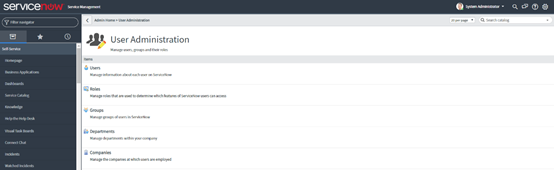
Navigate to User Administration → Users and click New.
- User ID:
axonius_integration - Password: Set a strong password.
- Web service access only: Select this checkbox. The account then works for API access only and can't log in to the UI. ServiceNow requires this (or the role below) for username/password API access.
- User ID:
-
Save the new user, then search for it in the Users list.
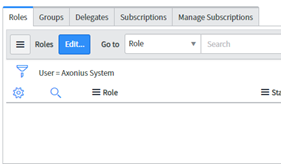
- Click the user record to open it.
- Click Edit in the Roles section to modify the user’s assigned roles.
-
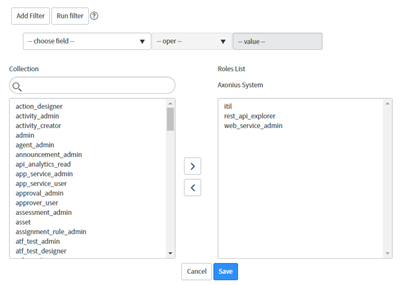
Assign the required roles for Cyber & Software Assets fetching.
- Refer to Required Permissions for the complete list.
- If the account must keep UI login, leave Web service access only cleared and also assign
snc_basic_auth_api_access.
-
Click Save and then Update to apply the changes to the user’s settings.
Existing connections
If an existing Username/Password connection uses an account that isn't Web service access only:
- Open Basic Auth Restriction → Basic Auth User Exceptions in ServiceNow and find the Axonius account.
- Set Decision to Convert to WSAO. Use Maintain current login only if the account needs UI access.
- Optionally, click Execute decision to apply it now.
Accounts recorded during the tracking period keep access by default unless an admin changes the decision. Accounts that weren't recorded, including ones created after enforcement starts, are rejected unless they qualify as described above.
OAuth ID/Secret
1. Create Service Account User
-
Navigate to User Administration → Users and click New.
-
Configure the following fields:
- User ID:
axonius_integration_oauth - First / Last Name: e.g.
Axonius/Integration OAuth - Web service access only: Select this checkbox. The account is used only for API access.
- Identity type (Zurich and later):
Machine - Password: Not needed for client credentials. If your policy requires one, set a strong random password and don't use the account for username/password logins.
- User ID:
-
Click Save
Note: The First Name and Last Name are important as the OAuth Application User field (configured later) only allows selection by name.
2. Create Custom Read-Only Role
- Navigate to User Administration → Roles and click New.
- Configure the following fields:
- Name:
x_axonius_read - Description:
Read-only access for Axonius integration
- Name:
- Click Save.
3. Configure Access Control Lists (ACLs)
- Navigate to System Security → Access Control (ACL).
- For each table listed below, create a record ACL with Operation: read:
sysevent_script_action
sys_email_filter
sys_dictionary
sys_properties
password_policy
syslog_transaction
v_plugins
sys_user- For each ACL record:
- Set Requires role to
x_axonius_read - Set the script to
answer = true; - Click Save.
- Set Requires role to
4. Assign Roles to Service Account
-
Navigate to User Administration → Users.
-
Open the
axonius_integration_oauthuser. -
Under the Roles tab, add:
x_axonius_read- Additional roles required for Assets fetching and Enforcement Actions. Refer to the Required Permissions documentation for the complete list of required roles.
-
Click Save.
5. Create OAuth Application Registry
- Navigate to System OAuth → Application Registry and click New.
- Select Create an OAuth API endpoint for external clients.
- Enable Client Credentials grant type.
- For the Name field, provide:
Axonius - Click Submit (or Save).
- Copy and securely store the Client ID and Client Secret - you'll need these for the Axonius adapter configuration.
6. Configure OAuth Application User Field
After creating the OAuth Application Registry:
- Open the Axonius OAuth application registry record.
- Click the hamburger menu (three horizontal lines) at the top-left → Configure → Form Layout
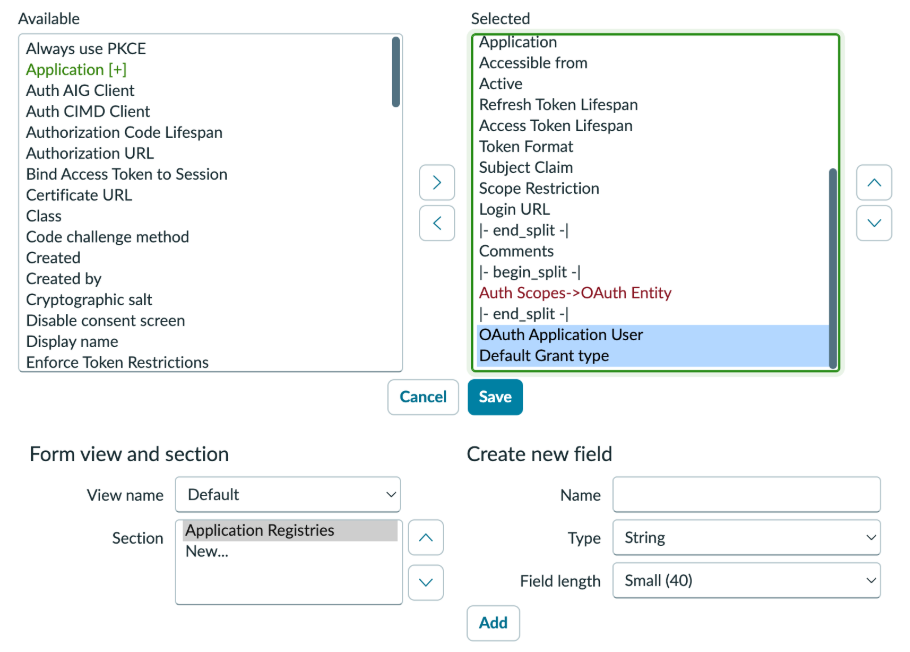
- In the Available column, locate OAuth Application User, and move it to the Selected column..
- Click Save.
- Back on the application registry form, locate the OAuth Application User field.
- Set the field to Axonius Integration OAuth (select the user by name). Identify the user by the First and Last Name you configured when creating a Service Account User.
- Click Update to save the record.
7. Enable OAuth Client Credentials System Property
Navigate to System Properties (search for sys_properties.list in the filter navigator).
-
Search for the property:
glide.oauth.inbound.client.credential.grant_type.enabled -
If the property exists:
- Open it and set Value to
true. - Click Update.
- Open it and set Value to
-
If the property doesn't exist, create it:
- Click New.
- Configure the following fields:
- Name:
glide.oauth.inbound.client.credential.grant_type.enabled - Type:
true | false - Value:
true - Application:
Global
- Name:

-
Click Submit.
8. Verification
To verify the configuration:
- Confirm that the OAuth application registry shows:
- Client ID and Client Secret are generated
- OAuth Application User is set to
Axonius Integration OAuth
- Confirm that the system property
glide.oauth.inbound.client.credential.grant_type.enabledis set totrue. - Confirm that the service account has all required roles assigned.
2. Set up the ServiceNow adapter in Axonius
Create the Adapter connection in Axonius. Based on the authentication method (Username/Password or OAuth ID/Secret), fill out the specific fields, and configure optional settings.
Add a New Connection
-
Navigate to the Adapters page → search for
ServiceNow→ click on the adapter tile.
-
On the top right side, click on Add Connection.
-
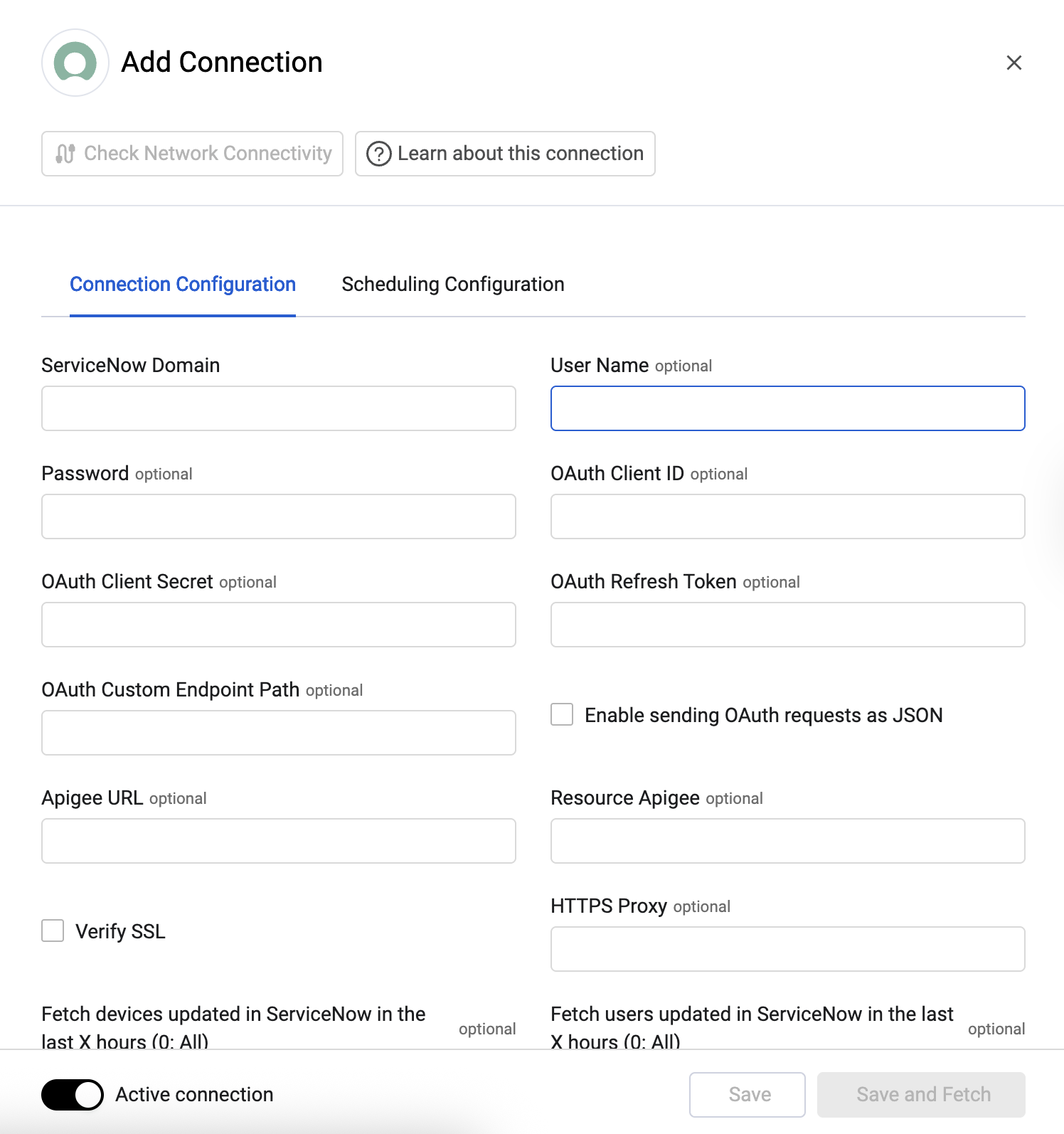
The Add Connection drawer opens.
Required Fields
-
ServiceNow Domain - The hostname or IP address of the ServiceNow server. This field format is
https://[instance].service-now.com. -
Authentication Method
- User Name and Password - The credentials for the account you created in the previous step, or one that has the Required Permissions. The account must be Web service access only or have the
snc_basic_auth_api_accessrole (see the note in step 1).
- Client ID and Client Secret - From the OAuth Application Registry created in step 1. The connection uses the permissions of the registry's OAuth Application User.
- Refresh Token - Leave empty for the client-credentials setup. Use it only if your ServiceNow OAuth endpoint issues refresh tokens and you aren't using client credentials.
- User Name and Password - Leave empty. If set together with the Client ID and Secret, Axonius uses the OAuth password grant instead of client credentials.
- Connection Label - Friendly name for your new adapter connection.
Optional Fields
Expand/Collapse
-
Fetch devices updated in ServiceNow in the last X hours (0: All) (Cyber Assets only, default: 0) - Enter an amount of hours to fetch only devices that were updated in ServiceNow in the last specified number of hours.
-
Fetch users updated in ServiceNow in the last X hours (0: All) (default: 0) - Enter an amount of hours to fetch only users that were updated in ServiceNow in the last specified number of hours.
-
Fetch users created in ServiceNow in the last X hours (0: All) (default: 0) - Enter an amount of hours to fetch only users that were created in ServiceNow in the last specified number of hours.
-
OAuth Custom Endpoint Path - Specify a custom endpoint path to be used instead of the default
oauth_token.do. -
Enable sending OAuth requests as JSON - Enable to to send the request in JSON format instead of the standard
www-form-urlencodedformat. -
Apigee URL - The URL of the domain that the get request is sent to for acquiring the APIgee token.
-
Resource Apigee - The resources you want the APIgee to access.
-
Verify SSL - Select to verify the SSL certificate offered by the value supplied in ServiceNow Domain. For more details, see SSL Trust & CA Settings.
-
HTTPS Proxy - A proxy to use when connecting to the value supplied in ServiceNow Domain.
-
Custom HTTP Headers - Specify custom HTTP headers to add to requests. Each header requires a Key and Value. Optionally, restrict the header to specific HTTP Methods (GET, POST, PUT, PATCH, DELETE) and a URL Pattern (regex matched against the request URL; leave empty to apply to all URLs).
-
Advanced configuration file - Upload an advanced configuration JSON file.
-
Use specific version of API - Select the API version you want to use in the fetch: V1, V2, or latest version. You can also use the Search box that opens to type a different version and click create new to add this option.
-
Enable Client Side Certificate - Select to enable Axonius to send requests using the certificates uploaded to allow Mutual TLS configuration for this adapter. When you select this option, 2 more fields are displayed:
-
Client Certificate File (.pem) - Adds a client side certificate to the connection.
-
Client Private Key File (.pem) - Adds a private key to the connection (if the API/proxy requires identification).
- Click Upload File next to Client Private Key File to upload a client private key file in PEM format
- Click Upload File next to Client Certificate File to upload a public key file in PEM format
Switching an Existing Connection from Username/Password to OAuth
- In ServiceNow, complete OAuth steps 5–8. For OAuth Application User, select the existing integration account (it already has the roles) or create a new one using OAuth steps 1–4.
- In Axonius, edit the connection: enter the Client ID and Client Secret, then clear User Name, Password and Refresh Token. Save and confirm that a fetch completes.
- Update any ServiceNow Enforcement Actions that use their own User Name and Password instead of the adapter's stored credentials.
- In ServiceNow, go to Basic Auth Restriction → Basic Auth User Exceptions and set the old account's decision to Revoke Basic Auth API login.
3. (Optional) Configure Advanced Settings
Refer to ServiceNow Advanced Settings.
Updated 7 days ago