
DocuSign Prerequisites for Fetching SaaS Data
The procedures on this page are required only if you want the DocuSign adapter to retrieve SaaS data. Skip this page if you are not fetching SaaS data.
Create a Permission Profile in DocuSign
Create a custom permission profile in DocuSign to provide the Axonius account with the least privileges permission.
-
From the account admin console in DocuSign, select the Settings tab, and under Users and Groups, select Permission Profiles.
-
Click Add Permission Profile. The Add Permission Profile window is displayed.
-
Enter a name for the permission profile.
-
Under the Admin Permissions tab, click Allow Some and select the following permission levels.
Permission Level of Access Users and Groups View Only Envelope Sharing View & Edit Document Retention View & Edit Account Settings View & Edit Security Settings View & Edit -
Under the Admin Permissions tab, keep all options as defined by default.
-
Click Add.
Exclude your User Account from 2FA
-
Log in with the user account you created for Axonius in DocuSign.
-
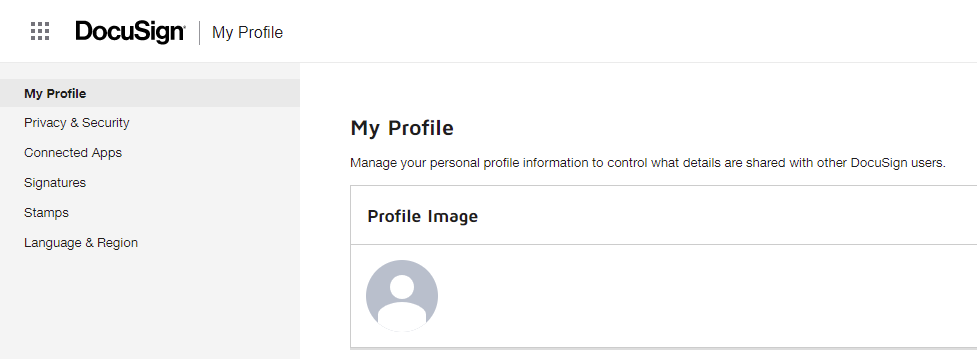
Click the user profile icon (avatar), and then click on Manage Profile.
The My Profile view is displayed.
-
From the left navigation menu, click on the Privacy & Security menu.
-
Under the Sign-In Security section, disable the Passwordless Login and the Two-Step Verification options.
-
Under the Device Security section, disable the New Device Verification option.
-
Make sure no App Password is generated. If such exists, revoke it.
Updated 20 days ago