
Selecting a Table View
A table view determines whether an asset page and its Query Wizard read from live data or from a snapshot of your data that isn't affected by an active Discovery Cycle. Table views are available on every asset type.
Available table views:
- Live Data - The most up-to-date data. When a Discovery Cycle is running, this data may change.
- Latest Snapshot - Stable data that isn't affected by an active Discovery Cycle. Latest Snapshot is updated after every Discovery Cycle, after post-Discovery processes are completed.
- Historical Date - A snapshot taken on an earlier specific date.
When you switch views, the table is reloaded with data from the selected view.
Selecting a Table View on Asset Pages
The table view selection on the asset page may be overridden by the system or user default table view.
To select a table view on an asset page:
- Open any asset page, for example, Devices or Users.
- Click the table view menu above the results table.
- Select one of the following:
- Live Data
- Latest Snapshot
- Historical Date - Then select the specific date you want to view.
The asset page reloads its results based on the selected data view. The Query Wizard runs against whichever table view the page is currently set to. The selected table view is saved per asset type. When a user switches to a different asset type and then returns, the asset page retains the last selected table view.
Live Data View
Live Data view provides the most up-to-date data. Allows both read and write capabilities.
Latest Snapshot View
Lastest Snapshot is a read-only view that queries a point-in-time copy of your data, decoupled from the active Discovery cycle. Rather than running against Live Data (the most up-to-date but fluid version of your system data), the Latest Snapshot view queries a fixed dataset.
Querying a fixed dataset provides:
- Stable results - The data you query is not affected by any ongoing discovery. Whether a discovery cycle starts, runs, or completes while you're working, your query results remain consistent and reliable.
- Significantly faster performance - Because the snapshot is isolated from write operations, read performance is dramatically improved. Queries that previously took time to resolve return much faster.
- A better experience for reporting, integrations, and analysis - Any workflow that relies on querying data — dashboards, exports, API integrations, scheduled reports — benefits immediately from the stability and speed of Latest Snapshot view.
Actions Not Available in Latest Snapshot View
In Latest Shapshot view, actions that require write capability are not available.
Some of these actions are:
- Add tags
- Delete an asset
- Add custom field
- Create a new asset manually
Historical Date View
Axonius saves daily “snapshots” of all the collected data, which you can view for any query in the relevant assets page.
To view device query results for a specific date, click the calendar button or click Display by Date above the query results table. .png)
A date picker control opens, enabling you to select the desired data. By default, the latest day for which data was collected is displayed.
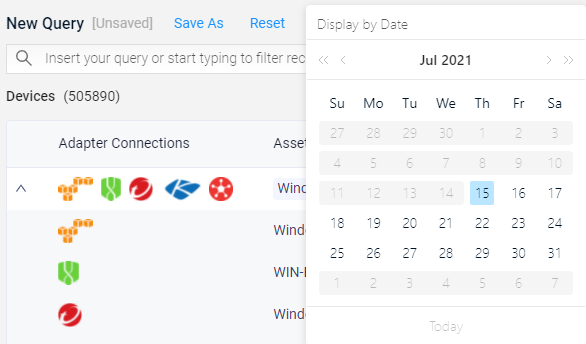
Notice that only dates with collected data are enabled as options for choice.
Any relative dates in the defined query will be applied to the selected 'Display By' date. For example, if you query for data from the 'Previous Month' the page will display data for the previous month from the selected 'Display By' date, even if that was actually many months ago.
To clear the historical view and set back to latest, hover over the displayed date and click on the 'X' next to the displayed date.
Choosing the Right Table View
| Feature | Latest Snapshot View | Live View |
|---|---|---|
| Data stability | Stable, point-in-time | May change during discovery |
| Query performance | Fast | Slower under load |
| Read operations | Supported | Supported |
| Write operations | Not supported | Supported |
As a general guideline, use Latest Snapshot view as your default for querying and data retrieval. Switch to Live View only when you need to perform write operations.
Which View is Displayed?
The table view shown on an asset page depends on how the user got there:
- Viewing an asset page, refreshing the page, or selecting an asset type from the sidebar - The asset page opens with the user's default table view (their personal default if set, otherwise the system default).
- Clicking through from another control (for example, from a chart) to an asset page - The asset page inherits the table view of the control that was clicked, including when that control is set to the Latest Snapshot.
- Opening an Asset Profile Page from an asset table - The Asset Profile Page inherits the table view of the table it was opened from. For example, if the table is set to a Historical Date and a user opens an asset from it, the Asset Profile Page shows the data from that same date.
Setting a System Default Table View
The system default table view is applied for all users who have not selected their own default view in their User Settings. The personal, per-user setting always takes priority over the system-wide default.
- To set a system default table view, see Configuring Table View Settings.
Setting a User Default Table View
You can set your own Default Asset Table View, which overrides the system default for you only. You can temporarily select a different view on an asset page while working. When the page is reloaded or refreshed, the default view is loaded again.
- To set a user default table view, see Account Settings.
Updated about 1 month ago