
Microsoft Windows DNS Server
Microsoft Windows DNS Server is a Windows DNS Server hosting DNS zones and resource records.
Use Cases the Adapter Solves
- Network Service Discovery: Identify all DNS records and zones hosted on Windows DNS servers to gain visibility into network services and name resolution infrastructure.
- DNS Record Inventory: Maintain an inventory of DNS resource records (A, AAAA, CNAME, MX, SRV, etc.) to track hostname-to-IP mappings and service endpoints across your environment.
- DNS Zone Management Visibility: Monitor DNS zones and their configurations to ensure proper DNS infrastructure governance and detect unauthorized or misconfigured DNS entries.
Asset Types Fetched
- Network Services
Data Retrieved through the Adapter
Network Services
- FQDN, Record Type, Record Name, DNS Zone, Record Data, TTL
Before You Begin
Required Ports
- TCP port 5985 (WinRM - Windows Remote Management)
- TCP port 5986 (WinRM over SSL - optional)
Authentication Methods
The adapter authenticates to the Windows DNS Server using WinRM (Windows Remote Management) with Username and Password credentials. The connection executes PowerShell commands remotely to query DNS zone and record information using the Get-DnsServerZone and Get-DnsServerResourceRecord cmdlets.
APIs
Axonius uses PowerShell remoting (WinRM) to execute DNS Server PowerShell cmdlets. The following PowerShell cmdlets are called:
Get-DnsServerZone- Retrieves DNS zones from the serverGet-DnsServerResourceRecord- Retrieves DNS resource records from each zone
Required Permissions
The following permissions are required:
DNS Server Administrator or Read-Only Access
The user account must have sufficient permissions to:
- Read DNS Zones - Ability to execute
Get-DnsServerZoneto retrieve zone information - Read DNS Records - Ability to execute
Get-DnsServerResourceRecordto retrieve DNS resource records
Note: The exact permission names should be confirmed with your Windows DNS administrator or Microsoft documentation. The account typically needs to be a member of the DnsAdmins group or have equivalent read permissions on the DNS Server.
Supported From Version
Supported from Axonius version 9.0.3
Setting Up Microsoft Windows DNS Server to Work with Axonius
- Ensure WinRM is enabled on the Windows DNS Server. You can verify by running
winrm quickconfigon the server. - Configure WinRM for remote access if not already enabled. For HTTPS, use port 5986.
- Create or identify a user account with DNS read permissions (typically a member of the DnsAdmins group or equivalent).
- (Optional) Configure Just Enough Administration (JEA) if you want to restrict the PowerShell session to specific cmdlets. The default configuration is "Microsoft.PowerShell".
- Ensure the Axonius instance can reach the Windows DNS Server on the configured WinRM port (5985 or 5986).
Connecting the Adapter in Axonius
Navigate to the Adapters page, search for Microsoft Windows DNS Server, and click on the adapter tile.
Click Add Connection.
To connect the adapter in Axonius, provide the following parameters:
Required Parameters
- Host Name or IP Address - Hostname or IP address of the Windows DNS server. Example:
dns-server.company.localor10.0.0.5 - User Name - Username for authenticating to the Windows DNS Server via WinRM. Example:
DOMAIN\administrator - Password - Password for the user account.
- Port - Port for the WinRM session. Default:
5985 - Use SSL for WinRM Connection - Select whether to use SSL (HTTPS) for the WinRM connection. Default:
False(uses HTTP on port 5985) - Verify Server Certificate - Select whether to verify the SSL certificate when using SSL connections.
- JEA Configuration Name - Name of the Just Enough Administration (JEA) configuration to use. Default:
Microsoft.PowerShell - Connection Timeout - Timeout for the WinRM connection in seconds. Default:
60 - Read Timeout - Timeout for reading data from WinRM in seconds. Default:
30 - Operation Timeout - Timeout for each WinRM operation in seconds. Must be smaller than the read timeout. Default:
20
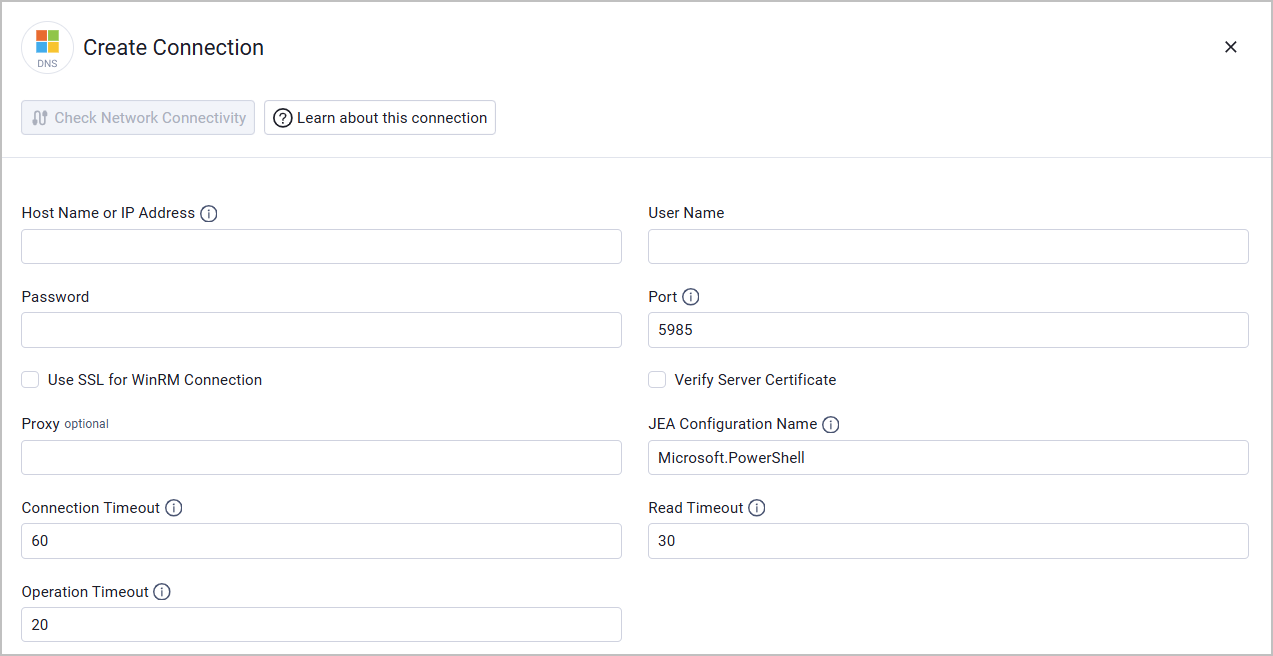
Optional Parameters
- Proxy - Connect the adapter to a proxy instead of directly connecting to the Windows DNS Server.
To learn more about common adapter connection parameters and buttons, see Adding a New Adapter Connection.
Advanced Settings
Note
Advanced settings can either apply to all connections for this adapter, or to a specific connection. Refer to Advanced Configuration for Adapters.
To learn more about Adapter Configuration tab advanced settings, see Adapter Advanced Settings.
Endpoints Config
- Fetch Record Types - Specify which DNS record types to fetch from the Windows DNS Server. By default, all supported record types are fetched.
Updated 21 days ago