
AudioCodes OVOC
AudioCodes OVOC (One Voice Operations Center) is a web-based voice network management solution that provides centralized lifecycle control of VoIP devices and quality of experience monitoring across deployments. The Axonius AudioCodes OVOC adapter integrates with the OVOC Northbound Interface (NBIF) to fetch device inventory and interface information from Session Border Controllers (SBCs) and gateways.
Use Cases the Adapter Solves
- VoIP Device Inventory: Discover and monitor Session Border Controllers (SBCs), media gateways, and other VoIP infrastructure devices managed by AudioCodes OVOC.
- Centralized Device Management: Collect device information including serial numbers, IP addresses, product types, software versions, and regional deployment data from your voice network.
Asset Types Fetched
- Devices
Data Retrieved through the Adapter
Devices - Fields such as Gateway Name (Hostname), FQDN, Device Serial Number, Second Serial Number
Before You Begin
Required Ports
- TCP port 443 (HTTPS)/ TCP port 80 (HTTP, if using unencrypted connections)
Authentication Methods
The AudioCodes OVOC adapter uses HTTP Basic Authentication (Username/Password credentials) to connect to the OVOC Northbound Interface.
APIs
Axonius uses the AudioCodes OVOC Northbound Interface (NBIF) v8.0+. The following endpoint is called:
GET /NBIF/Topology.csv
Required Permissions
The OVOC user account used for authentication must have:
- Read-only access to the NBIF folder (Northbound Interface File-system directory)
- HTTP Basic Authentication credentials configured within the OVOC server
Note: The NBIF directory is protected by HTTP authentication at the file-system level, existing "outside" the typical OVOC GUI role-based permission structure. A dedicated service account with minimal permissions is recommended.
Recommended Setup: Use the default built-in NBIF user account and change its credentials through OVOC Server Manager. This account does not require administrative privileges or specific RBAC roles within OVOC.
Supported From Version
Supported from Axonius version 8.0.22
Setting Up OVOC to Work with Axonius
Step 1: Access OVOC Server Manager
NBIF (Northbound Interface) authentication is managed at the server level, not through the OVOC GUI user management.
- Log in to OVOC Server Manager (not the OVOC web GUI)
- Access the Security Settings section
- Navigate to HTTP Security options
Step 2: Change NBIF Default Credentials
AudioCodes OVOC includes a default built-in NBIF user account: with default credentials. Change the default NBIF credentials.
To change the NBIF credentials:
- In OVOC Server Manager, select option "Change HTTP/S Authentication Password for NBIF Directory".
- Enter a new secure username (e.g.,
axonius-nbif). - Enter a new secure password (use a complex, strong password).
- Save the changes.
Note: The NBIF user is a special system-level account managed through Server Manager, NOT through the OVOC GUI User Management interface.
Step 3: Verify NBIF Directory Access
- Verify that NBIF is enabled in OVOC server configuration. The NBIF directory will be accessible at:
https://<ovoc-domain>/NBIF/ - Test access using your newly configured NBIF credentials
Step 4: Verify Topology.csv Availability
- Access
https://<ovoc-domain>/NBIF/Topology.csvin a browser or API client - Authenticate with the new NBIF credentials you created in Step 2
- Verify the CSV file is accessible and contains device topology data
Step 5: Test API Access with curl
Use curl to verify connectivity:
bash
curl -u new-nbif-username:new-nbif-password https://ovoc-domain/NBIF/Topology.csv
Step 6: Document Your NBIF Credentials
Securely store the NBIF username and password you created in Step 2. You will need these credentials when configuring the Axonius adapter connection.
Connecting the Adapter in Axonius
Navigate to the Adapters page, search for AudioCodes OVOC, and click on the adapter tile.
Click Add Connection.
To connect the adapter in Axonius, provide the following parameters:
Required Parameters
- OVOC Domain - The base URL of your AudioCodes OVOC instance (e.g.,
https://ovoc.example.com). Note: Must use HTTPS for production environments. - Username - The username of the service account with NBIF access.
- Password - The password for the service account.
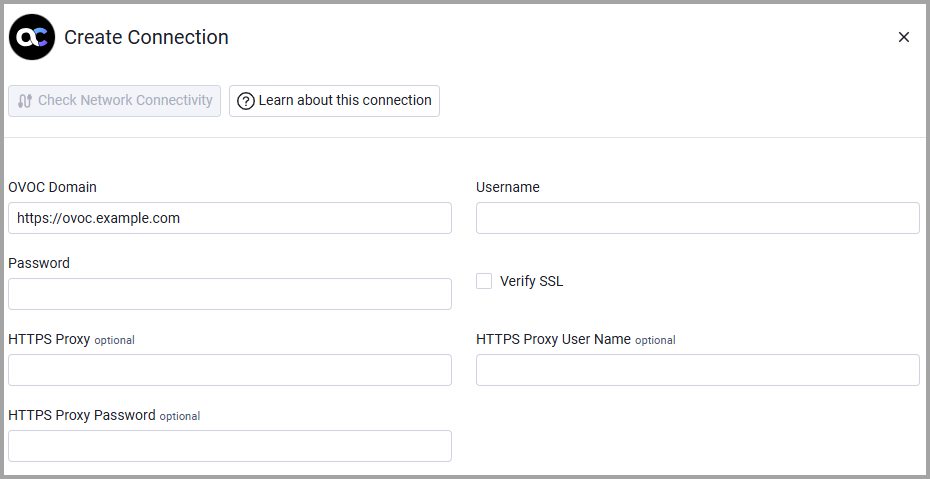
Optional Parameters
- Verify SSL - Select whether to verify the SSL certificate. For more details, see SSL Trust & CA Settings .
- HTTPS Proxy - Connect the adapter through a proxy instead of directly connecting to OVOC.
- HTTPS Proxy User Name - The user name to use when connecting via the HTTPS Proxy.
- HTTPS Proxy Password - The password to use when connecting via the HTTPS Proxy.
To learn more about common adapter connection parameters and buttons, see Adding a New Adapter Connection.
Version Matrix
This adapter was only tested with the versions marked as supported, but may work with other versions. Contact Axonius Support if you have a version that is not listed, which is not functioning as expected.
| Version | Supported | Notes |
|---|---|---|
| AudioCodes OVOC version 8.0+ | Yes |
Updated 9 days ago