
Red Hat Ansible Tower - Launch Job Template
Red Hat Ansible Tower - Launch Job Template launches an existing Job Template, Workflow Job Template, or System Job Template in Ansible Tower, for:
- Assets returned by the selected query or assets selected on the relevant asset page.
This enforcement action launches the specified Ansible Tower template and passes per-device Axonius field values as extra_vars in the launch payload, allowing the playbook to access asset-specific data.
See Creating Enforcement Sets to learn more about adding Enforcement Actions to Enforcement Sets.
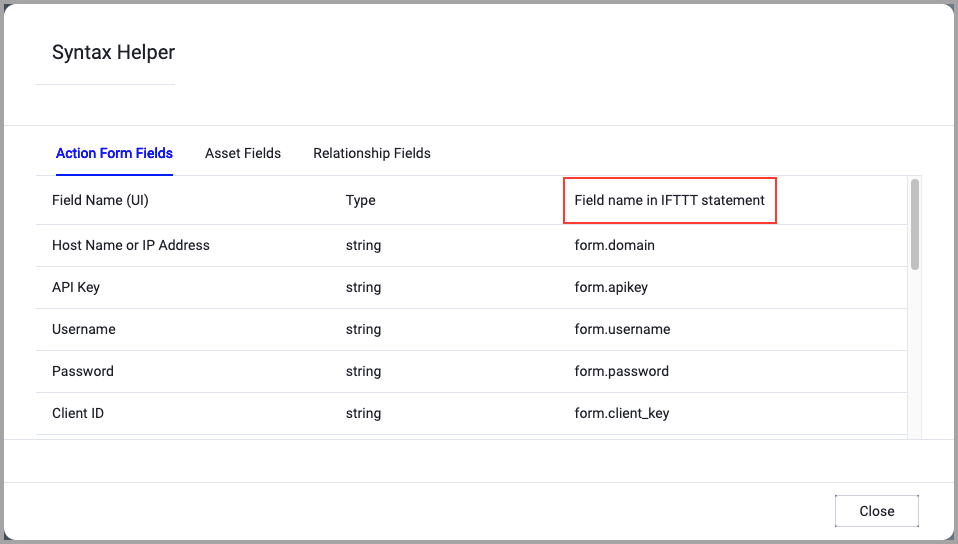
When accessing an enforcement action using the API, you must use the backend form of field names.
Use the Syntax Helper to find the correct name. In the enforcement action, enable Configure Dynamic Values and select Syntax Helper.
Note
- Not all asset types are supported for all Enforcement Actions.
- See Actions supported for Activity Logs, Adapters Fetch History, and Asset Investigation modules.
- See Actions supported for Aggregated Security Findings.
- See Actions supported for Software.
Required Fields
These fields must be configured to run the Enforcement Action.
- Action name - The name of this Enforcement Action. The system sets a default name. You can change the name.
- Configure Dynamic Values (optional) - Toggle on to enter a Dynamic Value statement. See Creating Enforcement Action Dynamic Value Statements to learn more about Dynamic Value statement syntax.
-
Use stored credentials from the Red Hat Ansible Tower adapter - Select this option to use credentials from the adapter connection. By default, the first connection is selected.
-
When you select this option, the Select Adapter Connection drop-down becomes available. Select the adapter connection to use for this Enforcement Action.
- Note: The Red Hat Ansible Tower adapter must be configured with a successful connection before using this enforcement action.
-
-
Template Type - Select the type of template to launch:
Job Template,Workflow Job Template, orSystem Job Template. This determines which endpoint is used when launching the template. -
Template ID - The numeric ID of the existing template in Ansible Tower. This is the unique identifier for the template you want to launch.
-
Extra Variables Field Mapping (Optional) - Map Axonius device fields to
extra_varskeys. Each mapped field value is included in the launch payload, allowing the playbook to access device-specific information. For example, mapansible_tower_adapter:hostnametotarget_hostto pass the device hostname to the playbook. -
Compute Node - The Axonius node to use when connecting to the specified host. For more details, see Working with Axonius Compute Nodes.
Additional Fields
These fields are optional.
- Domain - Ansible Tower domain URL.
- User Name - Ansible Tower username.
- Password - Ansible Tower password.
- API Token - API token for authentication.
Connection Settings
To successfully execute this enforcement action, the following connection parameters are required:
- Host Name or IP Address - The Ansible Tower domain or IP address (e.g.,
https://ansible.example.com). - Authentication credentials - Either username/password combination or API Token.
-
Verify SSL (Optional) (default: enabled) - Selects whether to verify the SSL certificate of the server against the CA database inside of Axonius. For more details, see SSL Trust & CA Settings. This setting is enabled by default on all new adapter settings. If you need to disable SSL verification, make sure you disable this setting.)
-
HTTPS Proxy (optional) - Connect the adapter to a proxy instead of directly connecting it to the domain.
-
HTTPS Proxy User Name (optional) - The user name to use when connecting to the server using the HTTPS Proxy.
-
HTTPS Proxy Password (optional) - The password to use when connecting to the server using the HTTPS Proxy.
-
Gateway Name - Select the Gateway through which to connect to perform the action.
APIs
Axonius uses the Red Hat Ansible Automation Platform API - POST /api/v2/job_templates/{id}/launch/ or POST /api/controller/v2/job_templates/{id}/launch/
The endpoint varies based on your Ansible Tower version (legacy vs. 2.5+).
Required Ports
Axonius must be able to communicate via the following ports:
- TCP port 80 (HTTP)
- TCP port 443 (HTTPS)
Required Permissions
The stored credentials, or those provided in Connection and Credentials, must have the following permission(s) to perform this Enforcement Action:
- Ansible Tower user must have permission to launch templates.
- Organization access: User must have access to the organization containing the template.
Updated 5 months ago