
Blancco Management Portal
Blancco Management Portal is a data erasure management platform that provides centralized visibility, certified audit reporting, and device lifecycle tracking for enterprise IT decommissioning workflows.
Use Cases the Adapter Solves
- Track Device Erasure Status: Monitor which devices have been securely erased and verify compliance with data sanitization policies.
- Audit Data Destruction: Access certified erasure reports and timestamps to demonstrate compliance with data protection regulations like GDPR, HIPAA, and DoD standards.
Asset Types Fetched
- Devices
Data Retrieved through the Adapter
Devices - fields such as: Device Serial, Device Model, Erasure State, Erasure Standard
Before You Begin
Required Ports
- TCP port 443 (HTTPS)
Authentication Methods
API Key Authentication - The adapter authenticates using an API key passed in the X-BLANCCO-API-KEY HTTP header. You need to generate an API key from the Blancco Management Portal admin console.
APIs
Axonius uses the Blancco Management Portal API. The following endpoints are called:
POST /v1/reports/export- Retrieves erasure reports with device and erasure information
Required Permissions
The API Key must have permissions to access report export endpoints.
Note: The exact permission names should be confirmed with your Blancco administrator or Blancco support, as the API documentation is not publicly available.
Supported From Version
Supported from Axonius version 9.0.4
Connecting the Adapter in Axonius
- Navigate to the Adapter Catalog, search for Blancco Management Portal, and select the adapter.
- Click Add Connection.
- Provide the following parameters.
Required Parameters
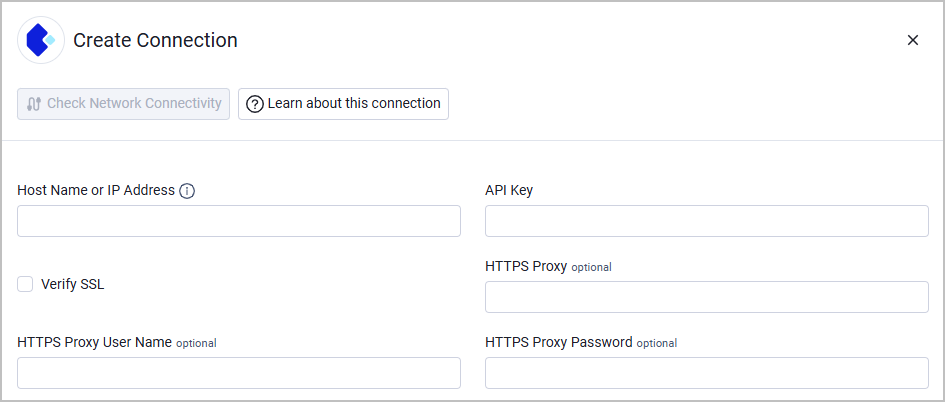
- Host Name or IP Address - Base domain for the API, should contain a prefix of http:// or https://. Do not add any specific endpoints after the domain. Example:
https://api.eu-west-1.blancco.cloud - API Key - The API key generated from Blancco Management Portal.
Optional Parameters
- Verify SSL - Select whether to verify the SSL certificate of the server against the CA database inside of Axonius. For more details, see SSL Trust & CA Settings.
- HTTPS Proxy - Connect the adapter to a proxy instead of directly connecting it to the domain.
- HTTPS Proxy User Name - The user name to use when connecting to the value supplied in Host Name or IP Address via the value supplied in HTTPS Proxy.
- HTTPS Proxy Password - The password to use when connecting to the server using the HTTPS Proxy.
To learn more about common adapter connection parameters and buttons, see Adding a New Adapter Connection.
Updated 2 months ago